
How to Draw Fibonacci Retracements in MT4 (Windows)
How to Draw Fibonacci Retracements
To draw Fibonacci Retracements, switch the cursor to Fibonacci Retracement mode. There are two ways to switch:
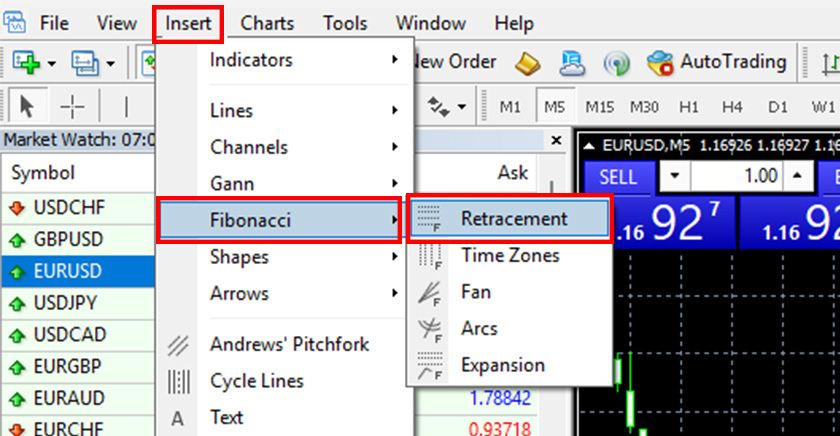
Method 1
Select "Insert" → "Channels" → "Fibonacci" from the menu.
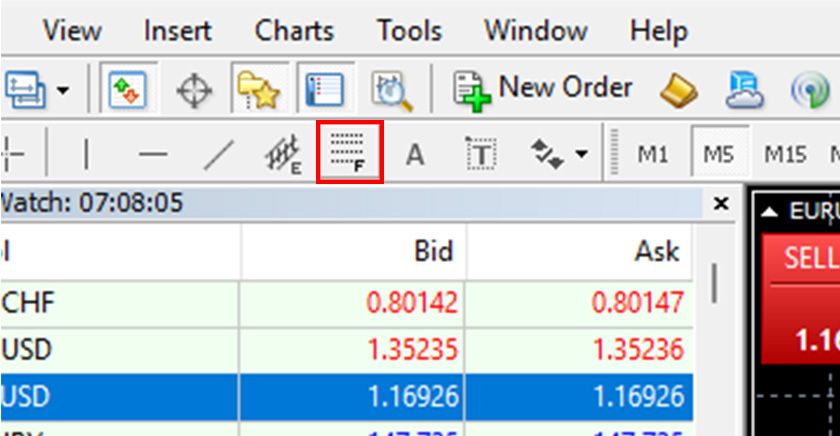
Method 2
Click the Fibonacci Retracement icon in the toolbar.
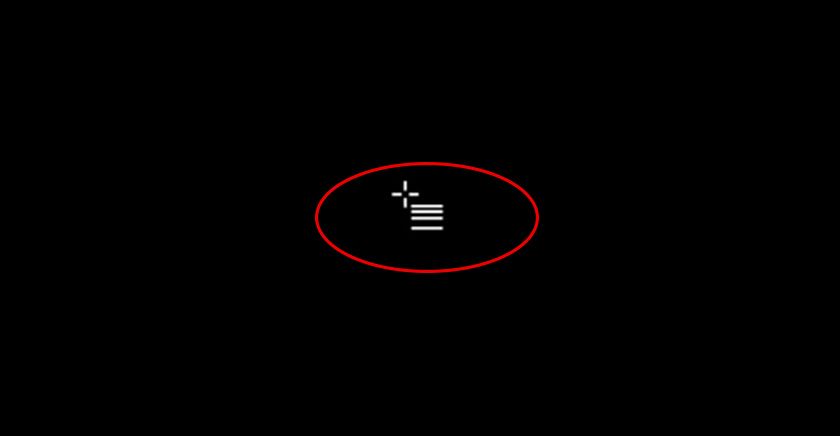
Once in Fibonacci Retracement mode, the cursor will change on the chart.
To draw a Fibonacci Retracement, align the cursor with the starting point (100%) at the high or low, then drag to the next low or high while holding down the mouse button.
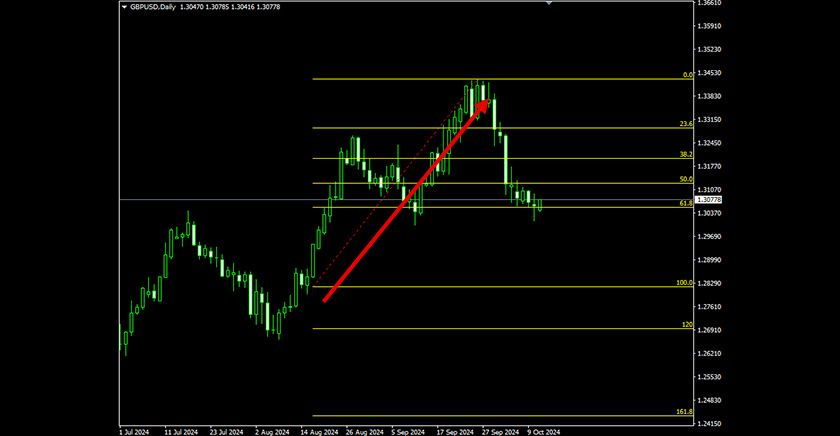
Modifying and Moving Fibonacci Retracements
Double-click on the baseline of the drawn Fibonacci Retracement (red dashed line by default) to select it. Drag and drop the start or end point to adjust, or drag the middle to move the entire retracement.
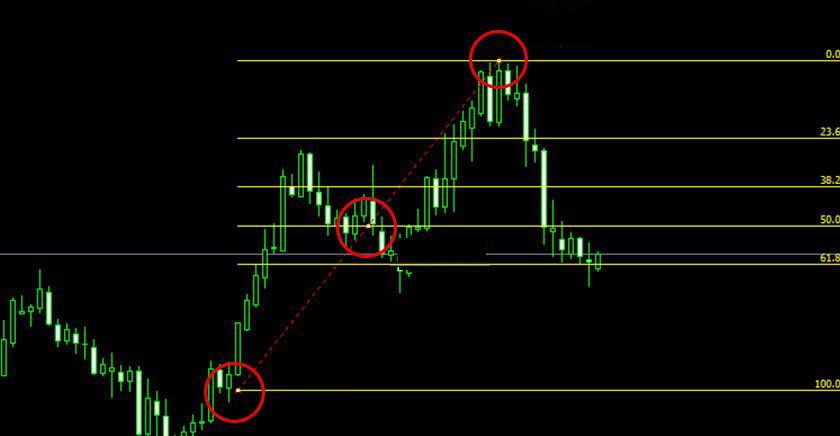
Detailed Settings in the Line Properties Window
Right-click on the selected Fibonacci Retracement baseline and choose "Fibo Properties" from the menu to open the line properties window.
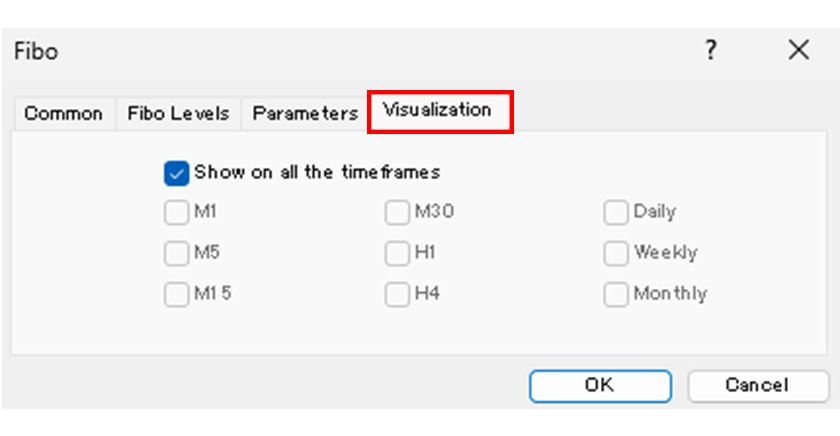
The window includes four tabs: "Common," "Fibonacci Levels," "Parameters," and "Visualization," where detailed settings can be configured.

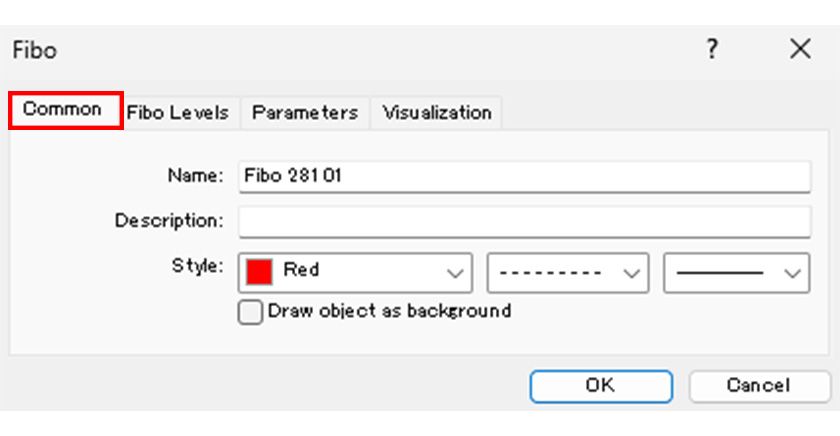
"Common" Tab
In the "Common" tab, you can specify the line name, description, baseline color, thickness, and type.
You can also choose whether to display the line in the background.
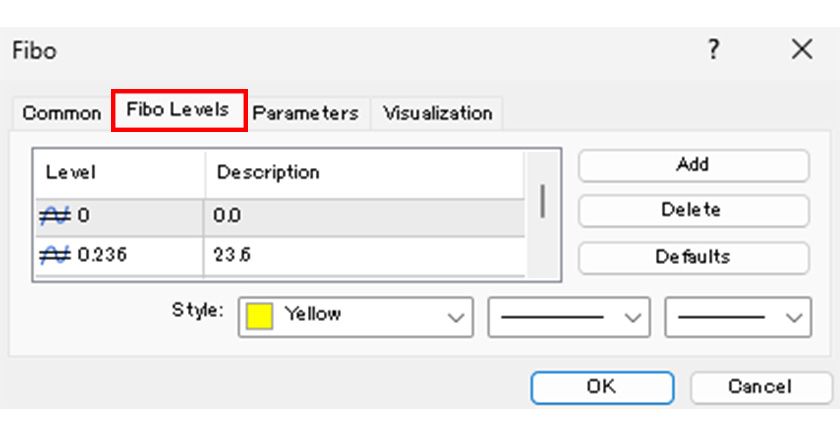
"Fibonacci Levels" Tab
In the "Fibonacci Levels" tab, you can configure the horizontal line levels to be drawn.
In the "Level Settings" column, set each level's percentage, and in the "Description" column, add text to be displayed with the line.
You can add or delete levels using the buttons on the right. The "Default" button resets to the original default settings.
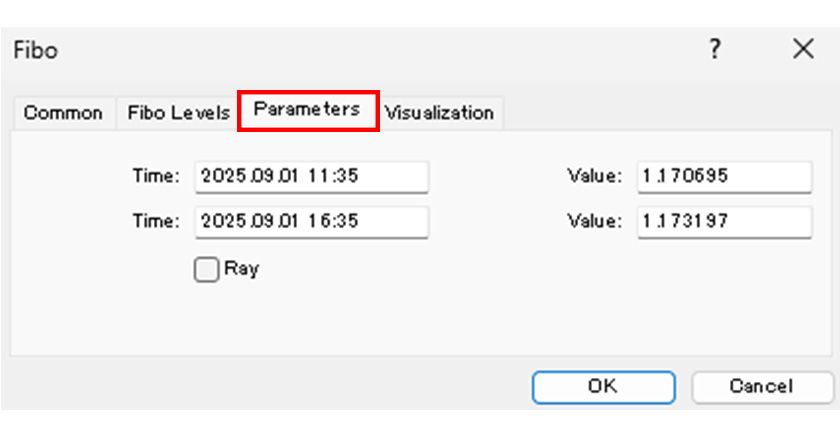
"Parameters" Tab
In the "Parameters" tab, you can precisely specify the start and end points of the baseline using time and price values.
"Visualization" Tab
In the "Visualization" tab, you can specify the timeframes where the Fibonacci Retracement is displayed. Unchecking "Show on All Timeframes" allows you to display it only on selected timeframes.