How to use MT5/MT4
The entities below are duly authorised to operate under the Titan FX brand and trademarks. Titan FX Limited (reg. No. 40313) regulated by the Vanuatu Financial Services Commission with its registered office at 1st Floor Govant Building, 1276 Kumul Highway, Port Vila, Republic of Vanuatu. Goliath Trading Limited (licence no. SD138) regulated by the Financial Services Authority of Seychelles with its registered address at IMAD Complex, Office 12, 3rd Floor, Ile Du Port, Mahe, Seychelles. Titan Markets (licence no. GB20026097) regulated by the Financial Services Commission of Mauritius with its registered office at c/o Credentia International Management Ltd, The Cyberati Lounge, Ground Floor, The Catalyst, Silicon Avenue, 40 Cybercity, 72201 Ebene, Republic of Mauritius. Atlantic Markets Limited (registration no.2080481) regulated by the Financial Services Commission of the British Virgin Islands with its registered address at Trinity Chambers, PO Box 4301, Road Town, Tortola, British Virgin Islands. The Head Office of Titan FX is at Pot 564/100, Rue De Paris, Pot 5641, Centre Ville, Port Vila, Vanuatu. The Titan FX Research Hub purpose is to provide solely informational and educational content to its users, and not investment, legal, financial, tax or any type of personalised advice. Opinions, forecasts, and any other information contained in this website do not constitute recommendations or solicitation to buy or sell financial instruments. Trading leveraged products like CFDs carries high risk and may not suit all investors. Users should conduct independent research or consult qualified professionals before making any trading decisions. While efforts are made to provide accurate information, no warranty is given for the completeness or suitability of the information contained in this website. Reliance on this content is at your own risk and Titan FX accepts no liability for loss or damage. This information is for residents of jurisdictions where Titan FX transactions are permitted.
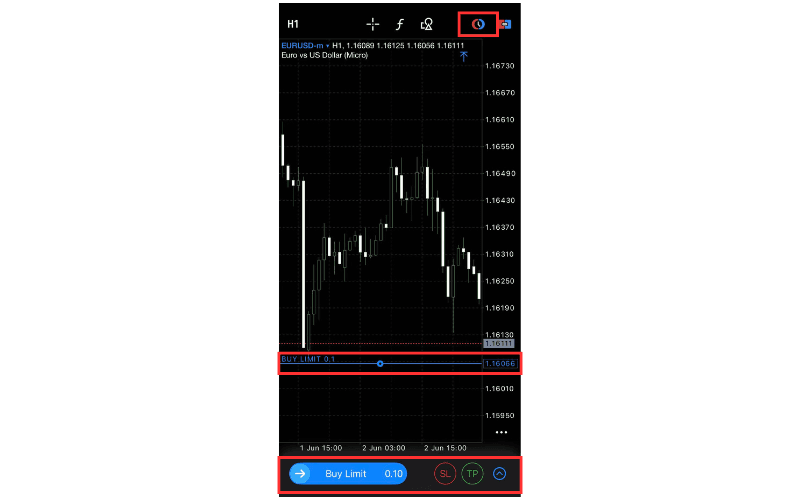
Tap the limit order icon in the upper right of the chart to display order levels, 'BUY LIMIT', 'SL', 'TP', and an arrow button on the chart.

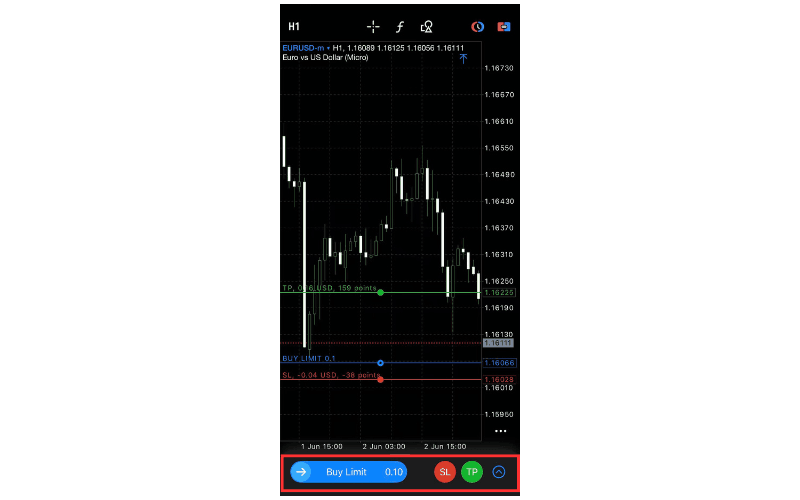
Slide the order level line to the desired level, tap 'BUY LIMIT' to specify the type of order, and you can also set the levels for associated limit and stop orders by tapping 'SL' or 'TP'. Once settings are complete, click the arrow.

You will transition to the order screen where you confirm the details, make any necessary adjustments, and then tap 'Place Order' to send the order.

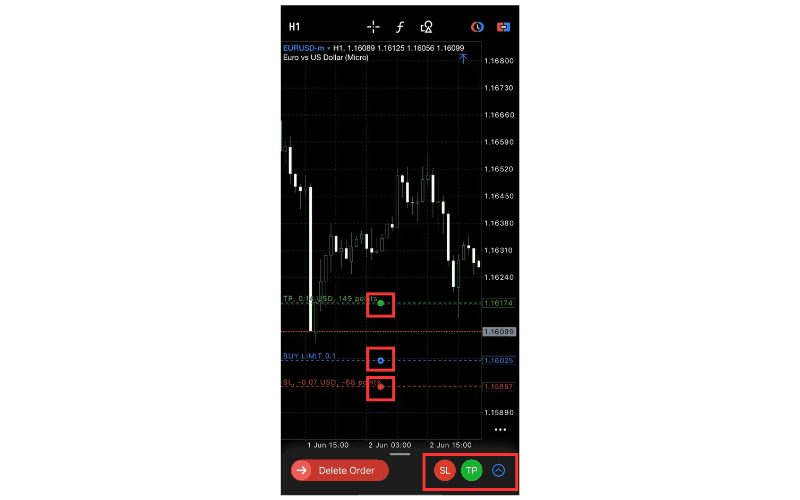
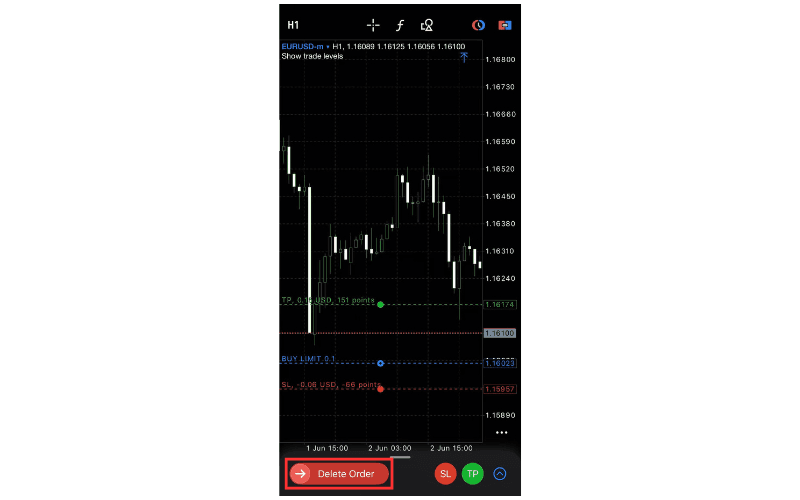
Tap the order level line on the chart, slide it to adjust the order and its settlement orders levels. This remains unconfirmed until finalized. 'SL' and 'TP' buttons allow you to add or remove settlement orders. After specifying changes, tap the arrow to move to the order change screen.

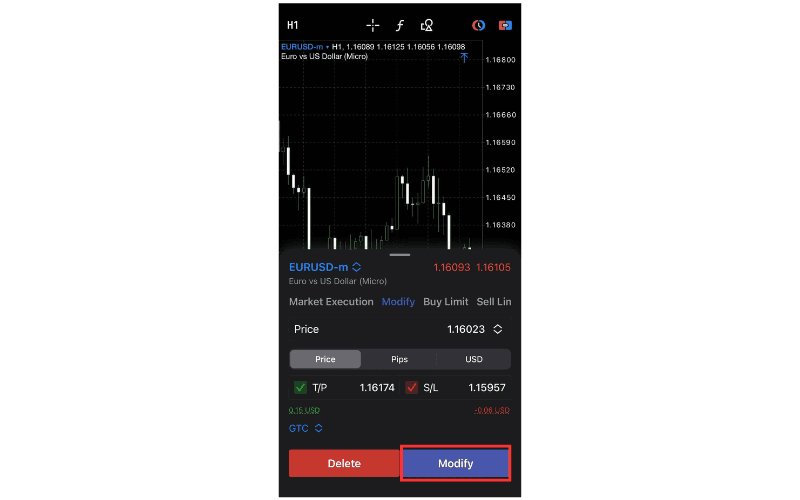
In the order change screen, verify the changes, make corrections if necessary, and tap 'Modify' to send the order modification information. Tapping 'Delete' will cancel the order.

Tap the 'Delete' button that appears when you tap the order level line on the chart. A confirmation screen will appear, and tapping 'Delete' will cancel the order.