 Home
Home- Support (Account Opening / Deposit / KYC / Withdrawal)
- Titan FX Credit Card Deposit Guide (For Taiwan Residents)
Titan FX Credit Card Deposit Guide (For Taiwan Residents)
Step-by-Step Guide to Depositing Funds via Credit Card on Titan FX
Titan FX allows traders to deposit funds via credit card without any fees, and deposits are processed instantly.
Before Depositing, Please Note:
1.First-time deposits require a credit card to be registered.
2.It is recommended to use Visa or MasterCard for smooth transactions.
Step 1: Log In to the Client Portal
Open your browser and visit the Titan FX Official Client Portal.
Enter your registered email address and password to log in.
Access the Titan FX Client Portal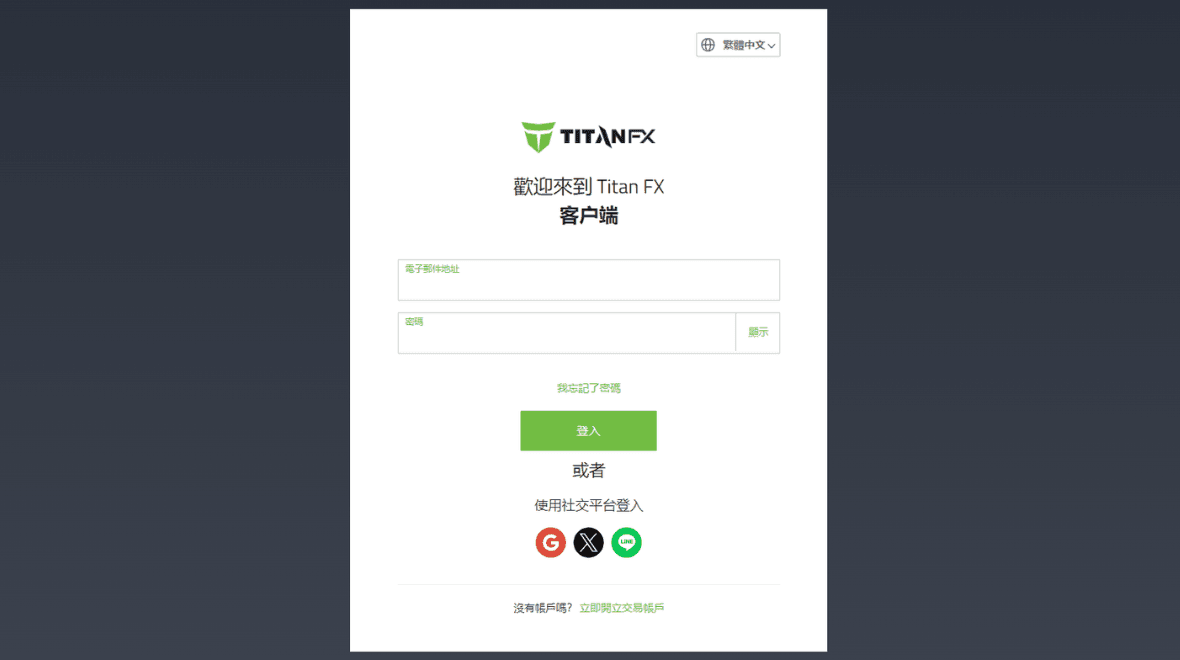
Step 2: Register Your Credit Card
※ If your credit card is already registered, you can proceed directly to Step 3.
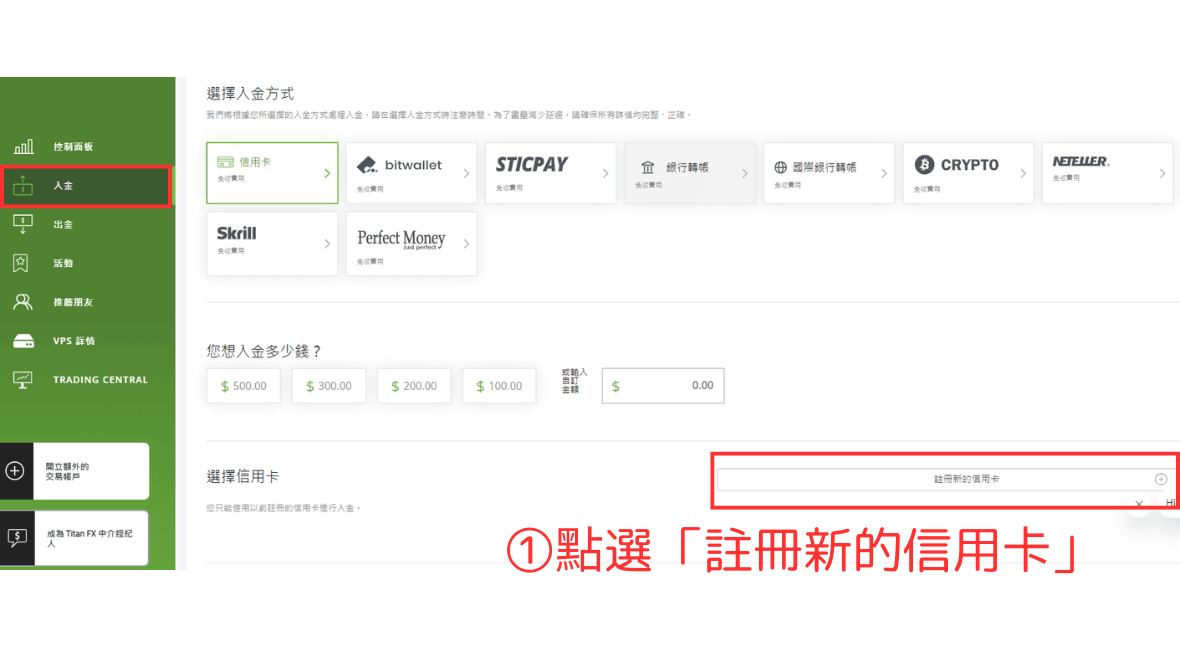
① Click “Register a New Credit Card”
Select “Deposit Funds” from the left menu, then choose “Register a New Credit Card.”
② Enter Credit Card Details
Provide the following details: issuing country, card expiry date, and card number.
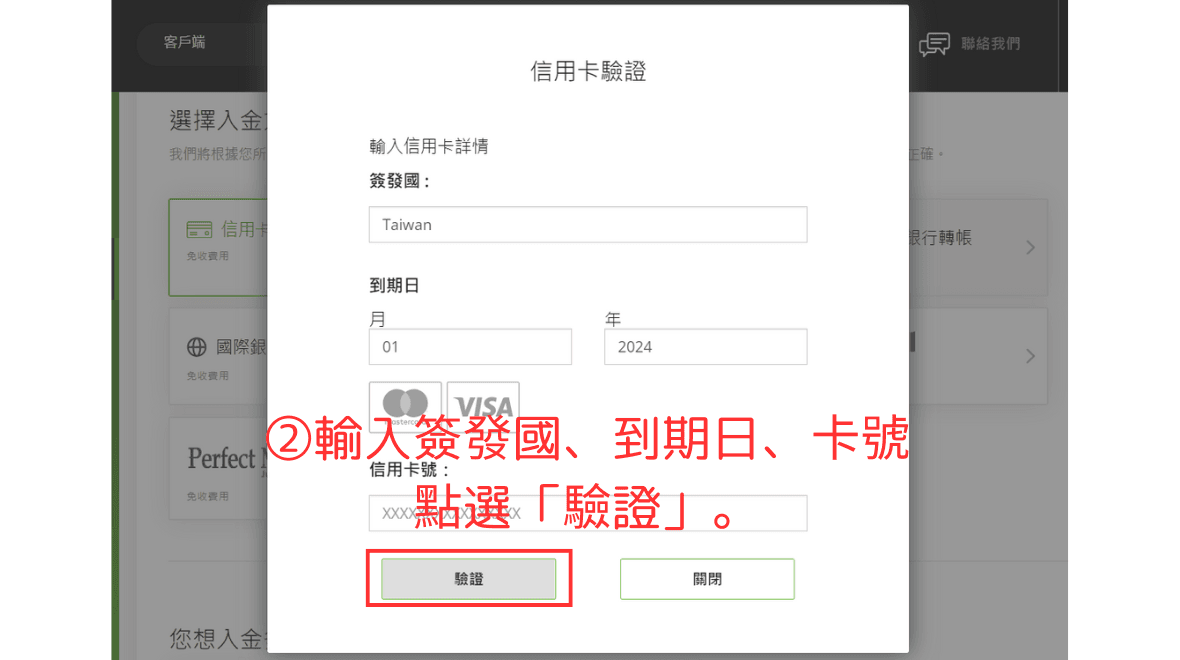
After successful registration, the following interface will appear:
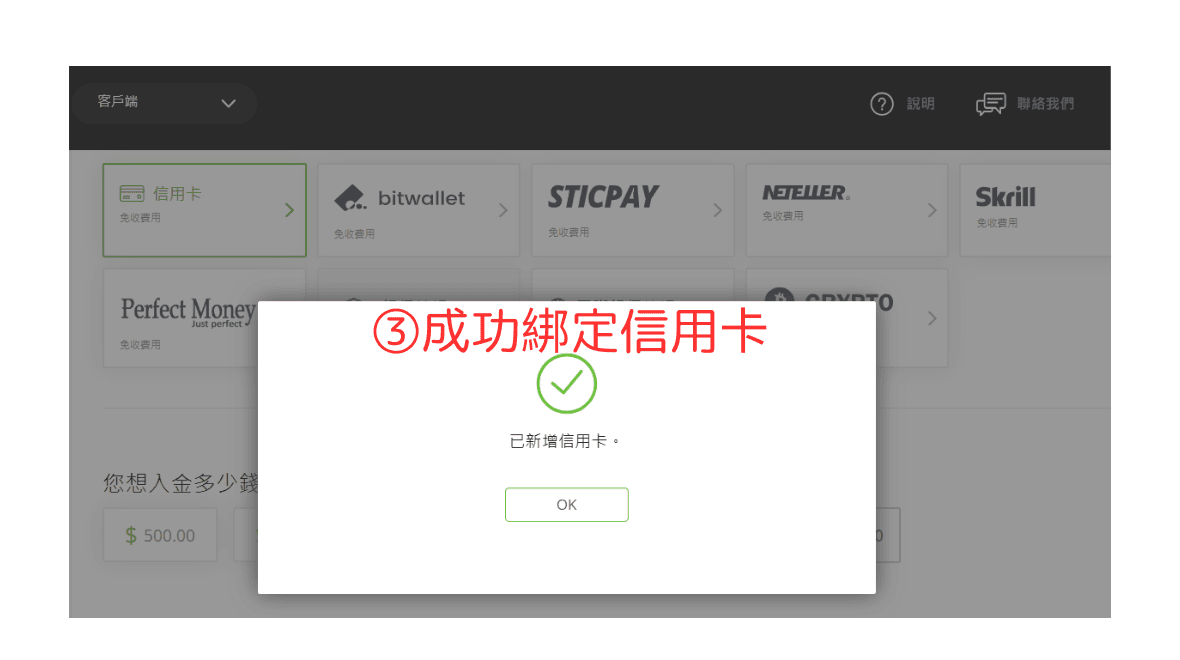
Step 3: Deposit Funds
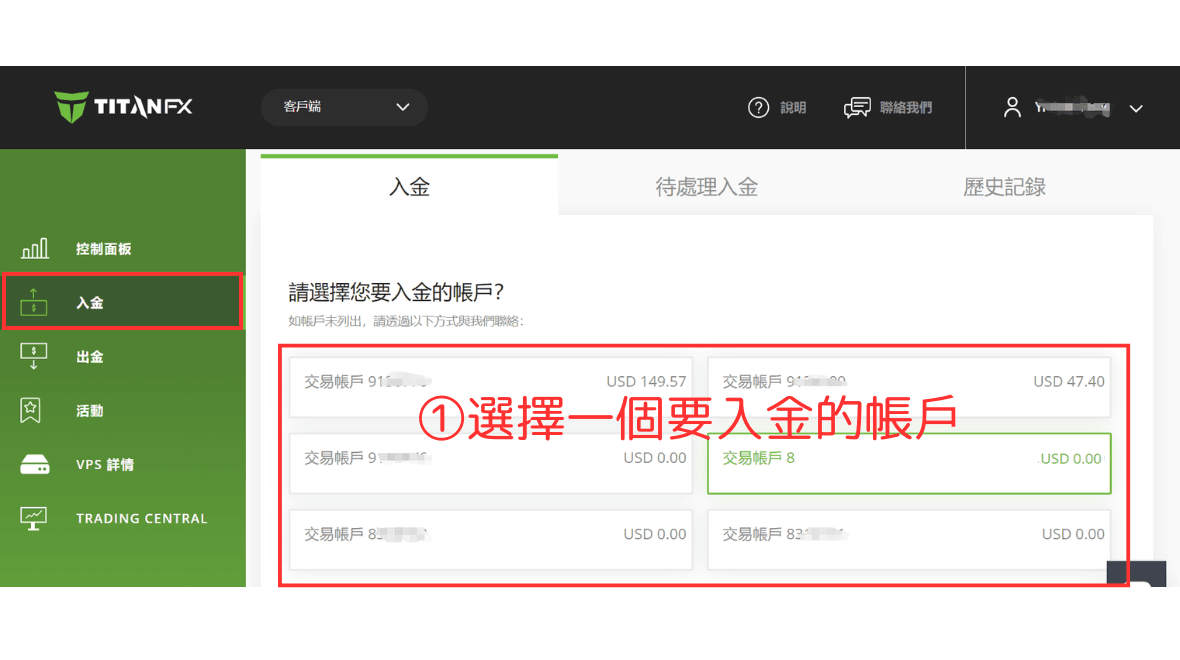
① Select the Account for Deposit
After credit card verification, navigate to the “Deposit Funds” page and select the account you want to deposit into.
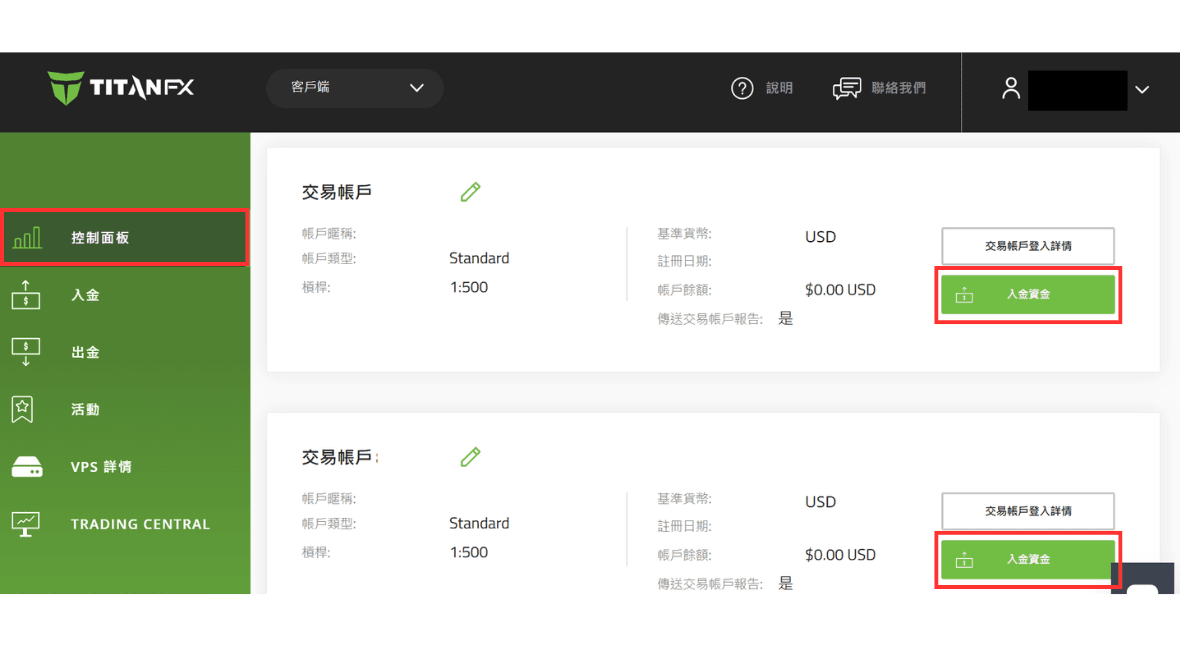
Alternatively, select your account in the “Dashboard” and click “Deposit Funds” to go to the deposit page.
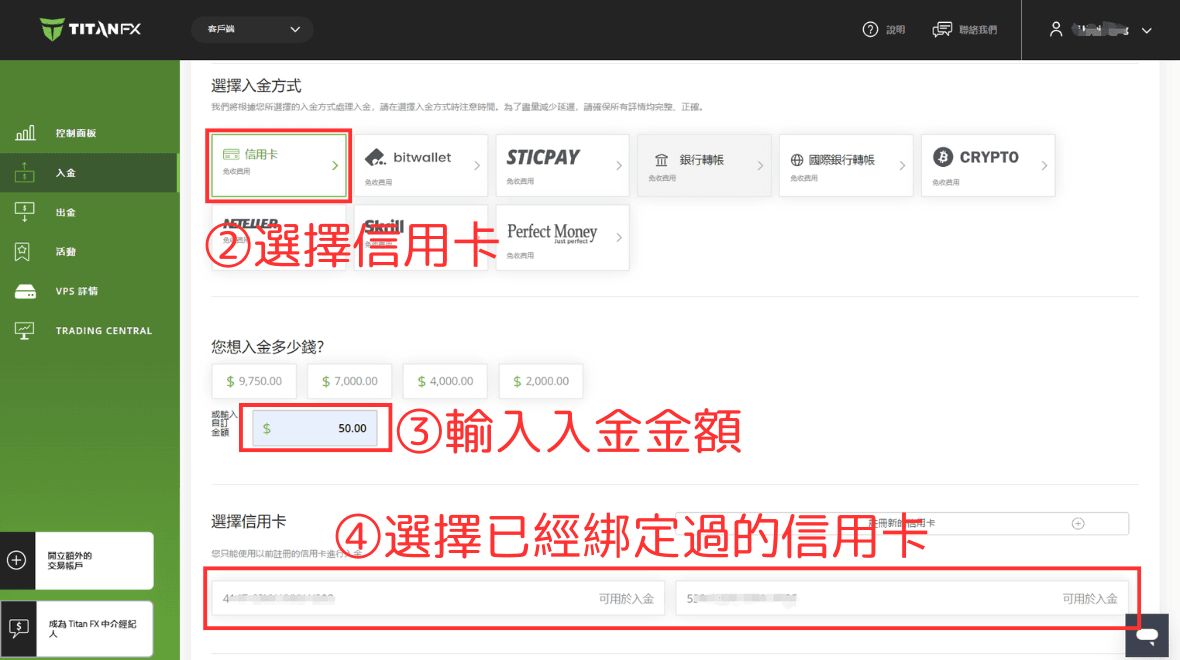
② Choose Credit Card, ③ Enter Deposit Amount, and ④ Select Registered Card
Choose “Credit Card” as your deposit method, enter the deposit amount, and select the registered card.
⑤ Enter CVC/CVV Code
Click on the credit card number to bring up the following screen:
※ Please do not close the transaction page while processing. Be patient.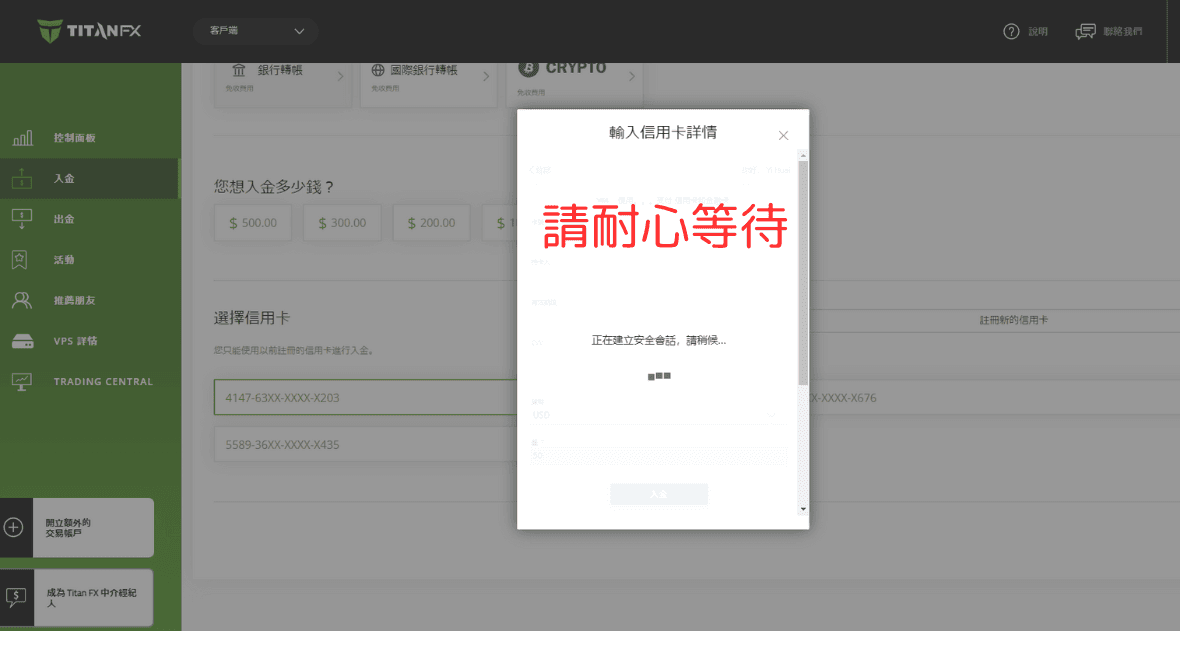
After a few seconds, you will be prompted to enter the CVC/CVV code.
The CVC/CVV code is the three-digit number printed on the signature area of the back of your card (e.g., Visa, MasterCard).
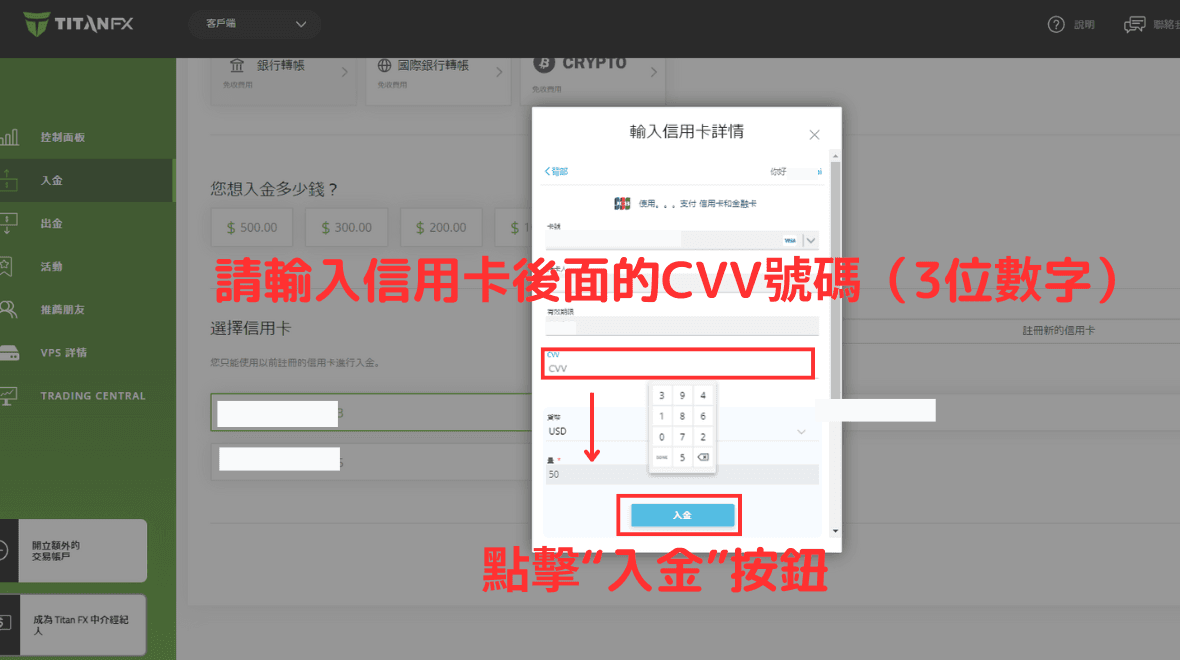
Click the “Deposit” button, and a new window will open. Do not close it.
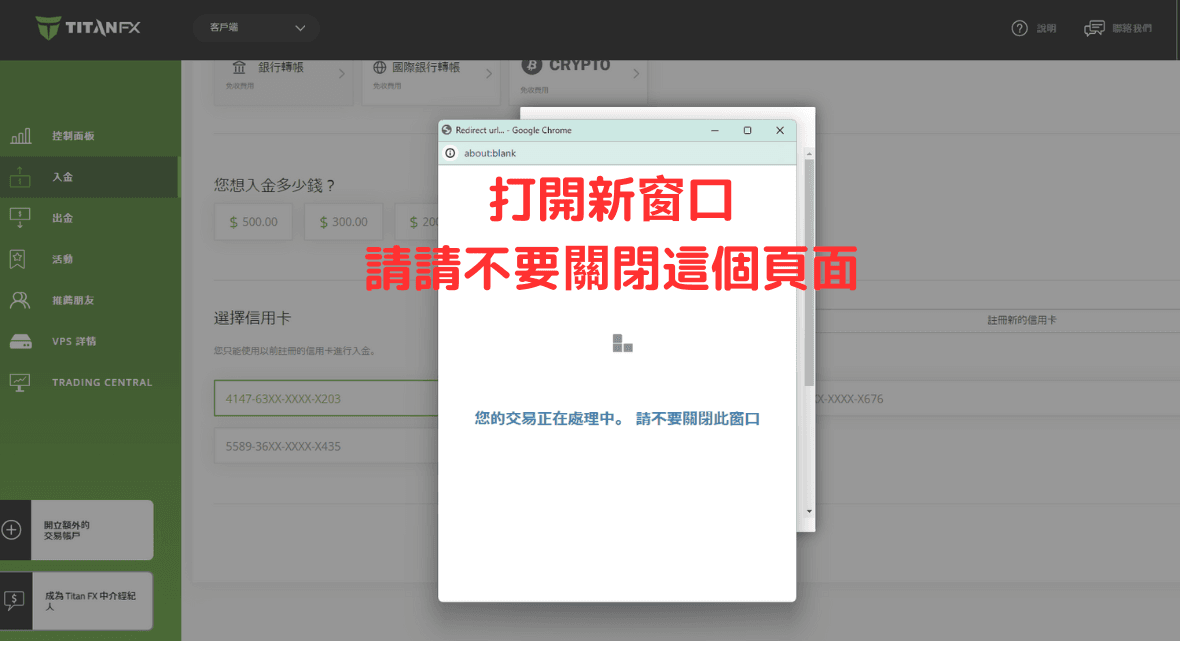
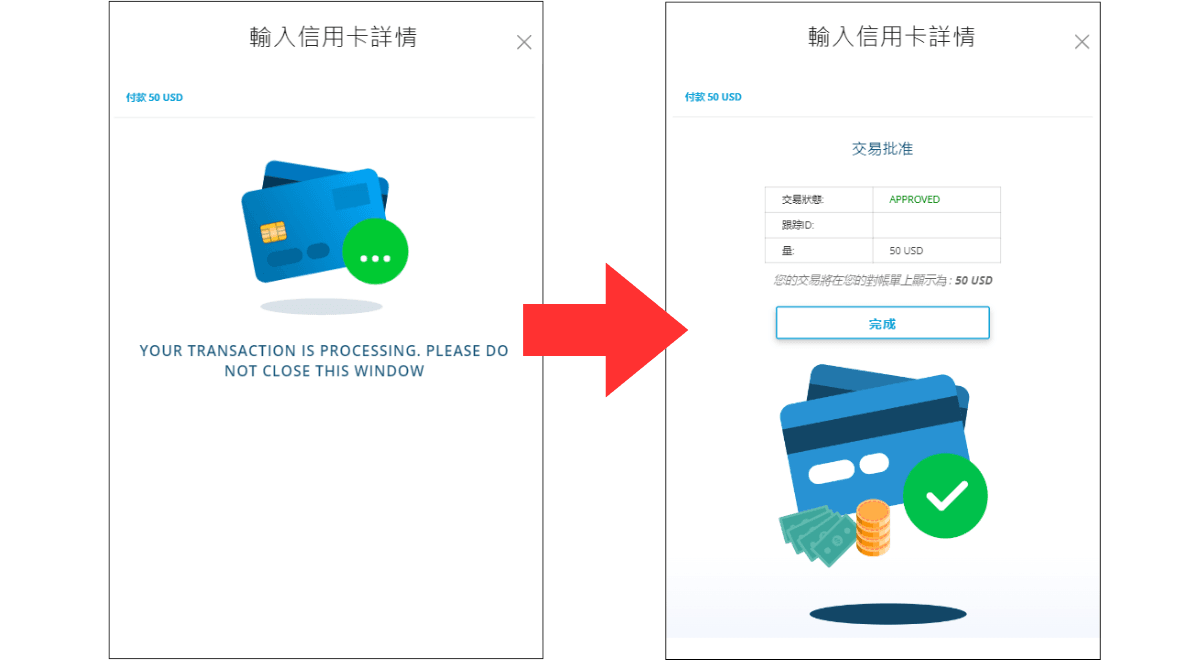
After a few seconds, a confirmation screen will appear, indicating the deposit was successful.
※ Titan FX does not charge any deposit fees.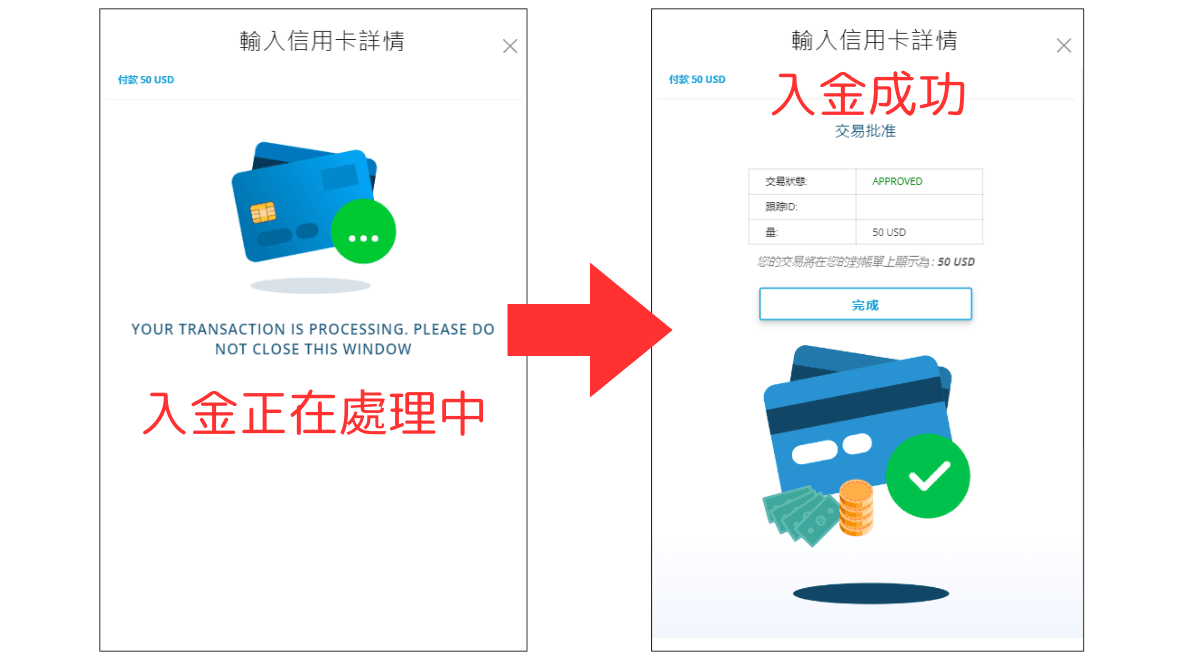
Check Account Balance
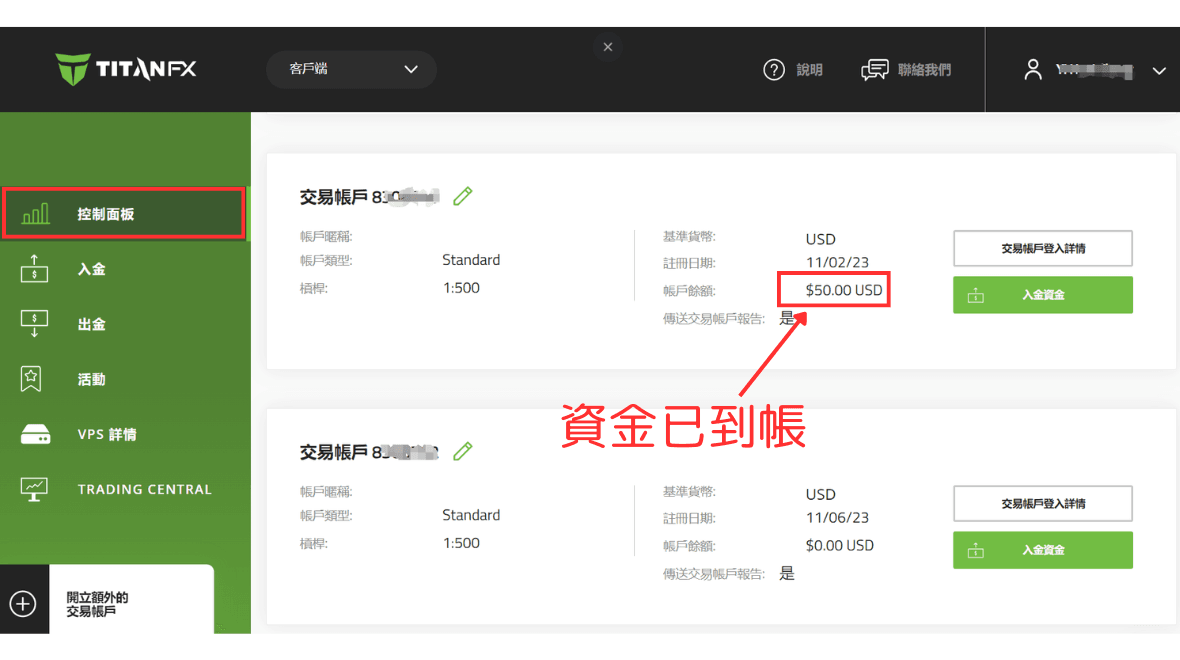
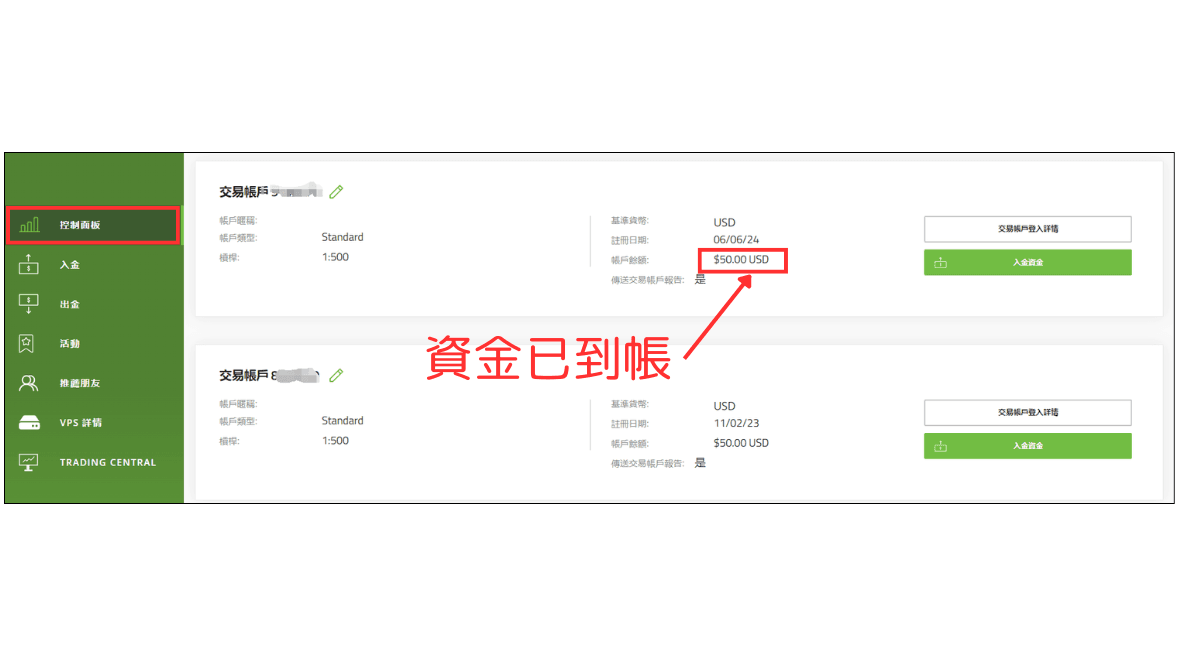
You can verify the deposit by navigating to your trading account in the “Dashboard.”
Deposits are typically reflected in your account immediately.
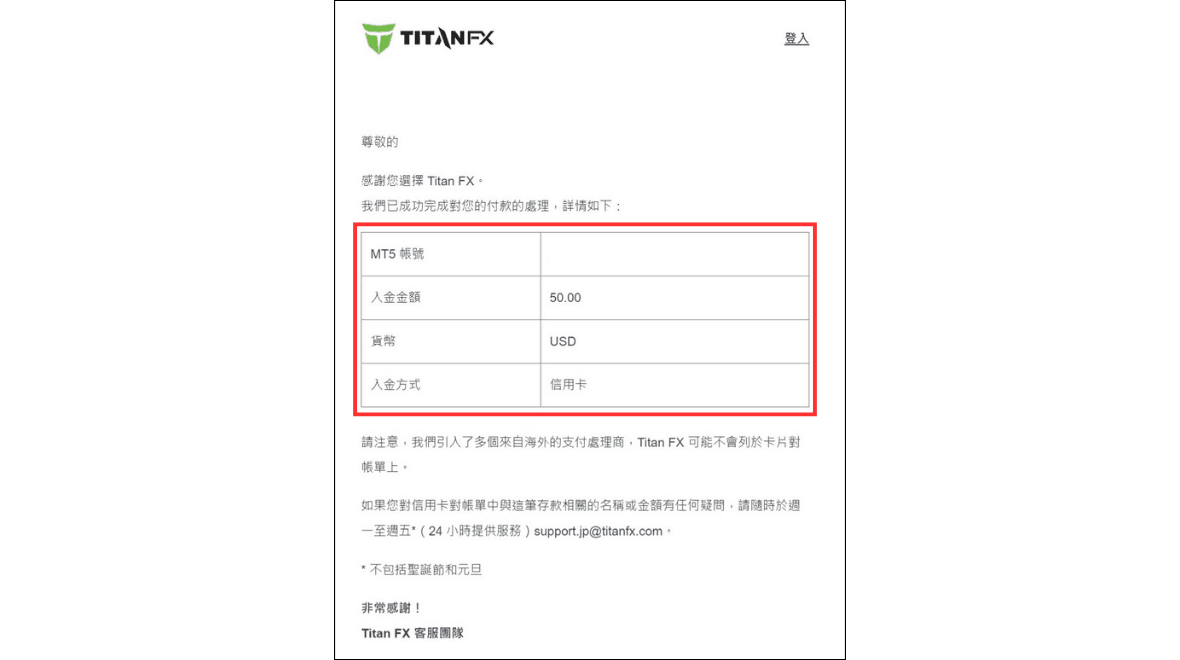
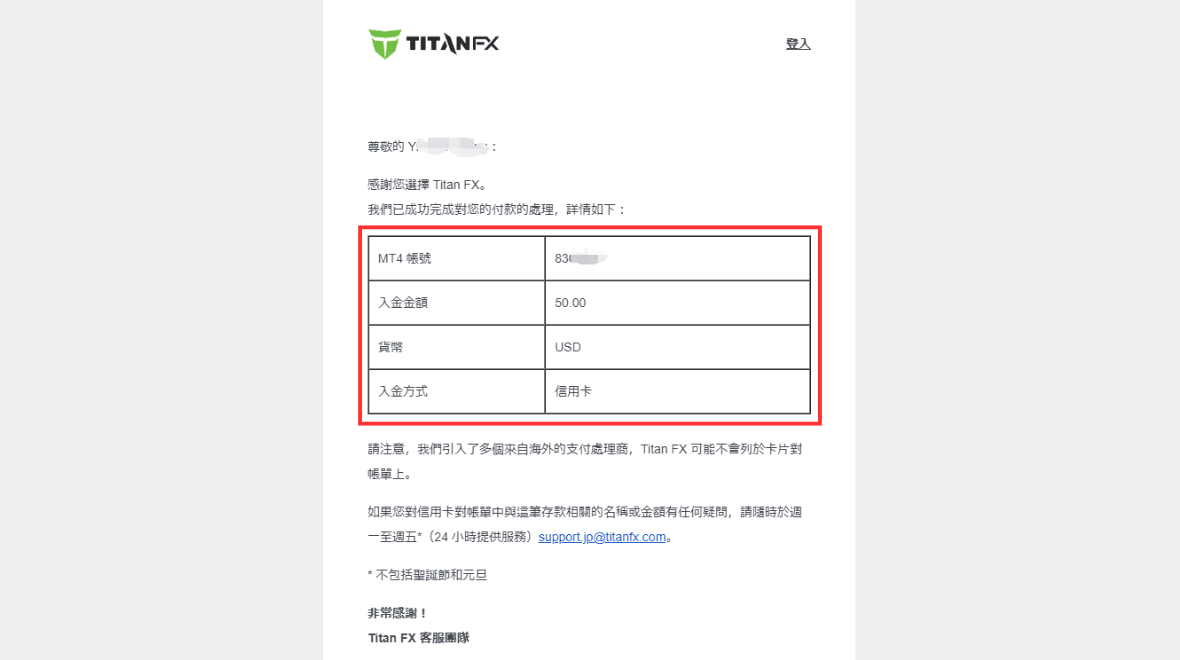
You will also receive an email confirming the deposit.
Second Deposit Process
The second deposit process differs from the first in that you do not need to re-verify or re-register your credit card if using the same card as before. This makes subsequent deposits faster and more convenient.
① Select the Deposit Account
After verifying your credit card, return to the “Deposit Funds” page in the client portal and select the account to which you want to deposit funds.
Alternatively, select the deposit account in the “Dashboard” and click “Deposit Funds” to navigate to the deposit page.
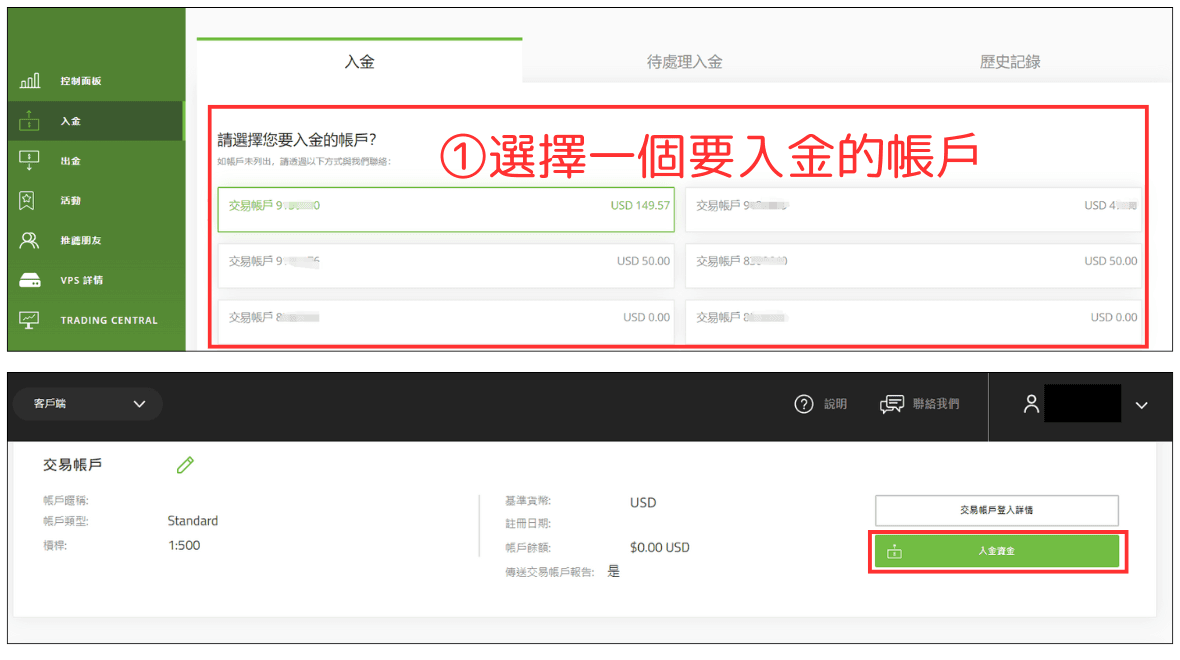
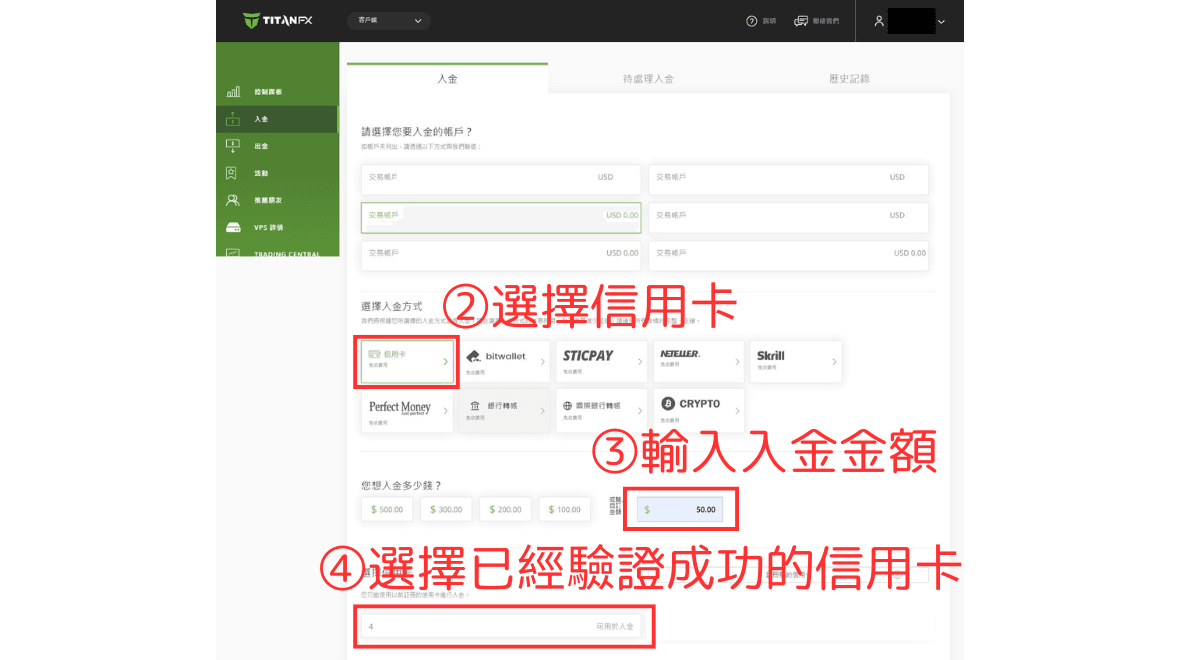
② Choose Credit Card, ③ Enter Deposit Amount, and ④ Select Verified Credit Card
Select “Credit Card” as the deposit method, enter the deposit amount, and select the previously verified credit card.
※ If identity verification has not been completed, the cumulative deposit amount cannot exceed $10,000. Once verified, no deposit limit applies.Identity Verification Process
⑤ Verify Credit Card Information
The system will display your registered credit card details. Please confirm the details, enter the “Credit Card Security Code,” and click “Deposit.”
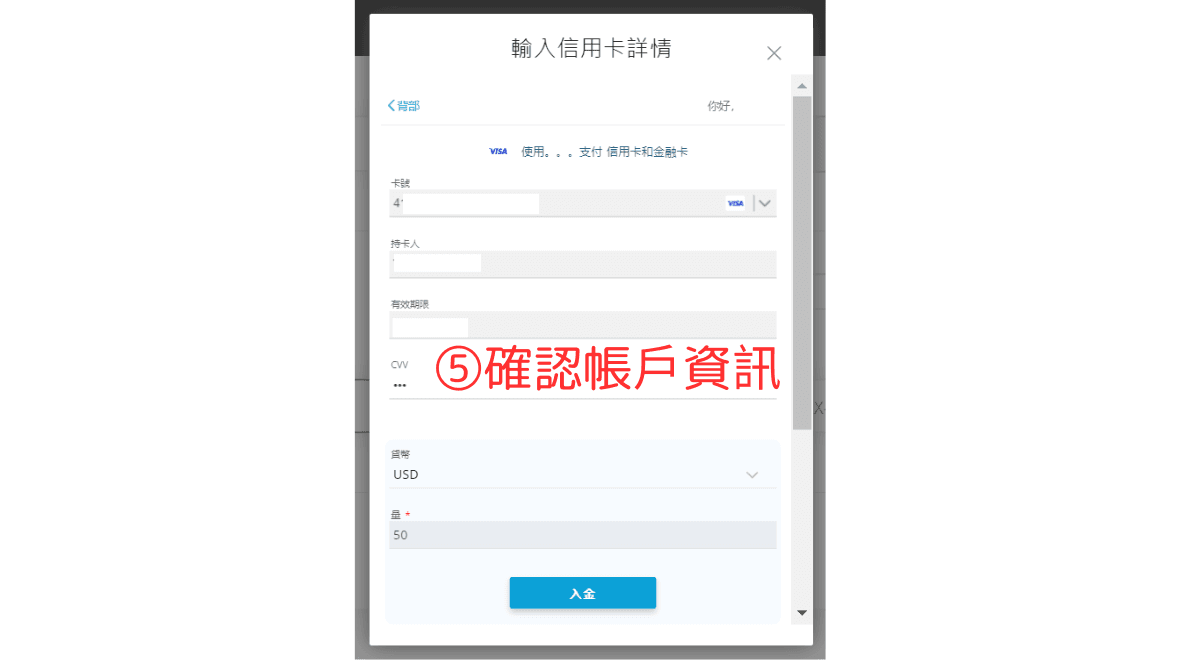
After a few seconds, a confirmation page will indicate the successful deposit.
Check Account Balance
You can return to the “Dashboard” in the client portal to confirm that the funds have been credited to your trading account.
Deposit Confirmation Email
You will also receive an email confirming the successful deposit.