
Indicator for Saving Chart Images at Specified Intervals (Titan_Screenshot)
Automatically Save Chart Screenshots
This indicator saves chart images at specified intervals. It is recommended for users who want to periodically save the state of their charts.
This indicator works only with the Windows version of MT5 and MT4 for TitanFX.
Indicator Terms of Use
Only those who agree to all the following items may use the indicators distributed on this website (https://research.titanfx.com):
1.The indicators and related descriptions are based on various data believed to be reliable, but their accuracy and completeness are not guaranteed.
2.The data displayed by the indicators do not guarantee your investment results. Also, the displayed content may vary due to market conditions and communication environments.
3.Please make investment decisions using indicators at your own risk. We are not responsible for any disadvantages or damages arising from the use of indicators.
4.Specifications of the indicators are subject to change without notice. Changes will be announced on the indicator description pages, etc.
5.Indicators should only be used by customers who have downloaded them. Transferring or selling the indicators to third parties is prohibited.
Indicator Settings
Input Tab (for MT5) / Parameter Input Tab (for MT4) Settings
| Variable Name | Description | Default |
|---|---|---|
| Screenshot Frequency | Specifies how often screenshots are taken. Screenshots are captured at the time frame selected here when the bar is completed. | current |
| Folder Name | Enter the name of the folder where screenshots will be saved. | SampleFolder |
| Image Width | Specifies the width of the images. If the chart width at the time of setting is smaller than the specified value, the image width will automatically adjust to the displayed chart width. If MT4/MT5 is restarted, the width will be readjusted to the chart width at the time of restart. | 500 |
| Image Height | Specifies the height of the images. If the chart height at the time of setting is smaller than the specified value, the image height will automatically adjust to the displayed chart height. If MT4/MT5 is restarted, the height will be readjusted to the chart height at the time of restart. | 500 |
Color Tab (for MT5) / Color Settings Tab (for MT4)
This indicator does not use this tab.
Screenshot Save Location
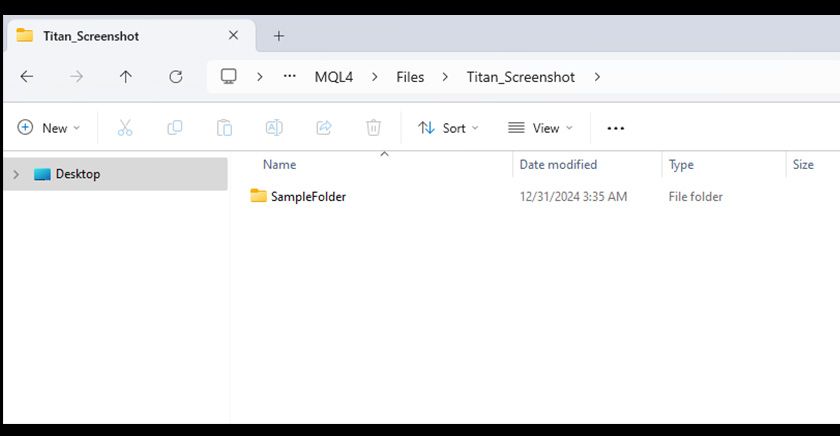
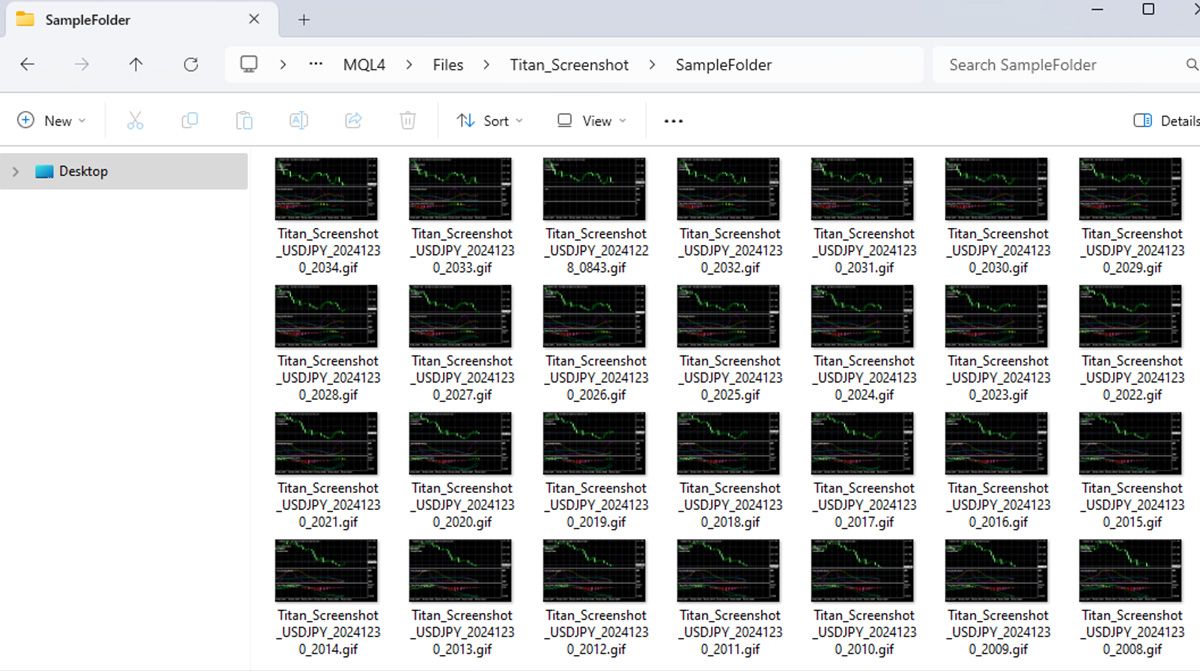
Select "Open Data Folder" from the menu, then navigate to the displayed folder: MQL4 or MQL5 → Files → Titan_Screenshot. Screenshots will be saved in the folder with the name specified in the parameters.