
MT4 (Windows) Platform Overview
This article introduces the basic structure of MT4 (MetaTrader 4) for Windows. You'll get an overview of what you can do in each area.
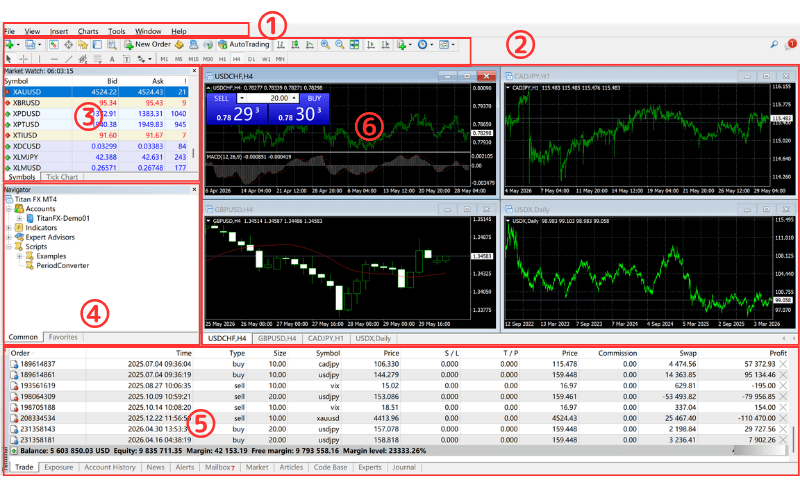
MT4 Basic Structure
【MT4 Basic Structure】
① Menu bar
② Toolbar
③ Market Watch
④ Navigator
⑤ Terminal
⑥ Chart
Overview of Each Section of MT4
① Menu Bar
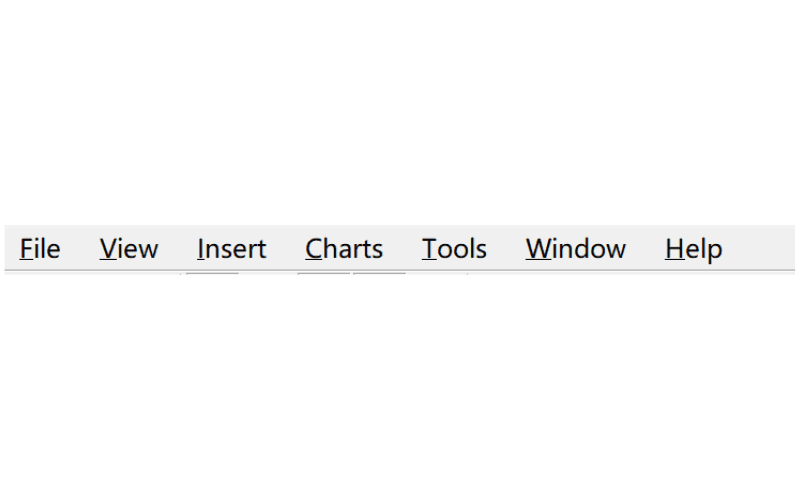
The menu bar at the top of MT4. You can perform most basic operations from this menu bar.
The menu bar is divided into 7 sections:
"File": used to create new charts, access the data folder, log in to your trading account, and more.
"View": lets you switch the content displayed in MT4, change the language, and more.
"Insert": used to add indicators, objects (such as lines), Expert Advisors (EAs), and scripts to charts.
"Charts": used for chart-related settings.
"Tools": used to display the Options window, launch the editor for MT4's programming language, and more.
"Window": lets you adjust the arrangement and resolution of windows.
"Help": displays the help screen, connects to the MetaQuotes website, lets you check version information, and more.
② Toolbar
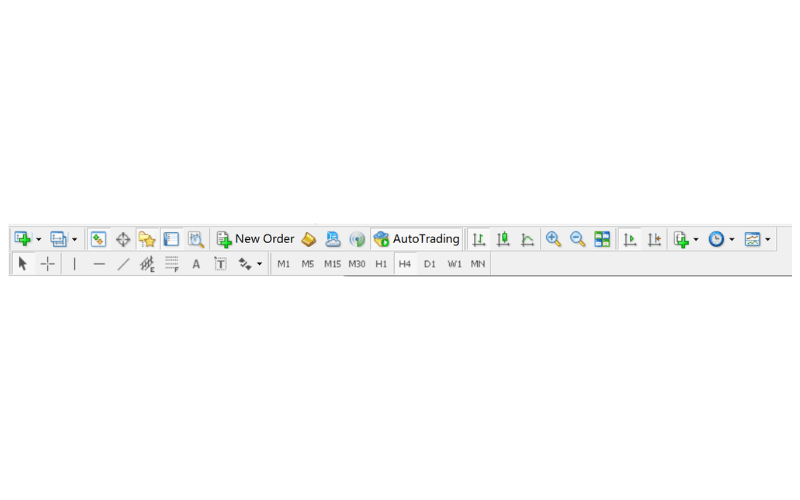
Most operations can be performed from the menu bar (①), but operations that are used frequently are provided as icons on this toolbar so you can perform them quickly.
You can also customize the items shown on the toolbar to suit your needs.
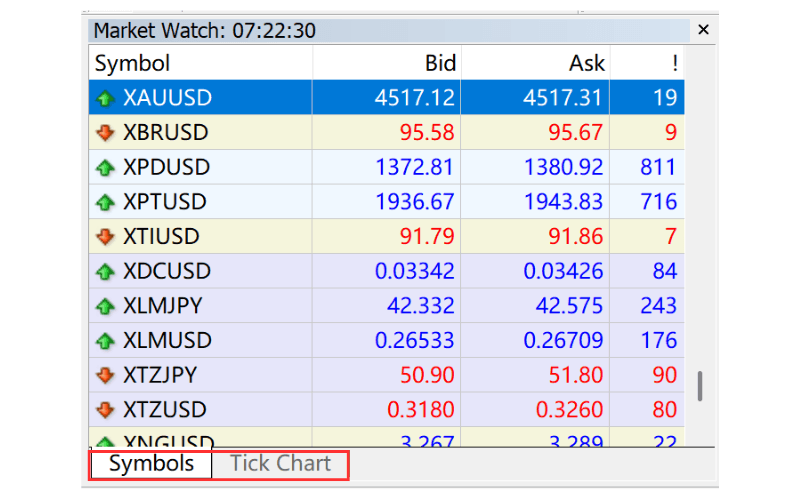
③ Market Watch
Market Watch mainly displays the rates of trading symbols. You can switch how rates are displayed by switching the tabs at the bottom.
The "Symbols" tab lets you check the bid, ask, high, and low of trading symbols, while the "Tick Chart" tab lets you view a real-time price chart.
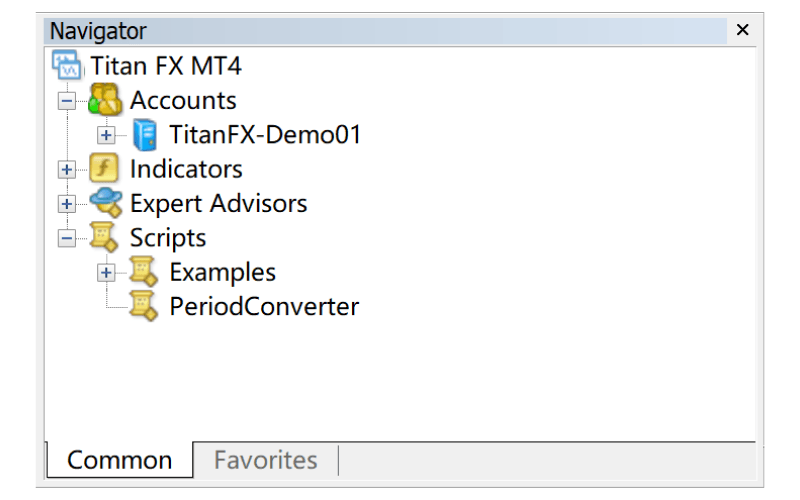
④ Navigator
The Navigator lets you easily switch between live and demo accounts, and conveniently manage technical indicators, EAs, scripts, and more.
For easy management, indicators and EAs are organized into folders. Simply double-click an indicator or EA, or drag and drop it onto a chart, to add it to the selected chart.
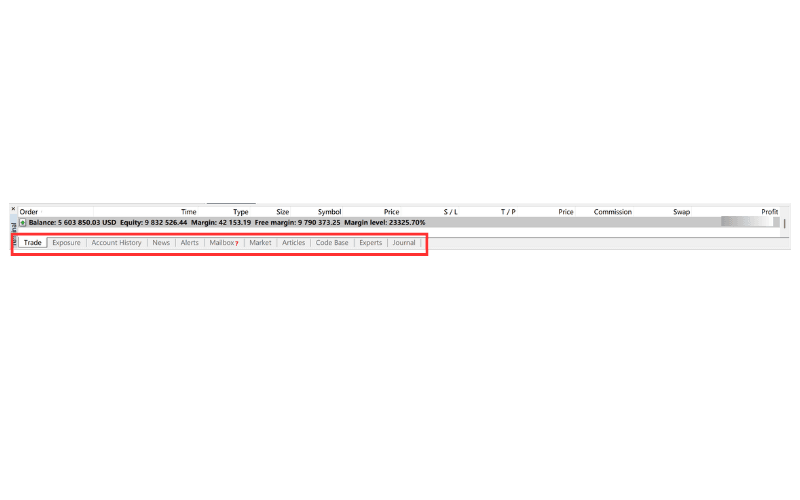
⑤ Terminal
In the Terminal, you can use different functions by switching the tabs at the bottom.
The Terminal has various tools, but you'll mainly use the "Trade" tab to manage open positions and pending orders, and the "Account History" tab to check your trading history.
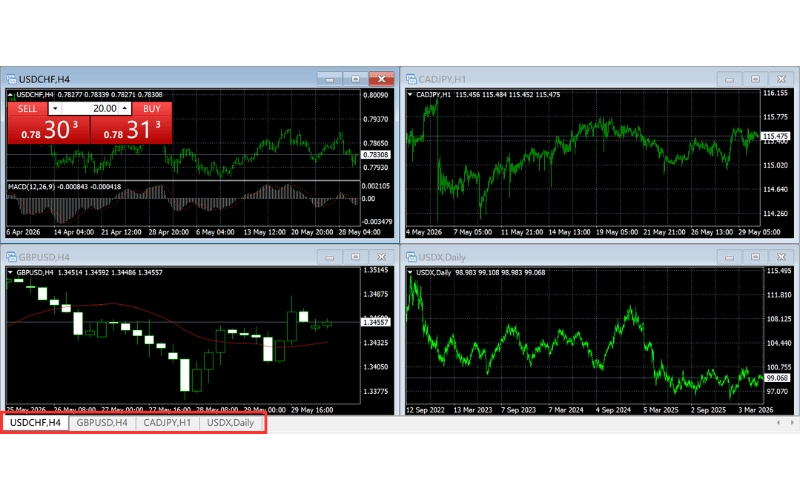
⑥ Chart
The chart area is where charts are displayed, and the tabs at the bottom show all open charts (including minimized ones).
Click a tab to select a specific chart; double-click a tab to maximize the chart or restore it to its original size.