
 Home
Home- How to Use for MT5 (Windows Version)
- How to Use the Fast Navigation Bar in MT5(Win)- MT5 Tutorial
How to Use the Fast Navigation Bar in MT5 (Win)
MetaTrader 5 (MT5) is a highly popular trading platform that offers a variety of features to enhance operational efficiency. One of these features, the "Fast Navigation Bar," is a very practical tool that helps users quickly jump to a specified date and time, and easily change symbols or timeframes. This article will provide a detailed guide on how to use the Fast Navigation Bar.
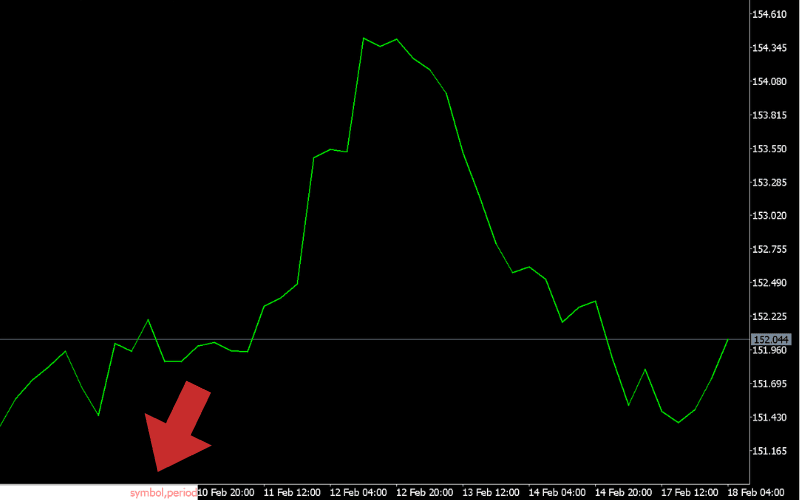
How to Display the Fast Navigation Bar
You can display the Fast Navigation Bar easily using any of the following methods:
1. Using the Shortcut Key
After selecting a chart, press the "Enter" key on your keyboard to display the Fast Navigation Bar at the bottom of the chart.
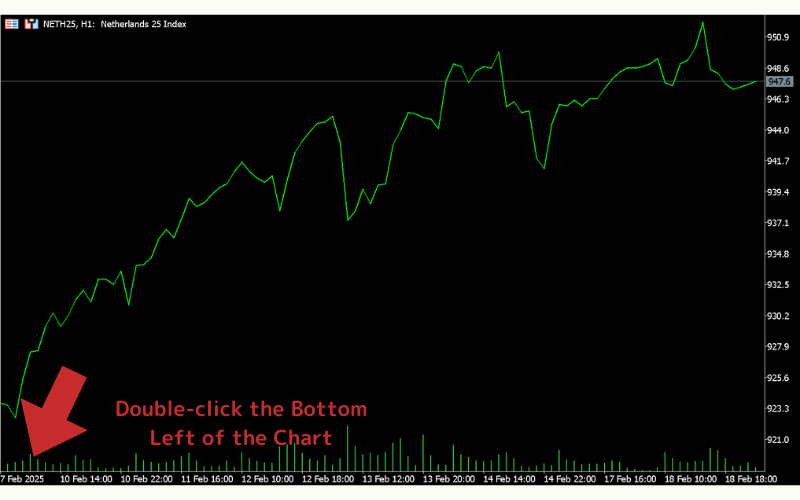
2. Double-click the Bottom Left of the Chart
Move the cursor to the bottom left of the chart, and double-click to display the Fast Navigation Bar.
How to Use the Fast Navigation Bar
1. Jump to a Specific Date and Time
Once the Fast Navigation Bar is displayed, enter the date or time you want to jump to in the specified format, and press "Enter" to jump to the corresponding chart at that date and time.
| Method | Format and Example |
|---|---|
| By Time | hh:mm Example: 10:00 |
| By Date | yyyy.mm.dd or dd.mm.yyyy Example: 2024.10.05 or 05.10.2024 |
| By Date and Time | yyyy.mm.dd hh:mm or dd.mm.yyyy hh:mm Example: 2024.10.05 10:00 or 05.10.2024 10:00 |
2. Change the Trading Symbol
You can change the symbol (currency pair) directly from the Fast Navigation Bar.
| Method | Format |
|---|---|
| Trading Symbol | XXXXXX |
| Example: USDJPY |
3. Change the Timeframe
You can change the timeframe from the Fast Navigation Bar.
| Method | Format |
|---|---|
| By Minutes | Example: 1, 2, 3 … 60 (1-hour chart), 240 (4-hour chart), 1440 (daily chart), 10080 (weekly chart) |
| By Timeframe | Example: m1, m2, m3, m5, h1, 4h, d1, w1, mn |
Note: You can combine the symbol and timeframe changes by separating them with a space. For example: usdjpy 30.
Things to Keep in Mind
Enter the Format Correctly
When entering date, time, or trading symbols, make sure to follow the specified format (e.g., YYYY.MM.DD HH:MM).
Might Depend on the Current Chart Range
If you select a very old date, and the necessary data hasn't been downloaded as historical data, it may not be displayed.