

How to Draw Shapes in MT5 (Mac)
In MT5, you can freely draw rectangles, triangles, and ellipses on the chart.
How to Draw a Rectangle
Drawing a Rectangle
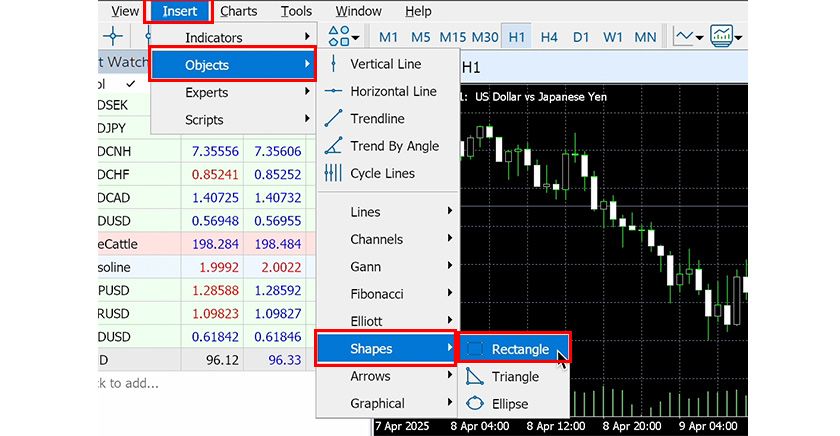
Select "Insert" → "Objects" → "Shapes" → "Rectangle" from the menu.
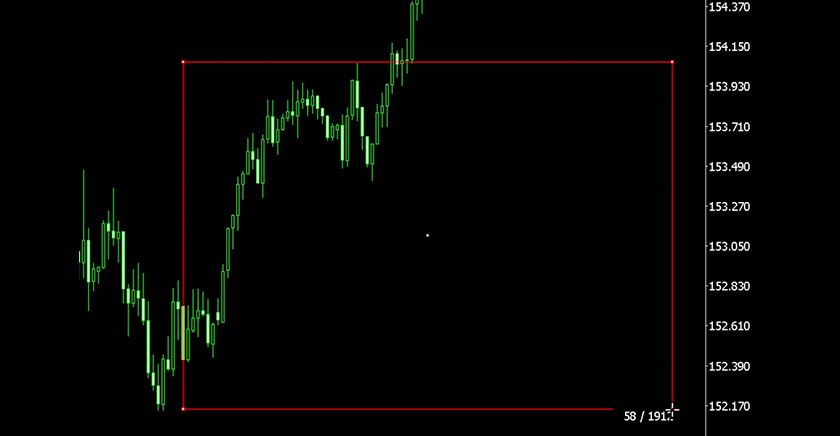
The cursor switches to rectangle drawing mode. Click and drag on the chart to draw a rectangle at the position you want.
Modifying a Rectangle
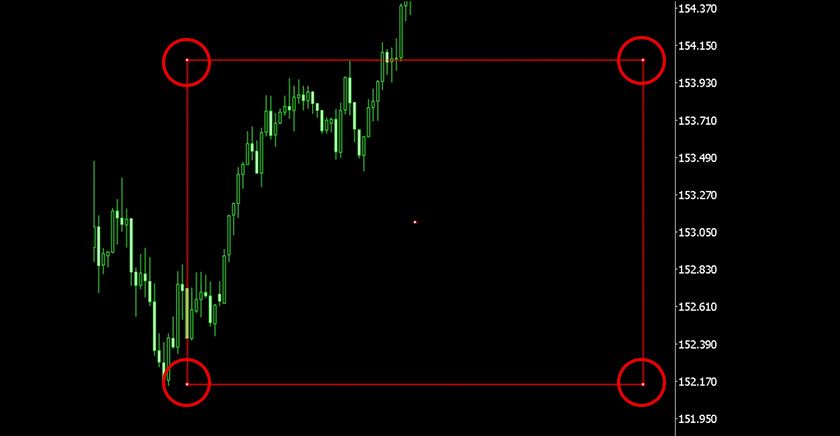
After drawing the rectangle, double-click the line to toggle selection mode. While it is selected, drag each point to adjust its shape.
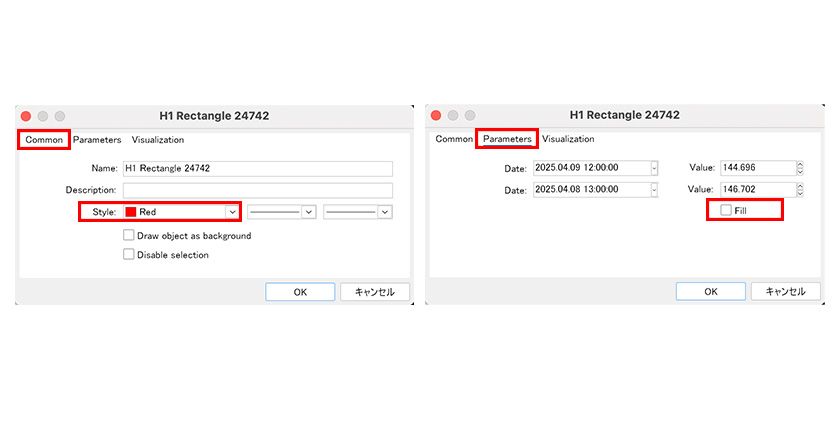
Fill Settings for a Rectangle
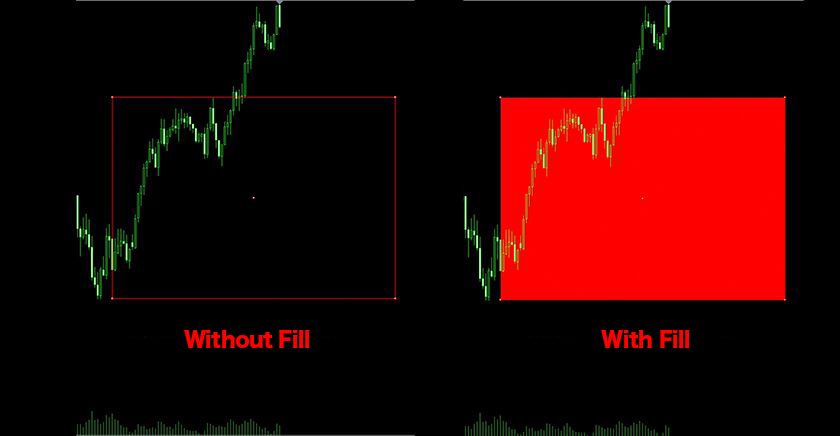
In the rectangle's properties window, check "Fill" in the "Parameters" tab to turn fill on or off. You can change the fill color in the "Style" section of the "Common" tab. The fill setting from the previous drawing carries over to later drawings.
How to Draw a Triangle
Drawing a Triangle
Select "Insert" → "Objects" → "Shapes" → "Triangle" from the menu.
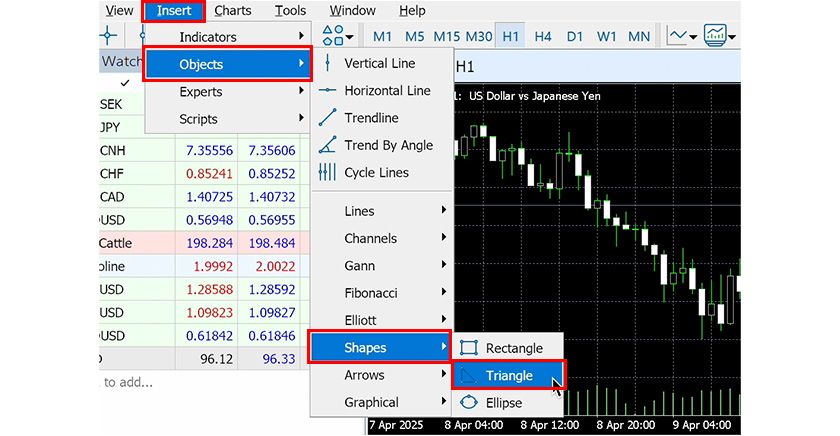
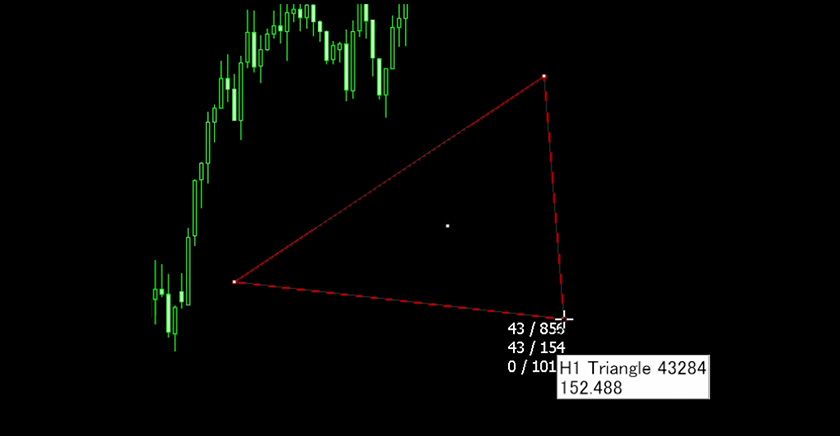
The cursor switches to triangle drawing mode. Click the first corner, move to the second corner, then click and drag to the third corner to draw a triangle.
Modifying a Triangle
After drawing the triangle, double-click the line to toggle selection mode. While it is selected, drag each point to adjust its shape.

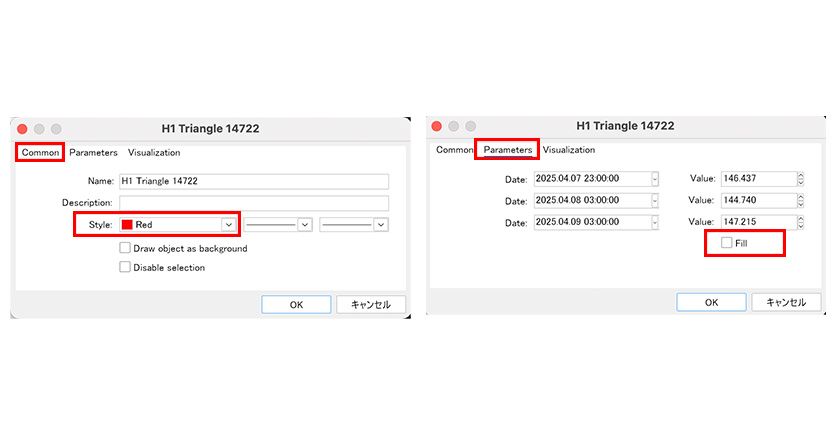
Fill Settings for a Triangle
In the triangle's properties window, check "Fill" in the "Parameters" tab to turn fill on or off. You can change the fill color in the "Style" section of the "Common" tab. The fill setting from the previous drawing carries over to later drawings.
How to Draw an Ellipse
Drawing an Ellipse
Select "Insert" → "Objects" → "Shapes" → "Ellipse" from the menu.
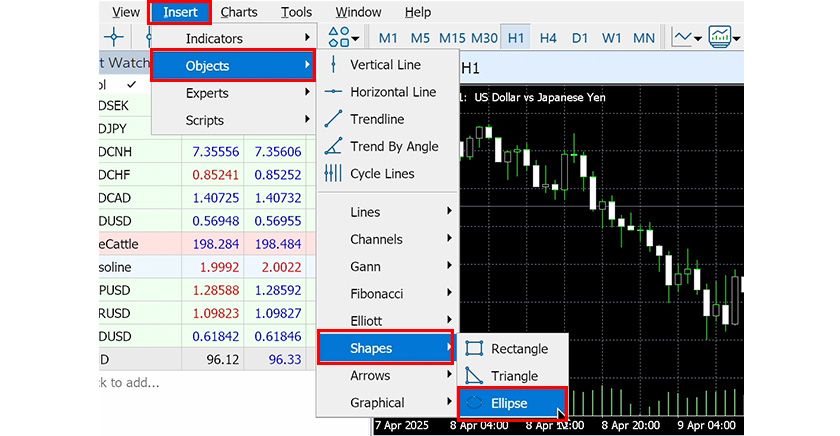
The cursor switches to ellipse drawing mode. Click the start point of the axis, move to the end point, then drag to adjust the shape of the ellipse.
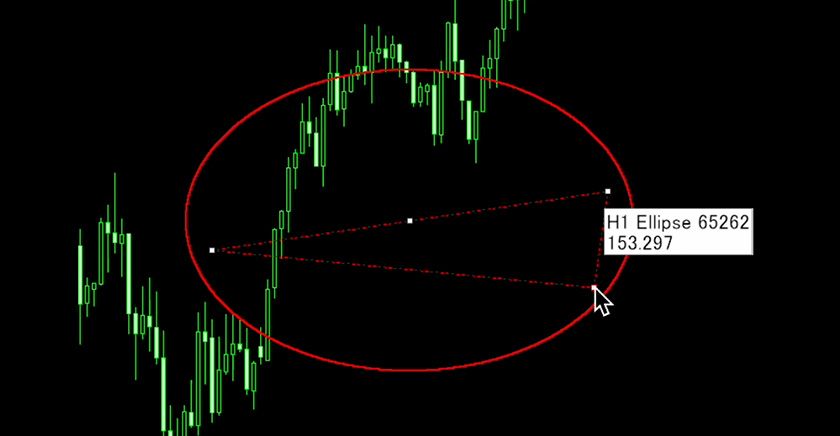
Modifying an Ellipse
After drawing the ellipse, double-click the line to toggle selection mode. While it is selected, drag each point to adjust its shape.

Fill Settings for an Ellipse
In the ellipse's properties window, check "Fill" in the "Parameters" tab to turn fill on or off. You can change the fill color in the "Style" section of the "Common" tab. The fill setting from the previous drawing carries over to later drawings.
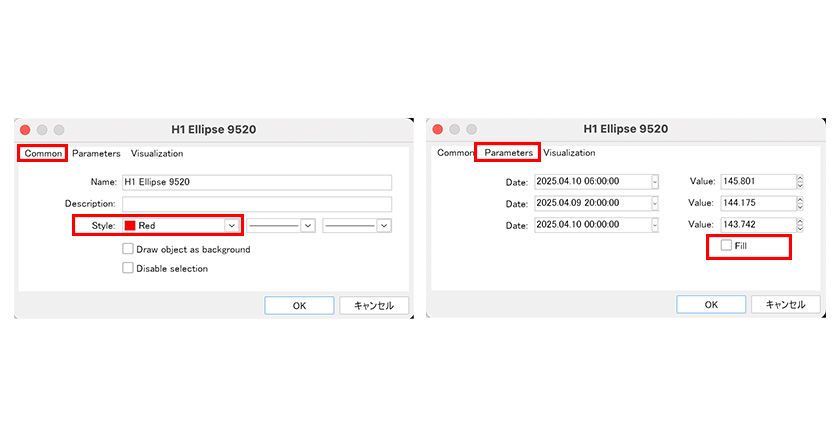
Note: To open the properties window of an object, right-click on the chart and choose "Object List", select the object from the list, and click "Properties"; or right-click on a selected object's handle (small square) and choose "Properties".