
How to Change Your Login Password on MT5 (Windows)
After you register an MT5 account, the system automatically generates an MT5 password for you.
Most traders prefer to change it to a combination that is easier to remember.
Below, we explain how to quickly change your MT5 trading password.
Method 1: Change from the Client Portal
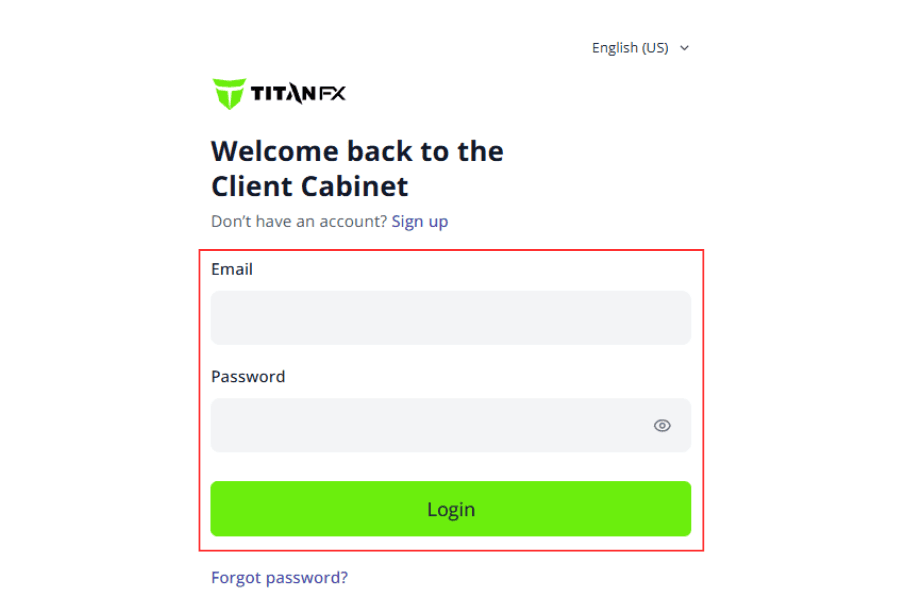
① Enter your email address and password to log in to the TitanFX Client Portal.
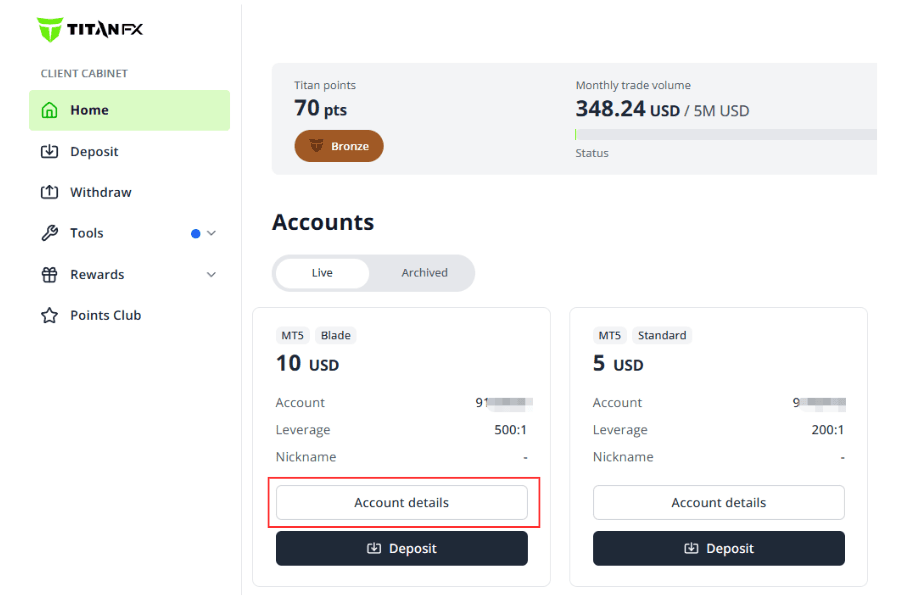
② On the "Accounts" page, select the account whose password you want to change, then click "Account details".
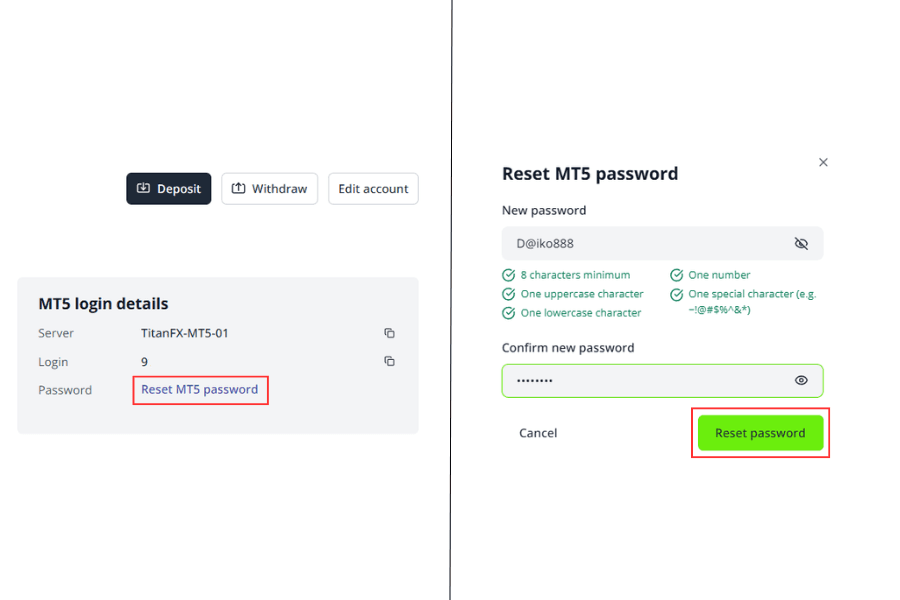
③ In "MT5 login details", click "Reset MT5 password".
Enter a new password in "New password", re-enter it in "Confirm new password", then click "Reset password" to complete the change.
※ The password must be at least 8 characters long (including one uppercase letter, one lowercase letter, one number, and one special character).
You will also receive an email confirming that your password has been successfully changed.
Method 2: Change on the PC (MT5 Platform)
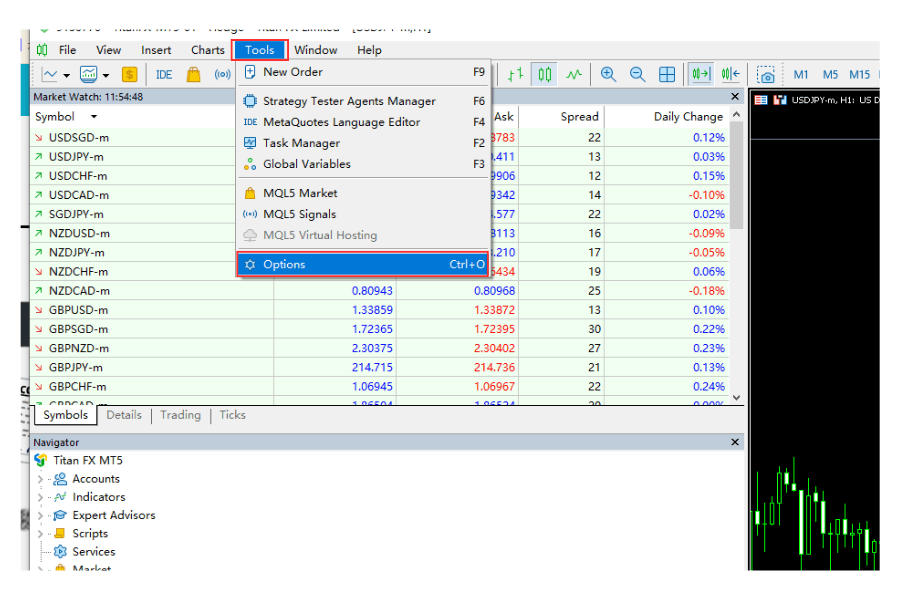
① Log in to the MT5 platform and click "Tools" - "Options" at the top, or use the shortcut key "Ctrl+O".
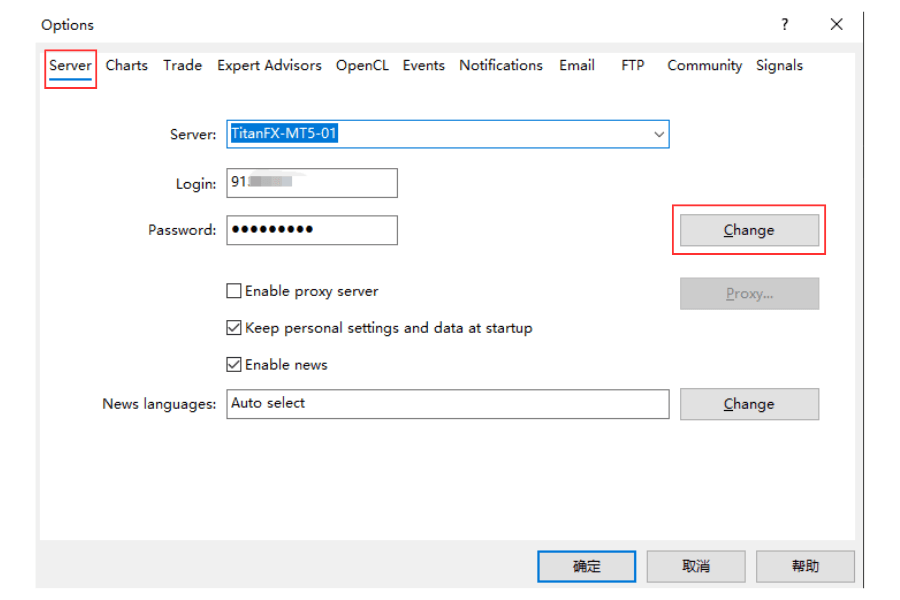
② On the "Server" tab, click "Change" next to the password field.
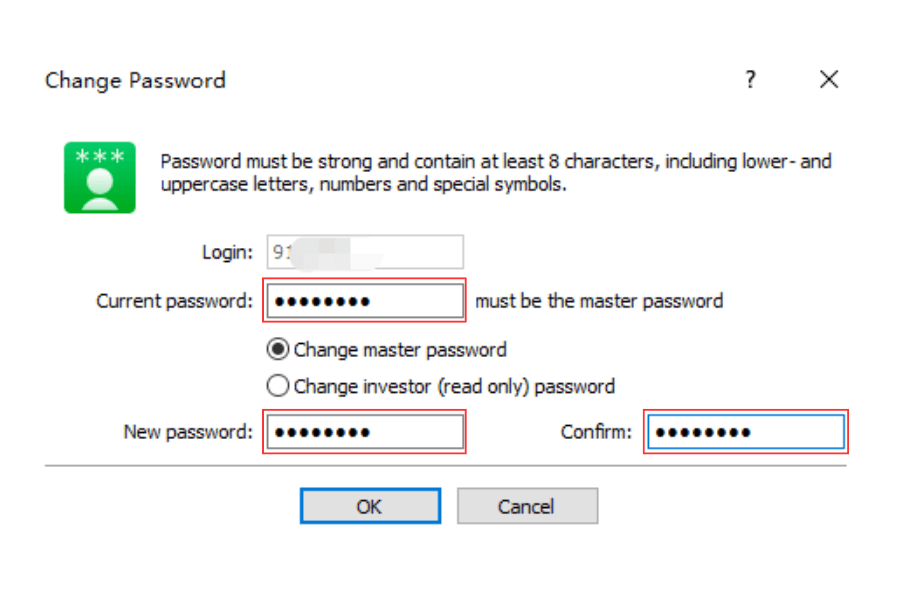
③ Select "Change master password" and enter your master password (your old MT5 password) in the "Current password" field.
Then enter the login password you want to set in "New password", re-enter the same password in "Confirm", and finally click "OK" to complete the change.
※ The password must be at least 8 characters long (including one uppercase letter, one lowercase letter, one number, and one special character).