

How to Use the Fast Navigation Box in MT4 (Mac)
How to Use the Fast Navigation Box in MT4
MetaTrader 4 (MT4) is a highly popular trading platform that offers various features to improve operational efficiency. Among these, the "Fast Navigation Box" is a convenient tool that allows you to quickly jump to a specific date and time on the chart, or change symbols and timeframes with ease. This article provides a detailed explanation of how to use the Fast Navigation Box.
How to Display the Fast Navigation Box
The Fast Navigation Box can be easily opened using either of the following methods:
Using a Shortcut Key
While the chart is selected, press the Enter key on your keyboard to display a bar at the bottom of the chart.
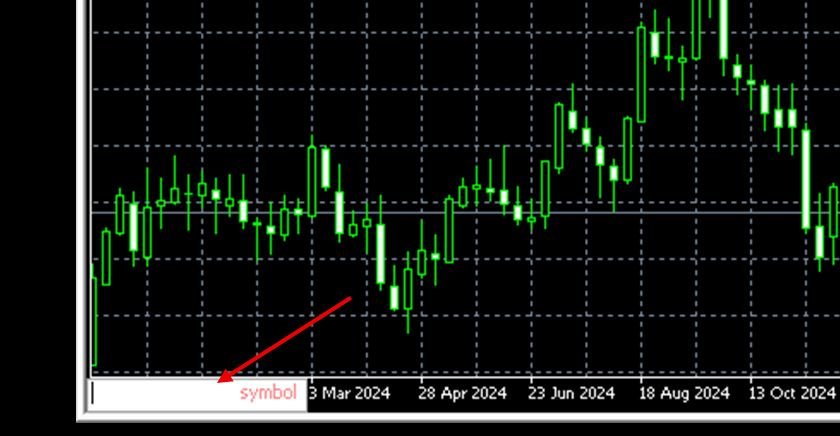
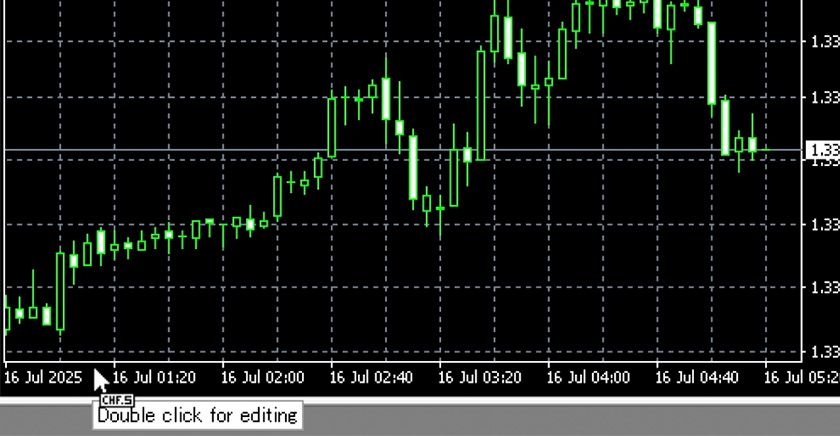
Double-click the Lower Left Corner of the Chart
Move your cursor to the lower left area of the chart and double-click to display the box.
How to Use the Fast Navigation Box
1. Jump to a Specific Date and Time
Once the Fast Navigation Box is displayed, enter the desired date and time following the correct format.
After input, press the Enter key to move the chart to the specified time.
| Input Type | Format |
|---|---|
| Specify time | hh:mm Example: 10:00 |
| Specify date | yyyy.mm.dd or dd.mm.yyyy Example: 2024.10.05 or 05.10.2024 |
| Specify date and time | yyyy.mm.dd hh:mm or dd.mm.yyyy hh:mm Example: 2024.10.05 10:00 or 05.10.2024 10:00 |
2. Change Symbol
You can change the symbol (currency pair) by entering it in the Fast Navigation Box.
| Input Type | Format |
|---|---|
| Specify symbol | XXXXXX Example: USDJPY |
3. Change Timeframe
You can also change the timeframe by entering it in the Fast Navigation Box.
| Input Type | Format |
|---|---|
| Specify in minutes | Example: 1, 2, 3 ... 60 (1-hour), 240 (4-hour), 1440 (daily), 10080 (weekly) |
| Specify by timeframe | Example: m1, m2, m3, m5, h1, 4h, d1, w1, mn |
※ You can change both the symbol and timeframe at once by separating them with a half-width space.
Example: usdjpy 30
※ Notes on Usage
Enter the Format Correctly
When entering the date/time or symbol, you must follow the specified format (e.g., YYYY.MM.DD HH:MM).
May Depend on Current Chart Range
If you specify a date far in the past, the chart may not display unless the required historical data has been downloaded.