

How to Draw Shapes on MT4 (Windows)
In MT4, you can freely draw rectangles and triangles on charts.
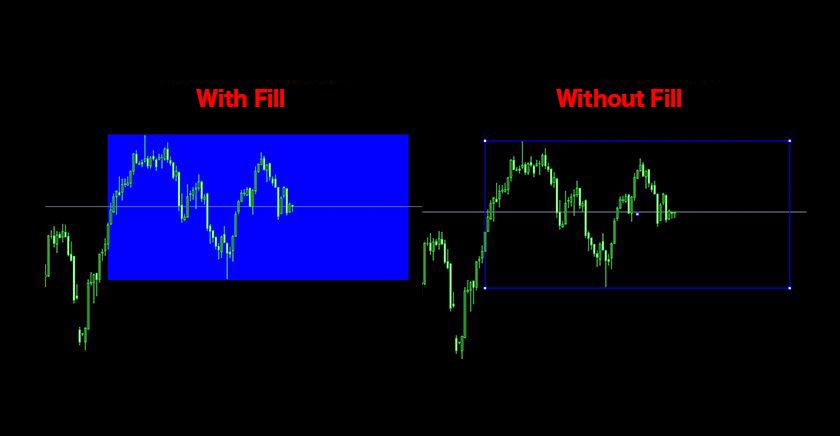
How to Draw Rectangles
Drawing a Rectangle
Select "Insert" → "Shapes" → "Rectangle" from the menu.
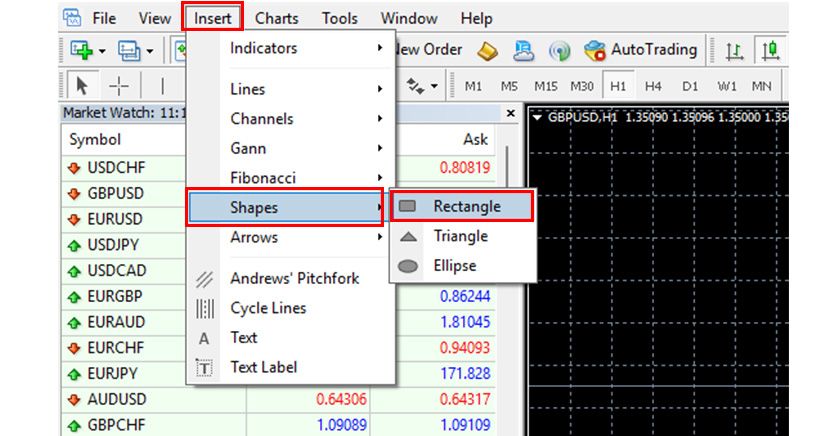
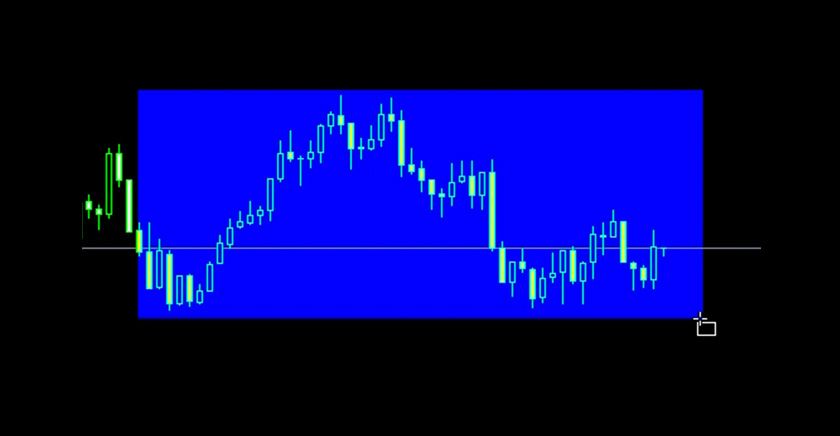
The cursor will switch to rectangle drawing mode. Click and drag on the chart to draw a rectangle at your desired position.
Modifying a Rectangle
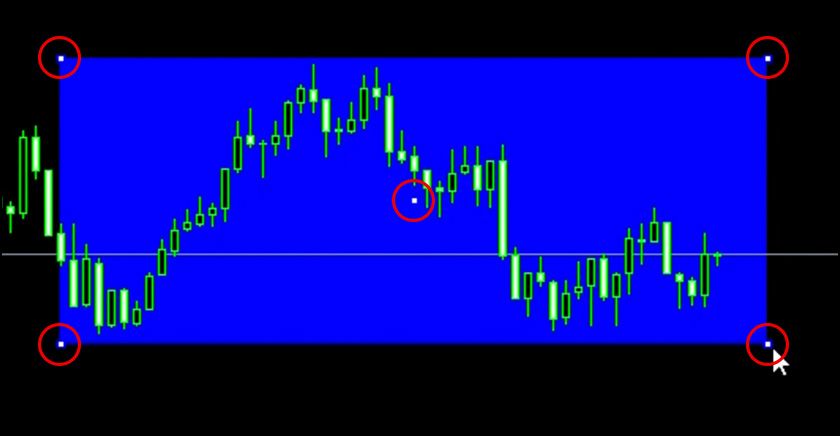
After drawing a rectangle, double-click the line to toggle selection mode. While selected, drag each point to adjust its shape.
Line and Fill Settings for Rectangles
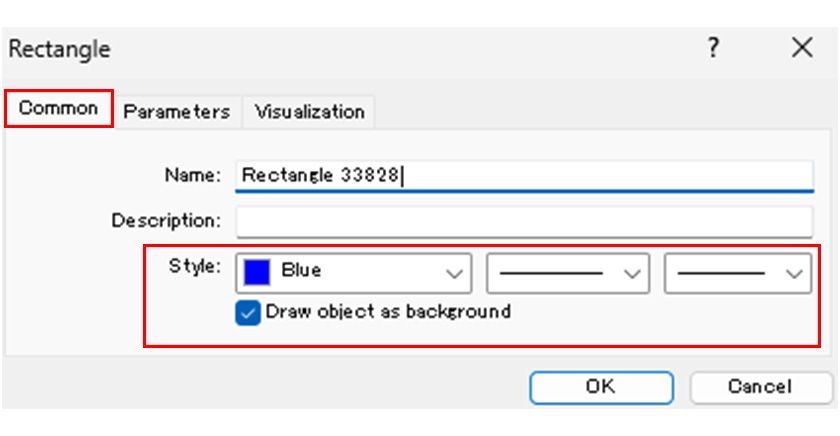
In the rectangle's properties window, you can specify the line color and style in the "Common" tab under "Style." To fill the rectangle, check the "Draw as Background" option.
Settings from previous drawings will carry over to subsequent drawings.
How to Draw Triangles
Drawing a Triangle
Select "Insert" → "Shapes" → "Triangle" from the menu.
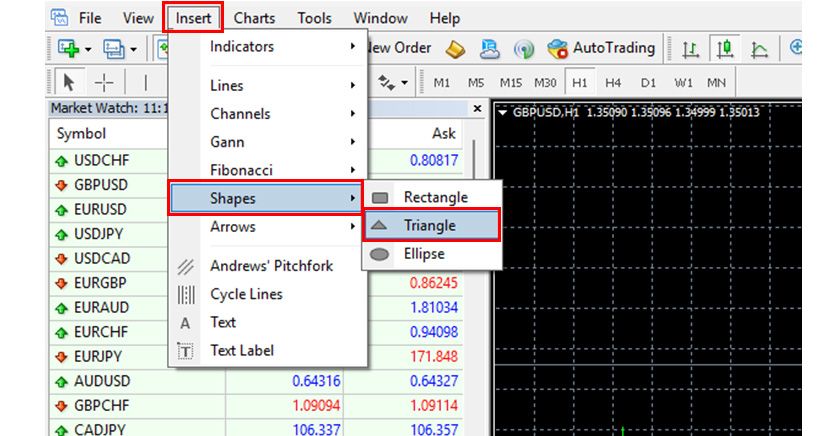
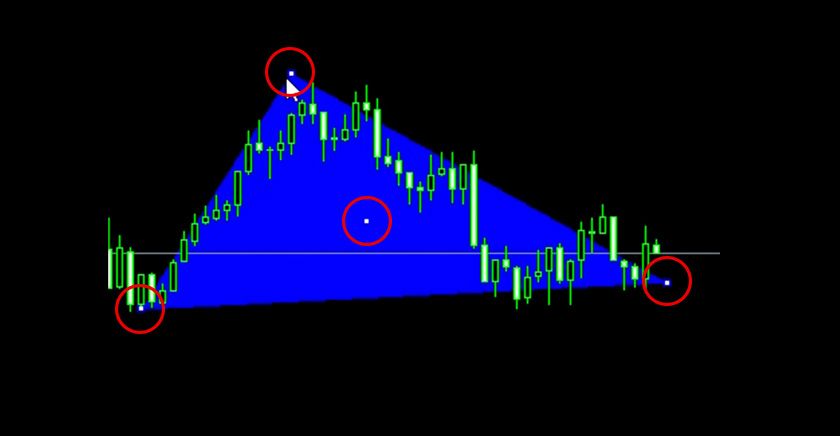
The cursor will switch to triangle drawing mode. Click three points on the chart to create a triangle.

Modifying a Triangle
After drawing a triangle, double-click the line to toggle selection mode. While selected, drag each point to adjust its shape.
Fill Settings for Triangles
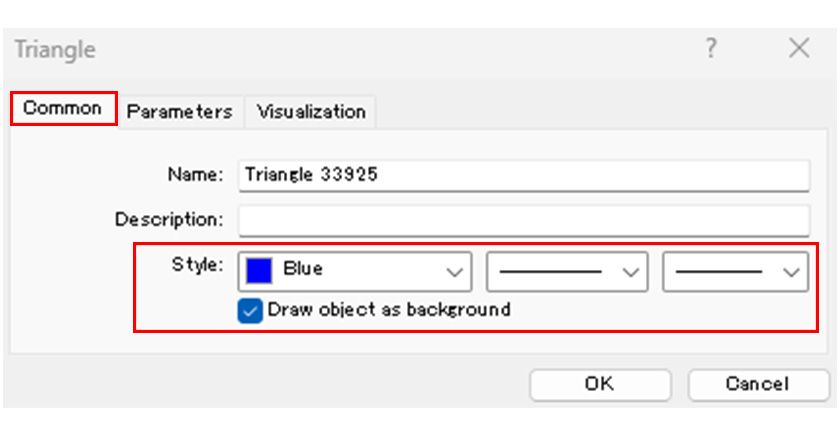
In the triangle's properties window, you can specify the line color and style in the "Common" tab under "Style." To fill the triangle, check the "Draw as Background" option.
Settings from previous drawings will carry over to subsequent drawings.
How to Draw Ellipses
Drawing an Ellipse
Select "Insert" → "Shapes" → "Ellipse" from the menu.
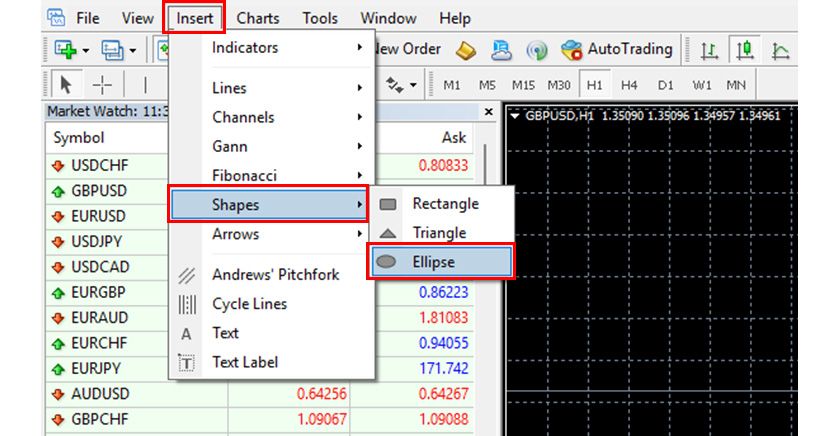
The cursor will switch to ellipse drawing mode. Click and drag to create the axis of the ellipse.

Afterward, click on the line, select it, and drag each point to adjust the ellipse's shape.
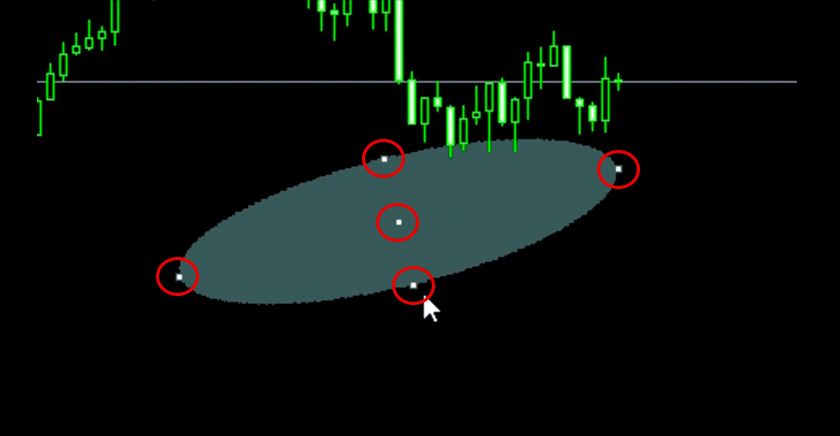
Fill Settings for Ellipses
In the ellipse's properties window, check the "Fill" option in the "Common" tab to enable or disable fill. You can change the fill color in the "Style" section.
Settings from previous drawings will carry over to subsequent drawings.
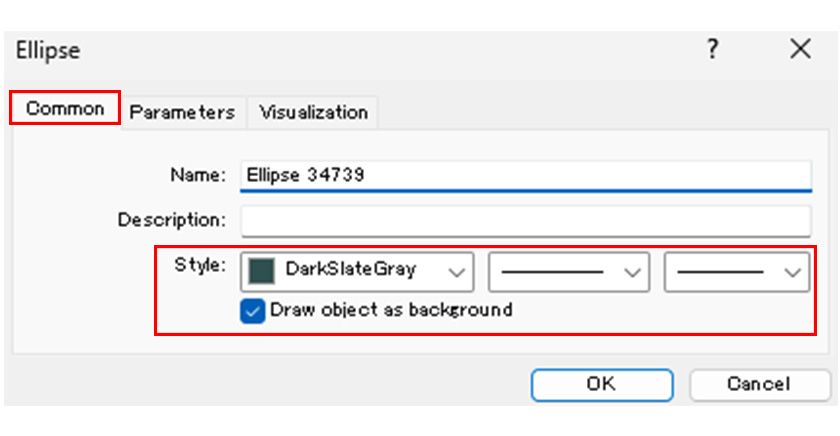
*To access the properties window for any object, right-click on the chart, select "Object List" from the menu, choose the desired object, and click "Properties." Alternatively, right-click on the selected object's points (small squares) and choose "Properties" from the displayed menu.