How to Import Historical Data into MT5 (Mac)
This article explains how to create a custom symbol in MT5 (MetaTrader 5) for Mac and import historical data into it.
You can use imported historical data to display charts or run backtests. Titan FX one-minute historical data is available from the link below.
For how to get the data and what the files contain, see How to Download Historical Data: One-Minute Bar CSV, Account Type and Importing into MT4 and MT5.
1. Before Importing: Set the Maximum Bars in Chart
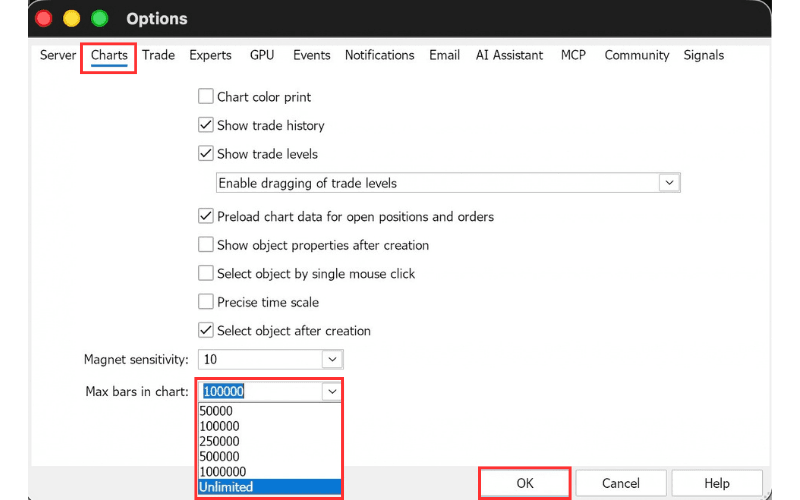
First, set the maximum number of bars in a chart to unlimited so MT5 can handle large amounts of data.
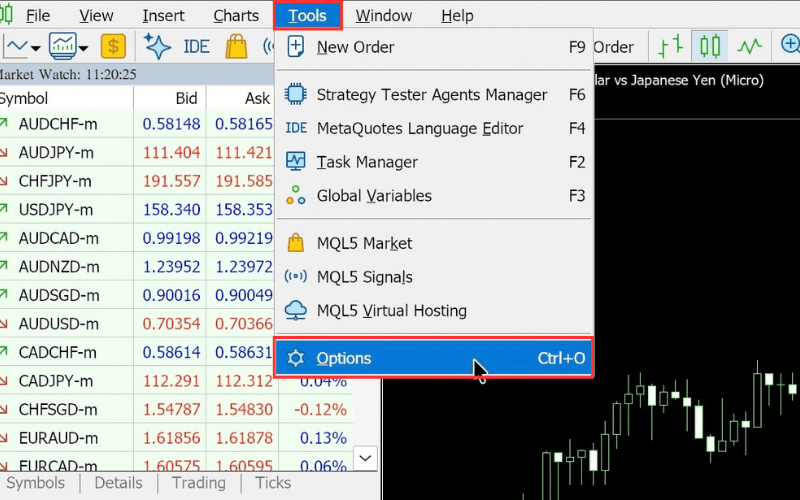
In the MT5 menu, click "Tools" and then "Options".
In the "Options" window, open the "Charts" tab, select "Unlimited" in "Max bars in chart", click "OK", and restart MT5.
2. Create a Custom Symbol
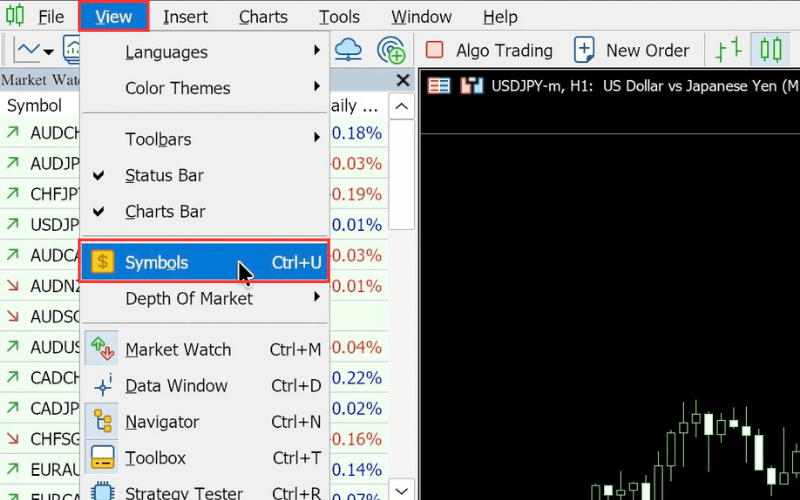
In the MT5 menu, click "View" and then "Symbols".
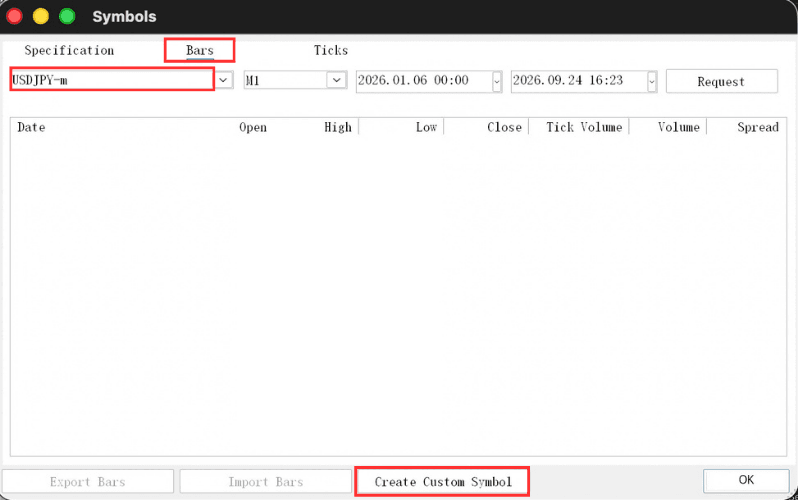
In the "Symbols" window, switch to the "Bars" tab, change the symbol at the top left to the one you want to import, and click "Create Custom Symbol".
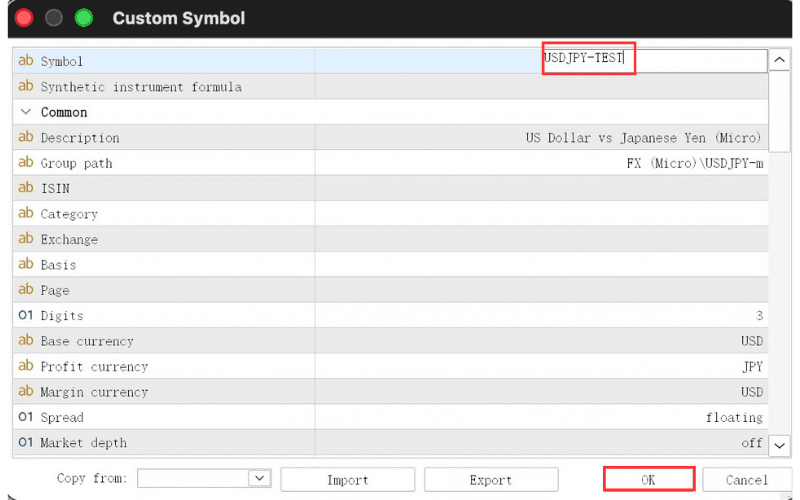
In the "Custom Symbol" window, change the "Symbol" field at the top right to a name that differs from any existing symbol (e.g. USDJPY-TEST) and click "OK".
3. Import the Historical Data
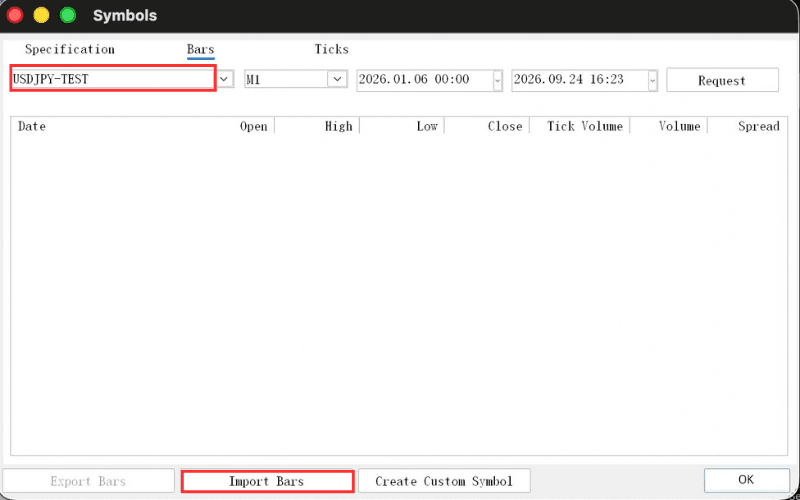
Back on the "Bars" tab of the "Symbols" window, change the symbol at the top left to the custom symbol you created and click "Import Bars".
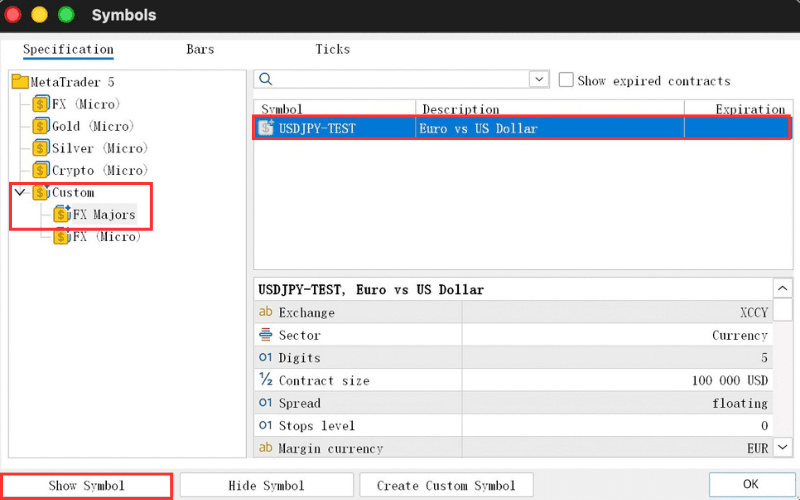
Custom symbols are saved under "Custom" in the list on the left.
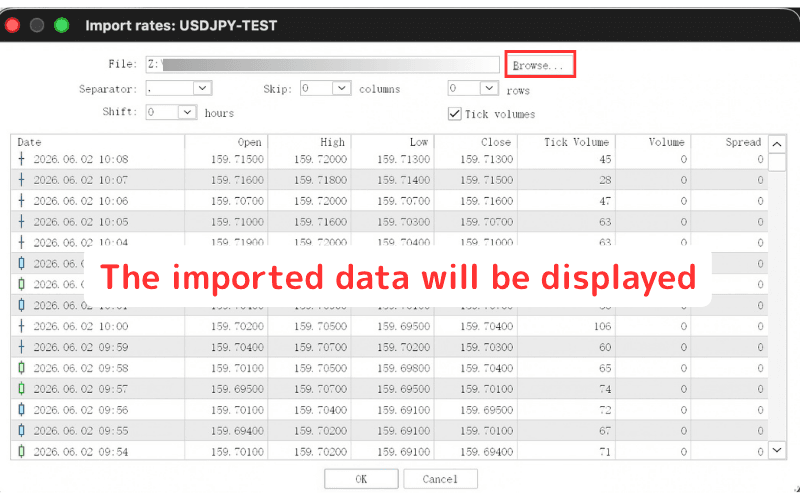
In the "Import rates" window, click "Browse..." at the top right, choose the file to import, adjust the other settings if needed, and click "OK". The data to be imported is previewed below so you can check it first.
Note: If the data does not load correctly, adjust the settings. For a CSV file, choose "," as the "Separator"; if the file has a header row, set "Skip" to 1 row.
Note: If you have several files, click "Import Bars" again and repeat the same steps.
Choosing Files on a Mac
The MT5 for Mac file picker shows Windows-style drives, and the files on your Mac are under the "Z:" drive.
For example, your Downloads folder is Z:\Users\(your user name)\Downloads. If the historical data you downloaded is a compressed file, unzip it on your Mac first.
4. Show the Custom Symbol
When the import is finished, open the "Specification" tab, select your symbol under "Custom" on the left, and click "Show Symbol". The symbol icon turns yellow when it is enabled. Click "OK" to close the window.
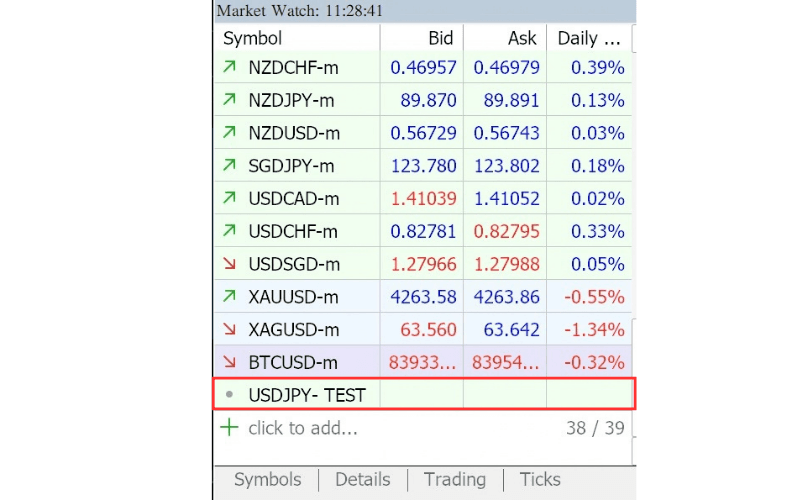
The custom symbol now appears in Configuration of the Market Watch in MT5 (Mac), and you can open a chart for it (see Opening New Chart and Reopening Closed Charts in MT5 (Mac)) or use it in backtests.