
How to Trade US Stock CFDs on MT5 (Windows)

This article explains in detail how to trade US stock CFDs (Contracts for Difference) on the Titan FX MT5 (MetaTrader 5) platform.
At Titan FX, you can trade more than 100 popular US stock CFDs with up to 20x leverage. You can also trade in both directions, buying and selling, so there is an opportunity to profit whether the stock price rises or falls.
How to Trade US Stock CFDs on MT5
Before you start trading US stock CFDs on the Titan FX MT5 platform, make sure you have registered a Titan FX MT5 account, installed the Titan FX MT5 platform, and have funds in your account. If you haven't done so yet, refer to the guides below.
1: Open an account from the TitanFX Client Portal
2: How to download, install, and log in to the Titan FX MT5 platform
Once you have completed the above, you can start trading US stock CFDs on the Titan FX MT5 platform.
Step 1: Log in to MT5
On the login window, enter your MT5 login ID and password, select the server, and log in to the MT5 platform.
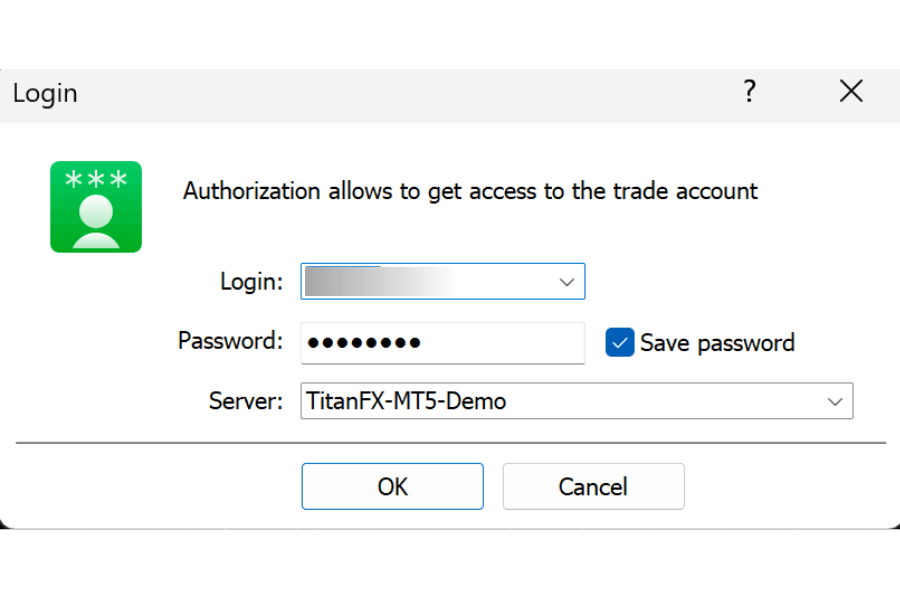
※ You can find your MT5 login details in the email you received when opening your account.
Step 2: Add and Display US Stock CFD Symbols
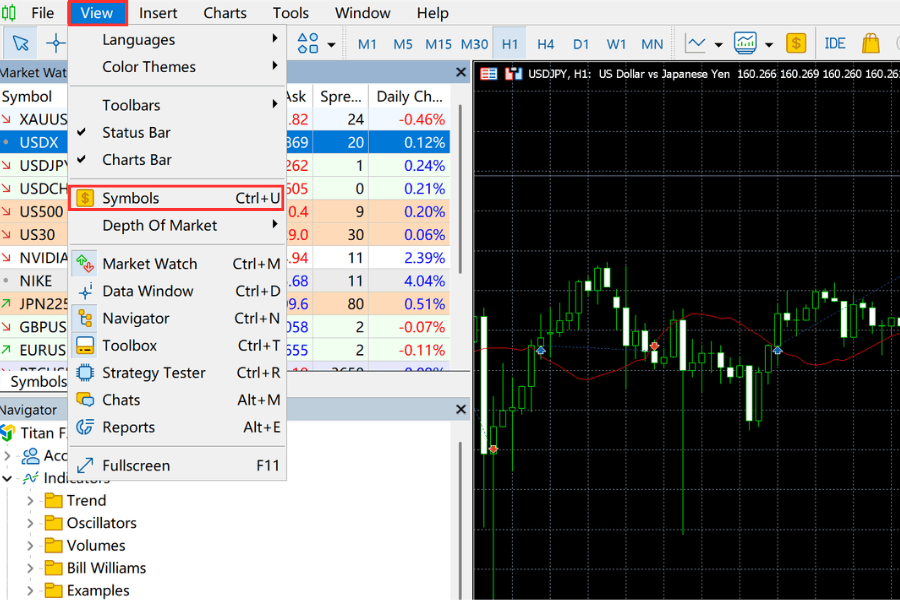
After logging in, click "View" - "Symbols" at the top or use the shortcut key "Ctrl+U" to open the show/hide symbols window.
Click "nasdaq" and "NYSE" under "Single Stocks" to select US stock CFD symbols. Double-click the $ icon to toggle between hidden and shown.
Titan FX offers more than 100 US stock CFD symbols, including:
Well-known companies such as Apple, Amazon, Alphabet, NVIDIA, Tesla, and Microsoft.
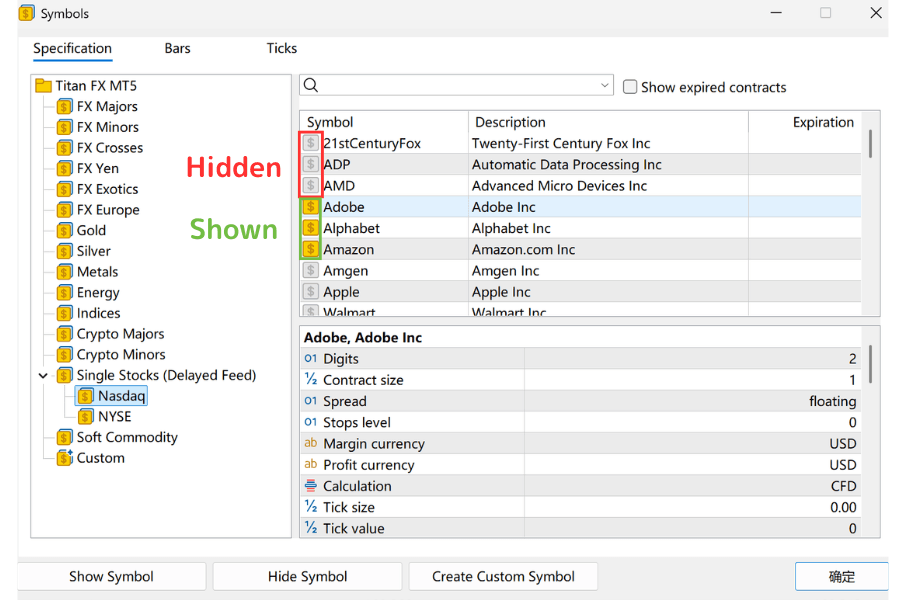
Once added, you can start trading US stock CFDs.
Note: the trading hours for all US stock CFDs are as follows:
| Trading Hours | Winter (GMT+2) | Summer (GMT+3) |
|---|---|---|
| MT4/5 time | 16:35 - 22:55 | 16:35 - 22:55 |
Step 3: Open the Chart of the US Stock CFD You Want to Trade
Move the cursor to the US stock CFD symbol you want to trade, right-click, and select "Chart Window", or drag and drop it onto the chart area to display the chart.
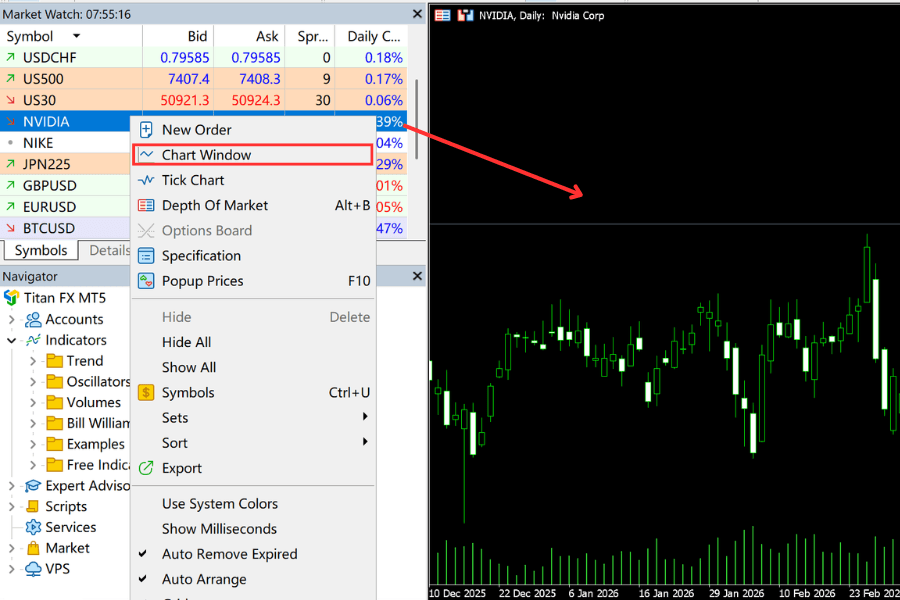
Step 4: Place an Order
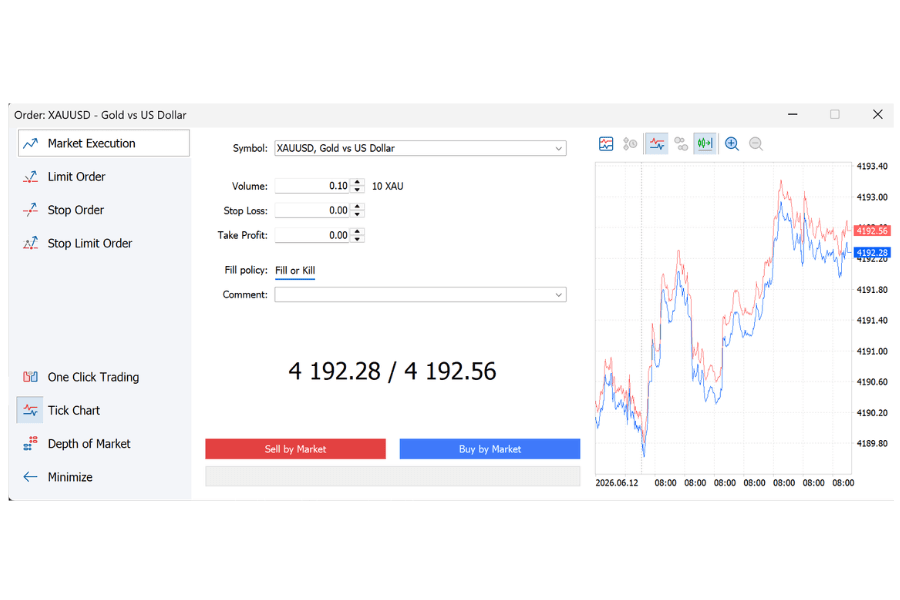
The order method is the same as for other CFDs (Contracts for Difference). Right-click on the chart and select "Trading" - "New Order", or click "New Order" on the toolbar at the top.
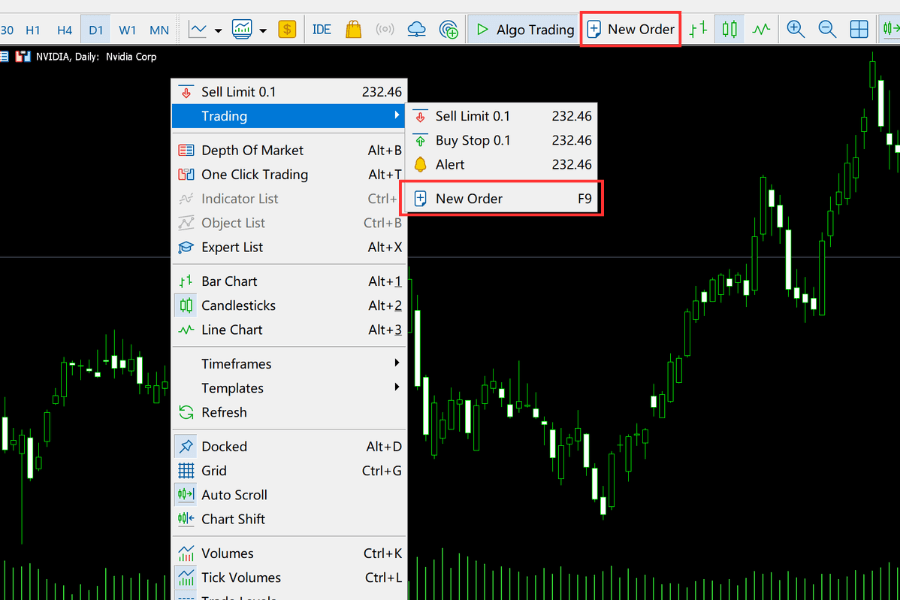
Then, in the order window that appears, set the order type (market order / pending order), lot size, stop loss / take profit, buy/sell, and other settings.