

How to Troubleshoot MT4 (Mac) Login Issues
This article explains what to check and how to fix it when you cannot log in to your trading account on MT4 (MetaTrader 4) for Mac.
When you are logged in, a green signal icon and the data transfer amount (for example, "8/1 kb") appear in the status bar at the bottom right of MT4. If the icon turns red and a message such as "Invalid account" appears, the login has failed.
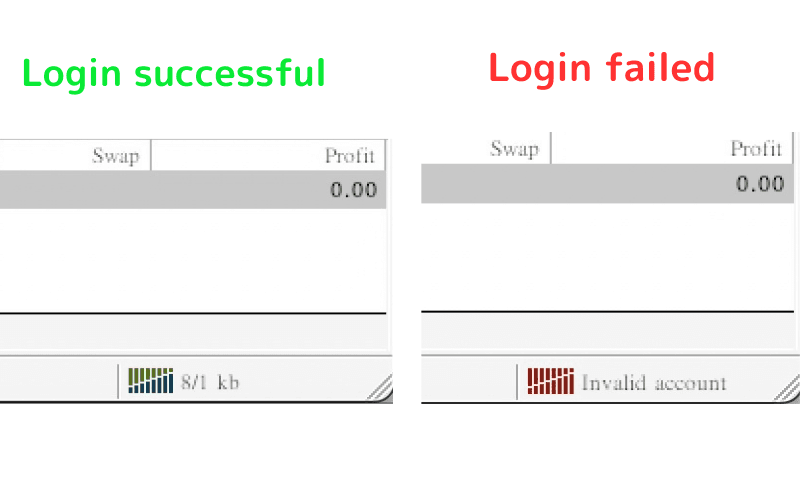
If you cannot log in, work through these four checks in order:
- Check your login details (login, password, server)
- Check that your account is active
- Check which MT4 you are using
- Check your network connection
1. Check Your Login Details (Login, Password, Server)
The most common cause of login failure is incorrect login details. When you open a live account, Titan FX emails you the account number (Login), password and server. Check the email and enter them again.
For how to enter them, see Installation and Login Methods for MT4 (Mac).
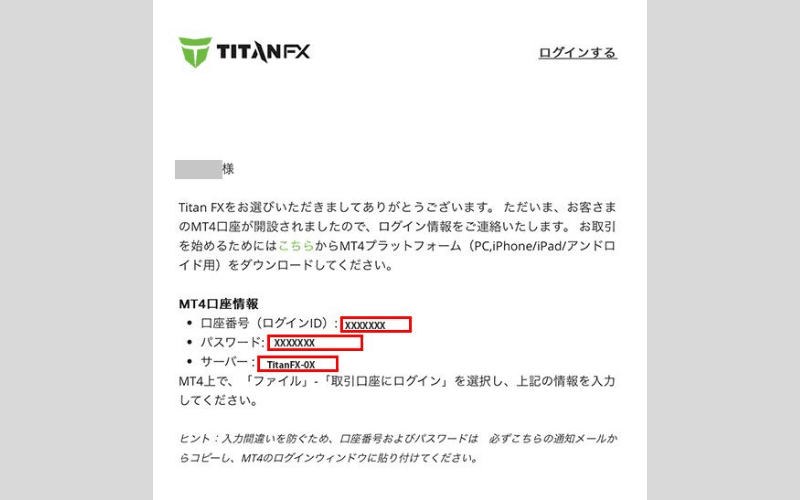
Check Your Password
These characters are easy to mix up. Copying and pasting from the email is the safest option:
- The number "1", uppercase "I" and lowercase "l"
- The number "0", uppercase "O" and lowercase "o"
- The number "2", uppercase "Z" and lowercase "z"
- The number "6" and lowercase "b"
Reset Your Password (Live Accounts)
If you have forgotten your password, you can reset your MT4 password in the Titan FX Client Cabinet.
Step 1: Log in to the Titan FX Client Cabinet.
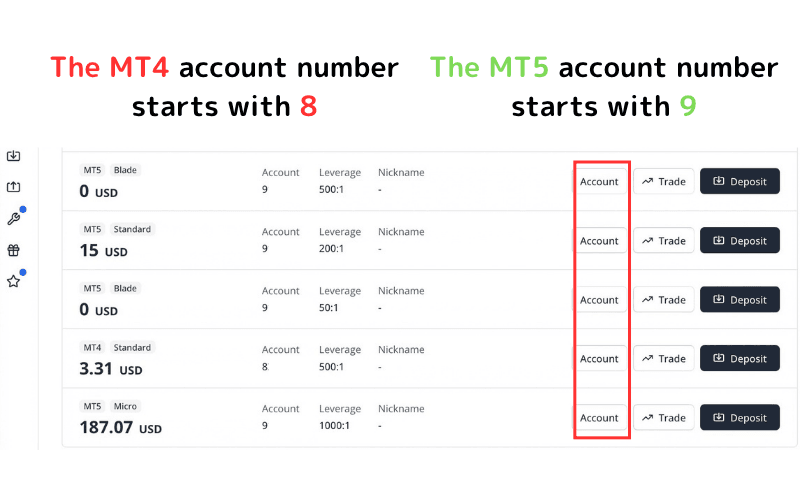
Step 2: In the trading account list on the Home screen, click "Account" next to the account you want to reset.
Note: MT4 account numbers start with 8 and MT5 account numbers start with 9.
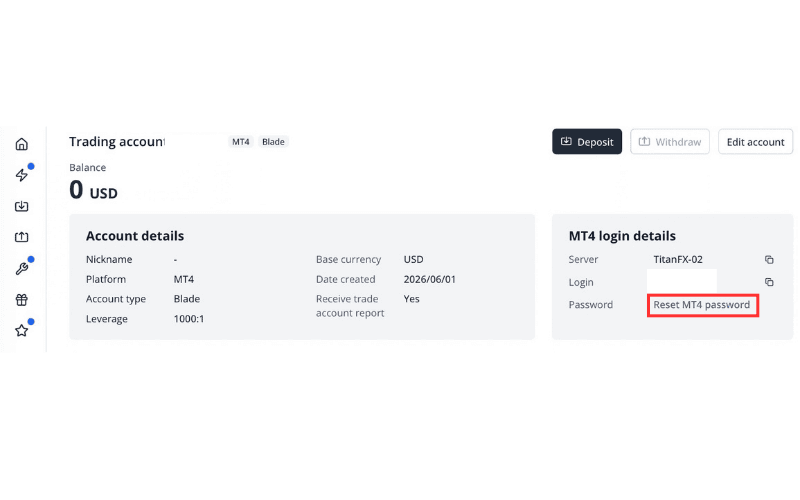
Step 3: On the "Trading account" page, under "MT4 login details", click "Reset MT4 password" in the Password row.
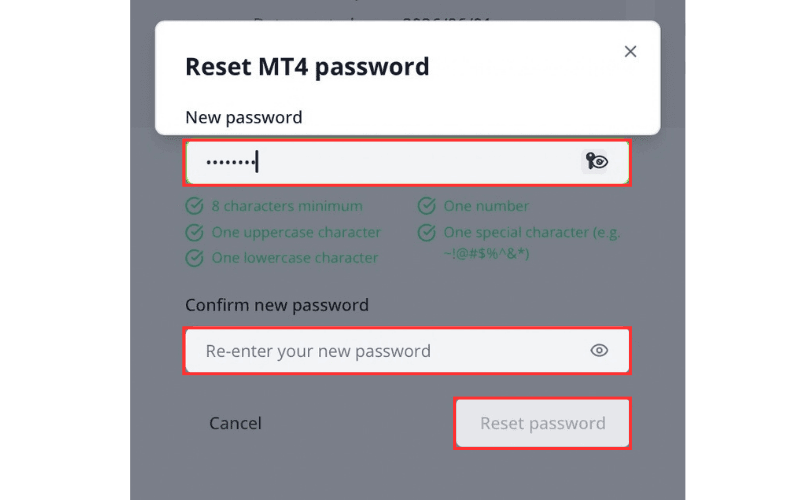
Step 4: In the "Reset MT4 password" window, enter your "New password" and "Confirm new password", then click "Reset password".
The new password must be at least 8 characters and include one uppercase letter, one lowercase letter, one number and one special character.
Check the Server
Choosing the wrong server is another common cause. Make sure the server you select matches the one in your email.
If your server is not in the server list on the login screen, follow these steps:
Step 1: In the MT4 menu, click "File" and then "Open an Account" to open the "Trading Servers" dialog.
Step 2: Type "Titan" in the input field at the bottom of the list and click "Scan".
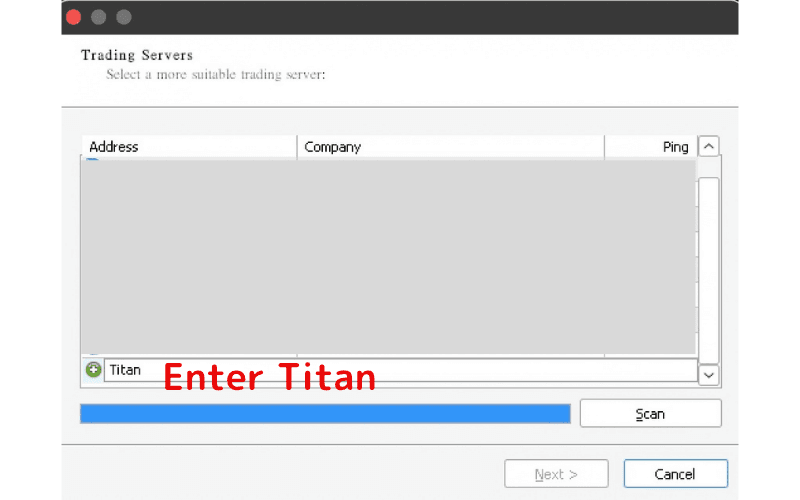
Step 3: When the scan finishes and the Titan FX servers appear in the list, click "Cancel" to close the dialog.
Step 4: Choose "File" > "Login to Trade Account". The Titan FX servers now appear in the server list.
To switch between several accounts, see How to Switch Accounts on MT4 (Mac).
2. Check That Your Account Is Active
Check Whether Your Account Has Been Deactivated
Titan FX live accounts are deactivated automatically if there has been no login for 90 days and the account has no open positions, pending orders or balance.
Deactivated accounts no longer appear in the trading account list on the Client Cabinet Home screen.
A deactivated account cannot be reactivated, so please open a new trading account from the Client Cabinet.
Demo accounts also expire if there is no login for 30 days after the last login. To open a new one, see How to Create a Demo Account on MT4 (Mac).
Check That It Is an MT4 Account
MT4 only accepts MT4 accounts; you cannot log in with an MT5 account.
You can check the account type in the Client Cabinet trading account list: each account is labelled "MT4" or "MT5", and account numbers starting with 8 are MT4 accounts while those starting with 9 are MT5 accounts.
3. Check Which MT4 You Are Using
You may not be able to log in from an MT4 provided by another broker. Use the Mac version of MT4 downloaded from the Titan FX download page. For download and installation steps, see Installation and Login Methods for MT4 (Mac).
4. Check Your Network Connection
You cannot log in if there is a network problem. The cause may be your own internet connection or a temporary system issue on the Titan FX side.
First, check that your Mac can browse websites normally. If your connection is fine and you still cannot log in, contact Titan FX support and we will let you know the current system status.