

How to Use the Fast Navigation Bar in MT5 (Mac)
This article explains how to use the Fast Navigation bar in MT5 (MetaTrader 5) for Mac.
With the Fast Navigation bar, you type a date, symbol or timeframe straight onto the chart to jump to a specific time or switch the symbol and timeframe in one go.
How to Open the Fast Navigation Bar
You can open the Fast Navigation bar in either of the following ways.
Using the Keyboard
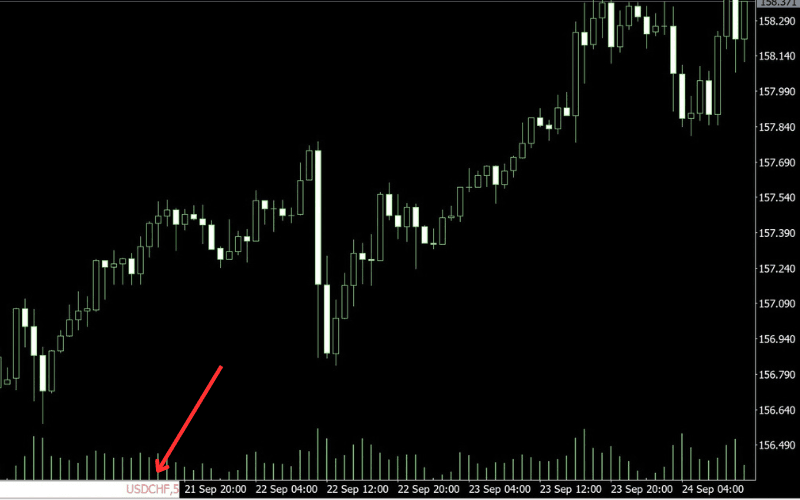
Select a chart and press Enter (return). An input field appears at the bottom left of the chart.
Double-Clicking the Bottom Left of the Chart
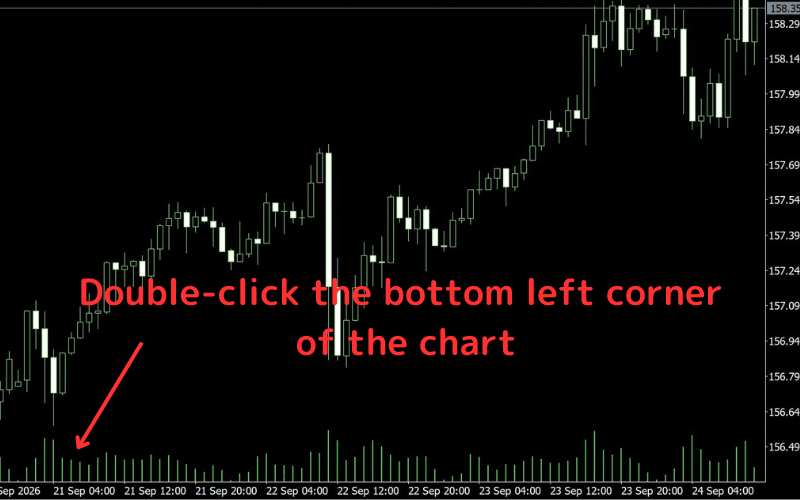
Move the cursor to the bottom left corner of the chart and double-click to open it.
How to Use the Fast Navigation Bar
1. Jump to a Date and Time
Once the bar is open, type the date or time in one of the formats below and press Enter. The chart moves to that point.
| Input type | Format |
|---|---|
| Time | hh:mm e.g. 10:00 |
| Date | yyyy.mm.dd or dd.mm.yyyy e.g. 2024.10.05 or 05.10.2024 |
| Date and time | yyyy.mm.dd hh:mm or dd.mm.yyyy hh:mm e.g. 2024.10.05 10:00 or 05.10.2024 10:00 |
2. Change the Symbol
Type a symbol (currency pair) name to switch the chart to that symbol. For other ways to do this, see Methods for Changing the Symbol in MT5 Charts (Mac).
| Input type | Format |
|---|---|
| Symbol | XXXXXX e.g. USDJPY |
3. Change the Timeframe
You can also type a timeframe to switch the chart period. For other ways to do this, see Methods for Changing the Chart Time Frame in MT5 (Mac).
| Input type | Format |
|---|---|
| Minutes | e.g. 1, 2, 3 … 60 (1 hour), 240 (4 hours), 1440 (daily), 10080 (weekly) |
| Timeframe code | e.g. m1, m2, m3, m5, h1, 4h, d1, w1, mn |
Note: Separate the symbol and timeframe with a space to change both at once, e.g. usdjpy 30.
Points to Note
Use the Correct Format
Enter dates, times and symbols in the formats shown above (e.g. yyyy.mm.dd hh:mm).
Available History May Limit the Jump
If you enter a date far in the past and the historical data for that period has not been downloaded, the chart may not be able to show it.