
MT5 (Mac) Platform Overview
This article introduces the basic screen layout of MT5 (MetaTrader 5) for Mac, including where each area is and what it is used for.
The MT5 layout on Mac is almost the same as on Windows. Getting familiar with each area first will make charting and placing orders smoother.
Basic Structure of MT5
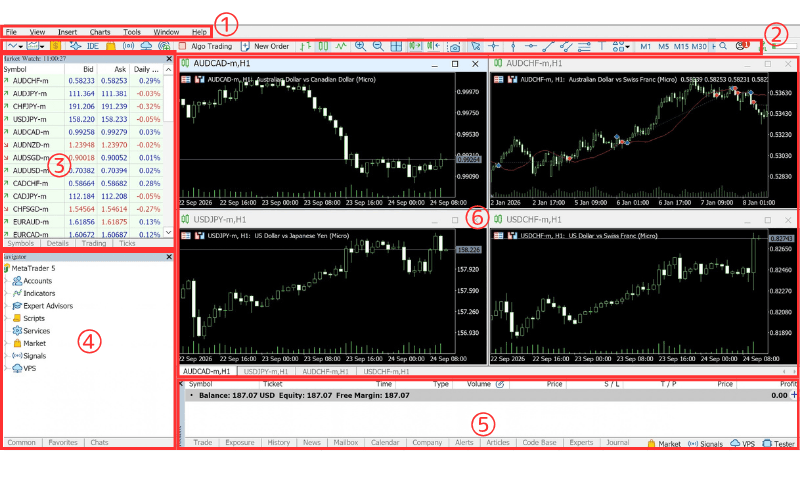
The main screen of MT5 (Mac) consists of the following six areas:
① Menu bar
② Toolbar
③ Market Watch
④ Navigator
⑤ Toolbox
⑥ Charts
Overview of Each MT5 Area
① Menu Bar
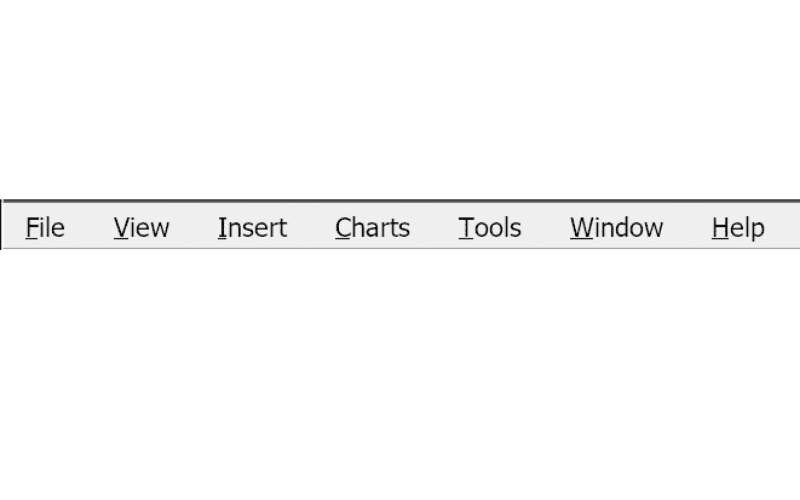
The menu bar sits at the very top of the screen, and most basic operations in MT5 can be performed from it. It has seven menus:
"File": Open new charts, open the data folder, log in to a trading account, and more.
"View": Show or hide the windows in MT5 and change the display language.
"Insert": Add indicators, objects such as lines, Expert Advisors (EAs), and scripts to a chart.
"Charts": Configure chart-related settings.
"Tools": Open the Options window or launch MetaEditor, the editor for MQL5 programs.
"Window": Arrange chart windows.
"Help": Open the help, visit the MetaQuotes website, and check version information (see How to Check the Version of MT5 (Mac)).
② Toolbar
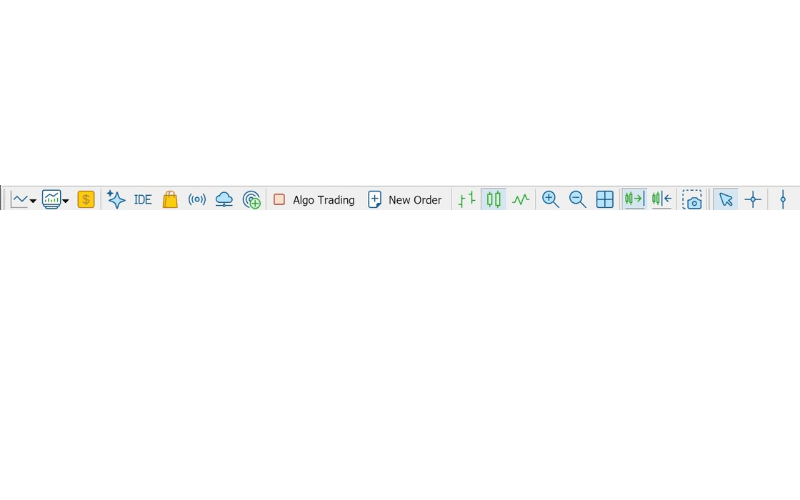
Frequently used operations are placed as icons below the menu bar, so you can run them with a single click.
For example, "New Order" opens the order window, "Algo Trading" turns automated EA trading on or off, and "IDE" launches MetaEditor. There are also buttons to change the chart type, zoom in and out, and save a chart image.
You can customize which buttons appear on the toolbar.
③ Market Watch
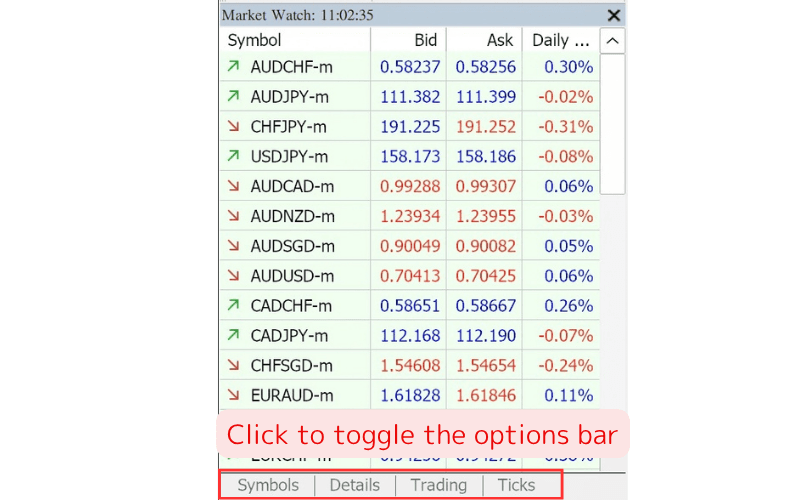
Market Watch shows real-time prices for each symbol, including the bid, ask, and daily change.
Click the tabs at the bottom to switch the view: "Symbols" lists prices, "Details" shows data such as highs and lows, "Trading" shows one-click trading panels, and "Ticks" shows a real-time tick chart for the selected symbol (see Configuration of the Market Watch in MT5 (Mac)).
④ Navigator
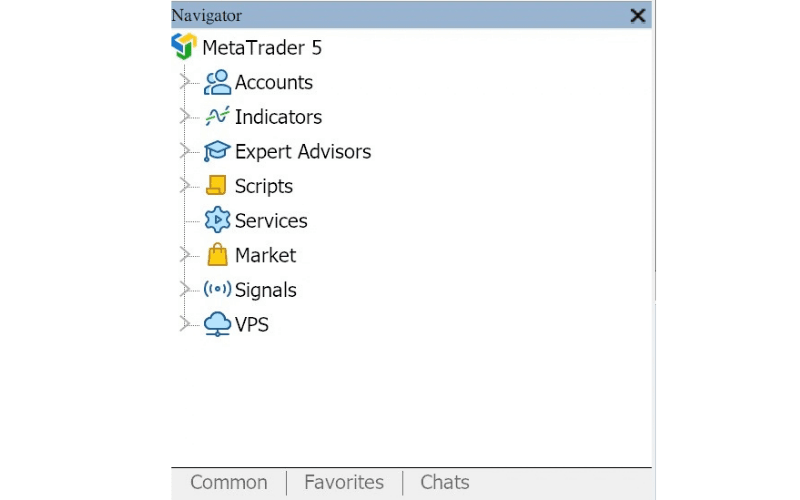
Use the Navigator to switch between live and demo accounts (see How to Switch Accounts on MT5 (Mac)) and to manage indicators, EAs, scripts, and more.
"Accounts", "Indicators", "Expert Advisors", "Scripts", "Services", "Market", "Signals", and "VPS" are organized as folders. Double-click an indicator or EA, or drag and drop it onto a chart, to add it to the selected chart (see How to Set Up Indicators on MT5 (Mac)).
⑤ Toolbox
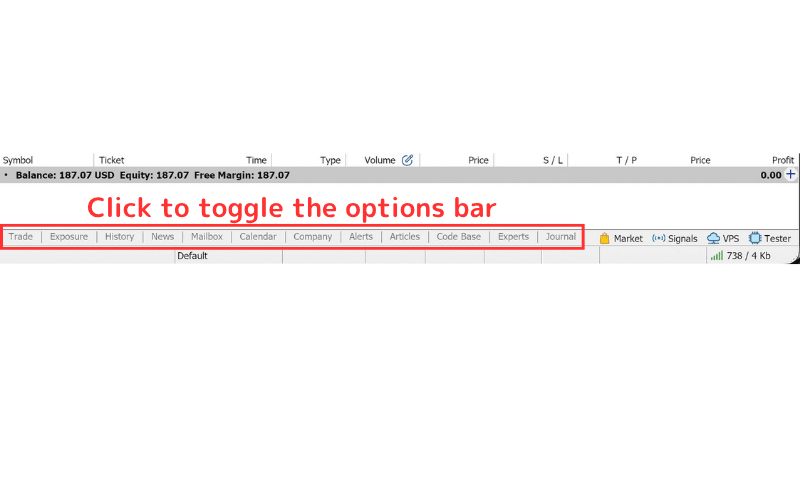
The Toolbox sits at the bottom of the screen, and you can switch between its functions using the tabs along the bottom.
The most used tabs are "Trade" for managing open positions and pending orders (see Check Positions, Orders, and Assets in MT5 (Mac)) and "History" for checking your trading history (see How to Check Account History on MT5 (Mac)).
You can also check upcoming economic releases in "Calendar" and get indicators and EAs shared by the MQL5 community from "Code Base".
⑥ Charts
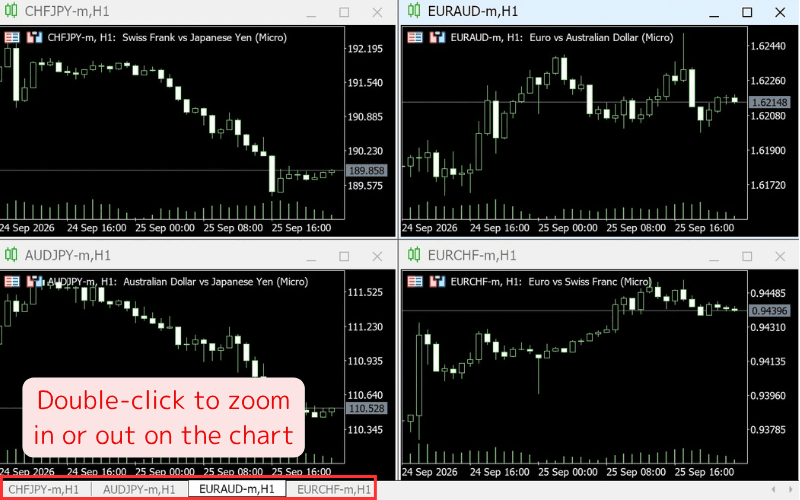
This is where charts are displayed. The tabs at the bottom list every open chart (including minimized ones); click a tab to switch to that chart.
Double-click a chart tab to maximize the chart or restore it to its original size. To open or close charts, see Opening New Chart and Reopening Closed Charts in MT5 (Mac).