How to Backtest an EA in MT4 (Mac)
This article explains how to backtest an EA with the Strategy Tester in MT4 (MetaTrader 4) for Mac, check the results and save the report. You can test an EA with fixed parameters, or run an optimization test to find the parameter values that give the best results, which takes longer.
MT4 Backtesting Setup
Prepare the EA you want to backtest and install it in MT4 first (see Setting Up an EA in MT4 (Mac)). For how to install MT4 itself and log in, see Installation and Login Methods for MT4 (Mac).
Displaying the Strategy Tester
MT4 backtests are run with a tool called the Strategy Tester.
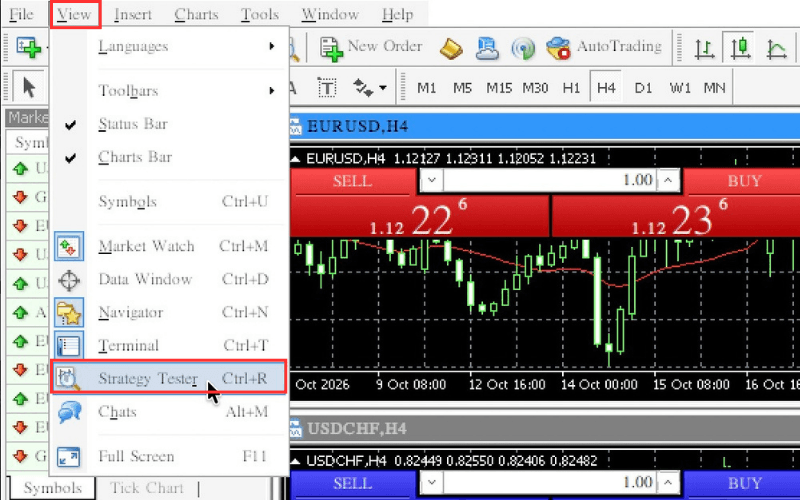
In the MT4 menu, click "View" and then "Strategy Tester" (Ctrl+R). The Strategy Tester opens at the bottom of the screen.
Strategy Tester Settings
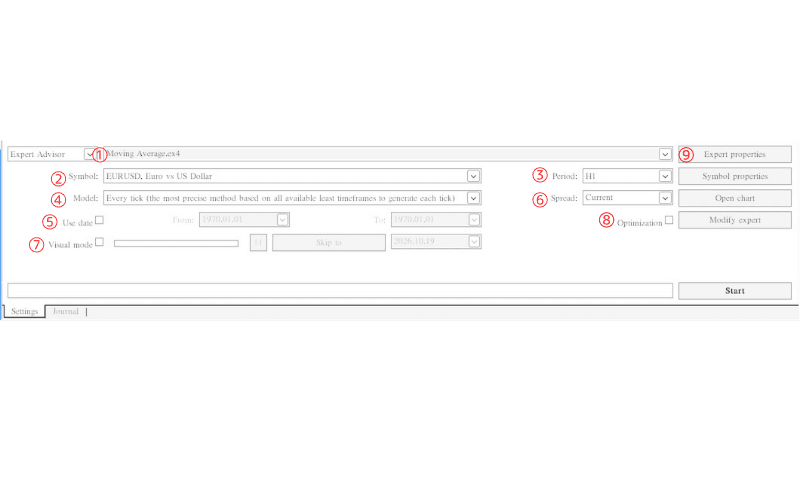
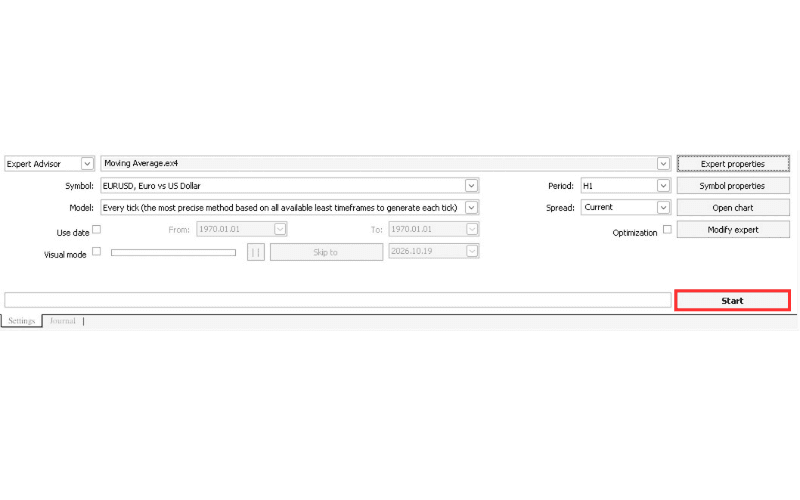
On the "Settings" tab of the Strategy Tester, set the following items (numbers refer to the image).
① Select "Expert Advisor" on the left, then choose the EA to test on the right.
② In "Symbol", select the currency pair to test.
③ In "Period", select the timeframe to test.
④ In "Model", choose which prices to use. "Every tick" is the usual choice; the other options are faster but less reliable.
⑤ To test a specific period, check "Use date" and set the start and end dates.
⑥ In "Spread", set the expected spread ("Current" by default).
⑦ Check "Visual mode" to show the test on a chart (this makes the test take longer).
⑧ Check "Optimization" to run an optimization test based on the settings in "Expert properties".
⑨ Click "Expert properties" to open the window for the account, parameter and optimization settings.
Note: "Open chart" on the right opens a chart of the test symbol. See also Displaying New and Reopening Closed Charts in MT4 (Mac).
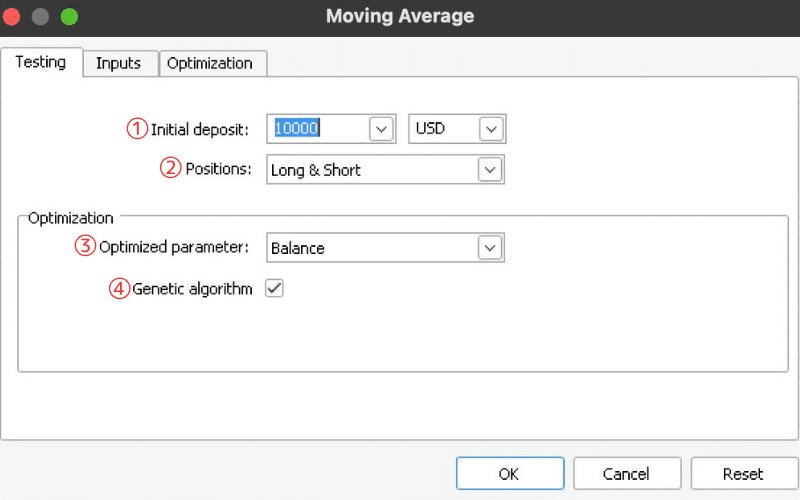
Expert Properties: Testing Tab
① In "Initial deposit", set the starting balance and choose the account currency on the right ("USD" in the image).
② In "Positions", choose Long & Short, Long only or Short only.
③ In "Optimized parameter", choose what to optimize for (e.g. Balance).
④ Check "Genetic algorithm" to speed up optimization calculations.
Expert Properties: Inputs Tab
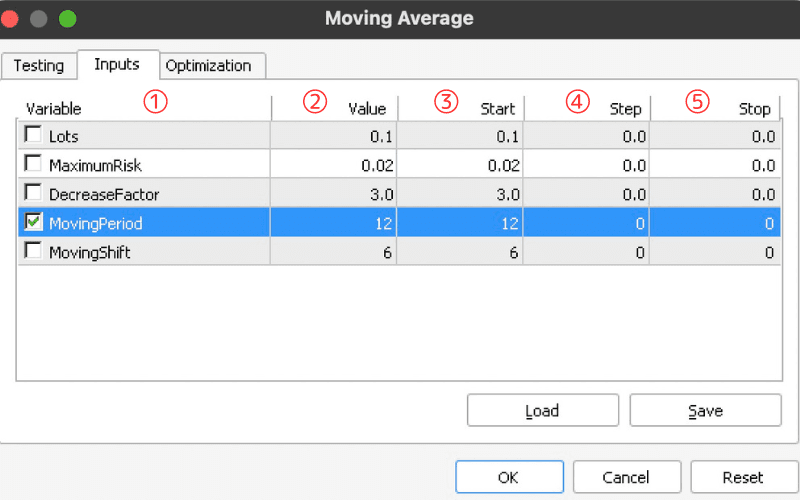
On the "Inputs" tab, set the EA parameters and the optimization range.
① In "Variable", check the items to optimize.
② For a simple test, set each parameter in "Value".
③ In "Start", set the minimum value for optimization.
④ In "Step", set the interval between values.
⑤ In "Stop", set the maximum value for optimization.
You can save the parameters with "Save" and load them again with "Load".
Expert Properties: Optimization Tab
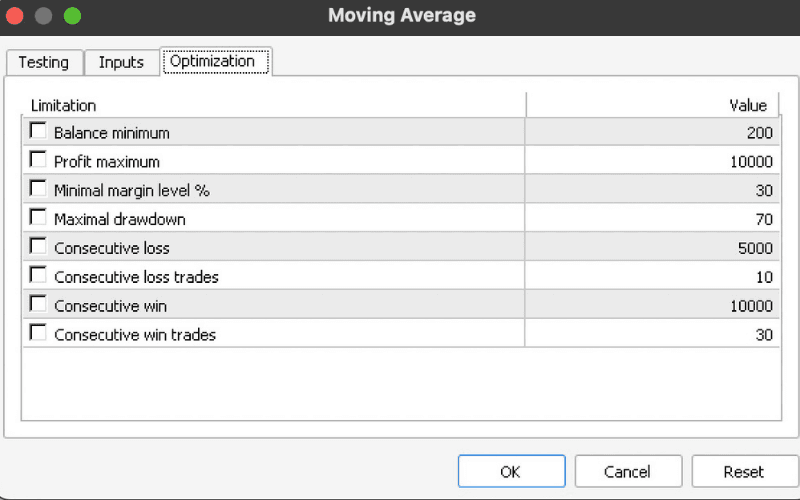
On the "Optimization" tab, you can stop the test when certain limits are reached (e.g. "Balance minimum" or "Maximal drawdown"). If you do not need this, leave all items unchecked.
When you are done, click "OK" to close the window.
Starting the Test
Click "Start" to begin the test. The progress bar on the left shows how far the test has run.
Long test periods or many optimization combinations can take hours or even days to calculate, so keep the test period as short as practical.
Checking MT4 Backtest Results
When the test finishes, the Strategy Tester shows the following tabs, depending on the type of test.
Optimization Results
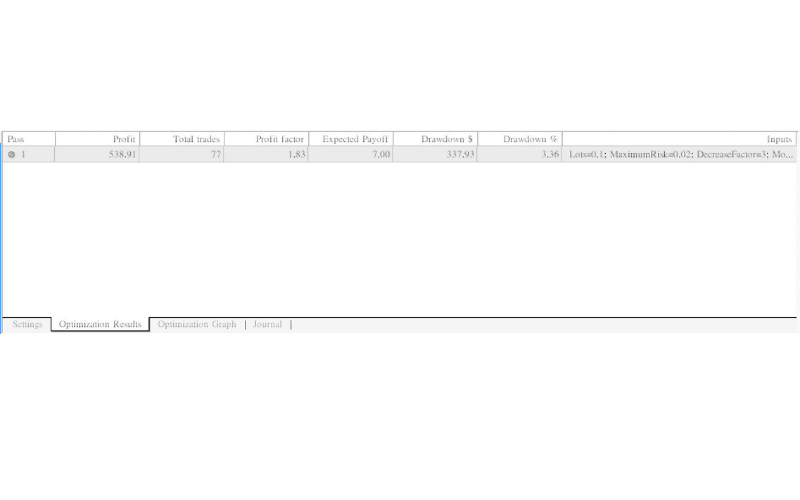
If you ran an optimization, the "Optimization Results" tab lists each parameter set with its profit, total trades, profit factor, drawdown and more.
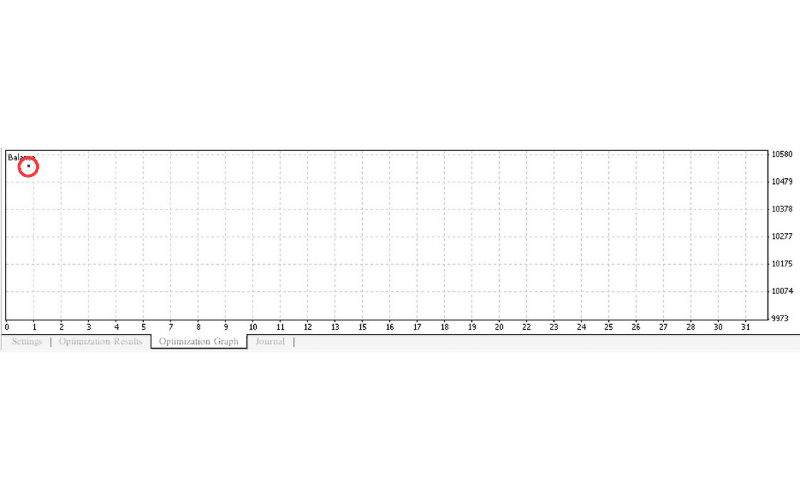
Optimization Graph
The "Optimization Graph" tab shows the optimization results as a chart.
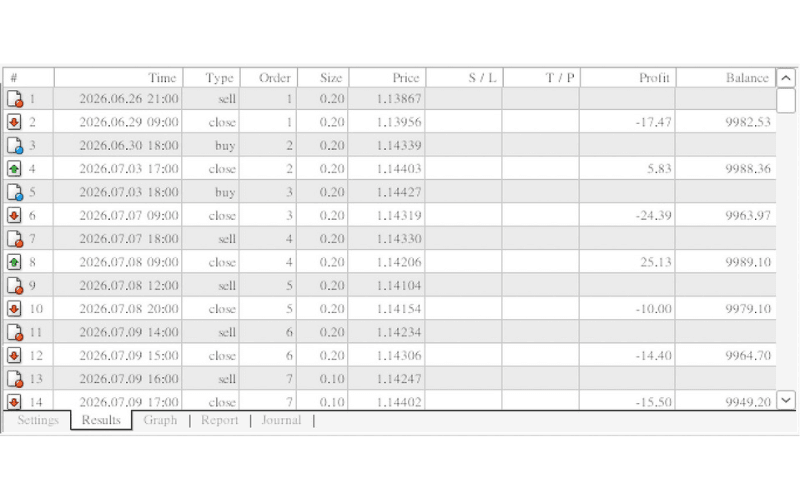
Results
The "Results" tab lists every test trade, so you can check the time, type, size and price of each one.
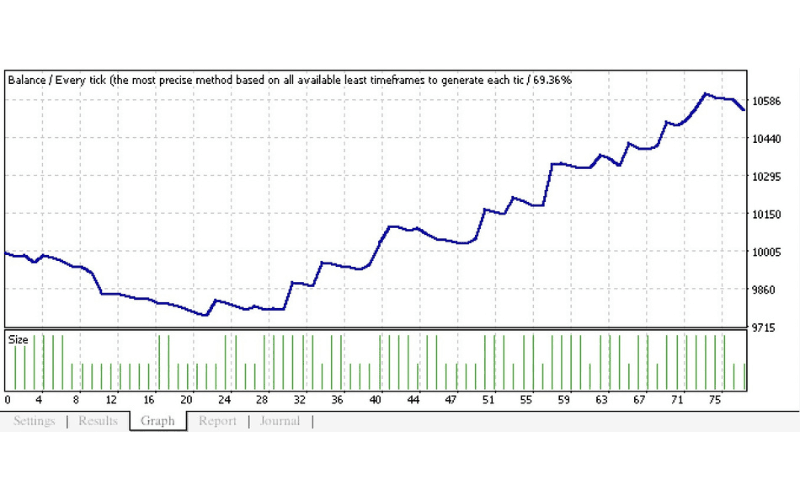
Graph
The "Graph" tab charts the account balance over the test. The blue line is the balance, and the green bars at the bottom show the size of each trade.
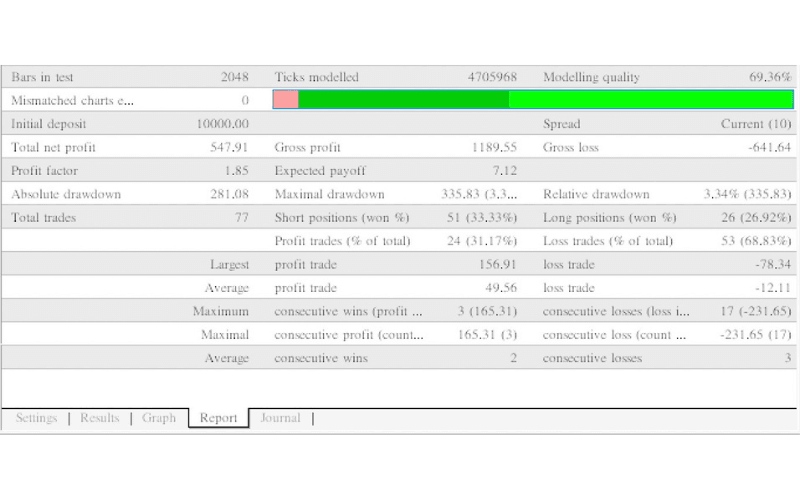
Report
The "Report" tab summarizes the whole test period: modelling quality, total net profit, profit factor, number of trades, drawdowns, consecutive wins and losses, and more.
Saving the Report
Right-click inside the "Report" tab (on a Mac you can also Control-click) and choose the option to save the report. It is saved in HTML format.
You can open the saved report in a browser. Along with the figures, it shows the balance graph and the list of trades.
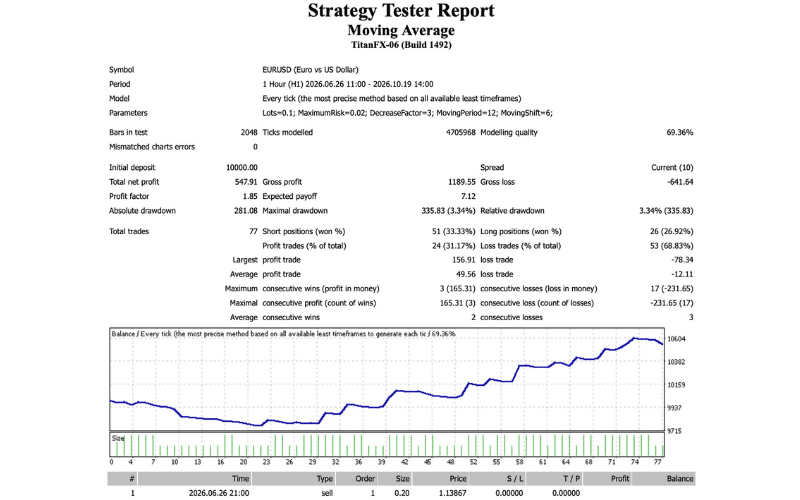
Terms Used in the MT4 Backtest Report
| Term | Meaning |
|---|---|
| Bars in test | Number of bars used in the test |
| Ticks modelled | Number of ticks used in the test |
| Modelling quality | Quality of the test data |
| Mismatched charts errors | Number of errors such as missing data |
| Initial deposit | Account balance at the start of the test |
| Spread | Spread used in the test |
| Total net profit | Overall profit or loss |
| Gross profit | Sum of all profits |
| Gross loss | Sum of all losses |
| Profit factor | Gross profit / gross loss (above 1 means a profit) |
| Expected payoff | Net profit / number of trades (expected profit per trade) |
| Absolute drawdown | Largest drawdown below the initial deposit |
| Maximal drawdown | Largest drawdown in money during the test (with %) |
| Relative drawdown | Largest drawdown in % (with amount) |
| Total trades | Number of trades |
| Short positions (won %) | Number of sell trades and their win rate |
| Long positions (won %) | Number of buy trades and their win rate |
| Profit trades / Loss trades (% of total) | Number and share of winning and losing trades |
| Largest profit trade / loss trade | Biggest single win and biggest single loss |
| Average profit trade / loss trade | Average win and average loss |
| Maximum consecutive wins / losses | Longest winning (losing) streak and its profit (loss) |
| Maximal consecutive profit / loss | Largest streak profit (loss) and its number of trades |
| Average consecutive wins / losses | Average length of winning and losing streaks |
Receiving Price Data
If MT4 has too little price data, the backtest may not run properly.
There are several ways to add price data. Here we show the simplest one: receiving price data from MetaQuotes. Try this if your backtest does not work as expected. If a chart shows no prices, see also How to Resolve "Waiting for Update" on MT4 (Mac) Charts.
Chart Settings
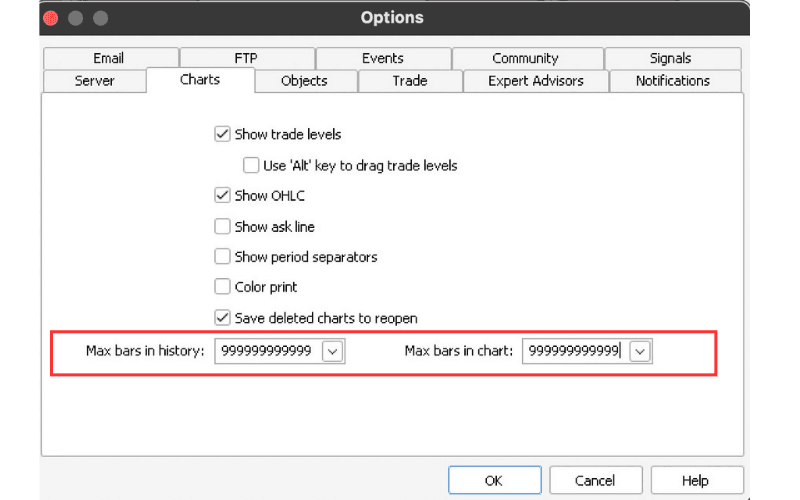
In the MT4 menu, click "Tools" and then "Options".
In the "Options" window, open the "Charts" tab, enter the maximum value (e.g. 999999999999) in "Max bars in history" and "Max bars in chart", and click "OK".
Downloading Price Data
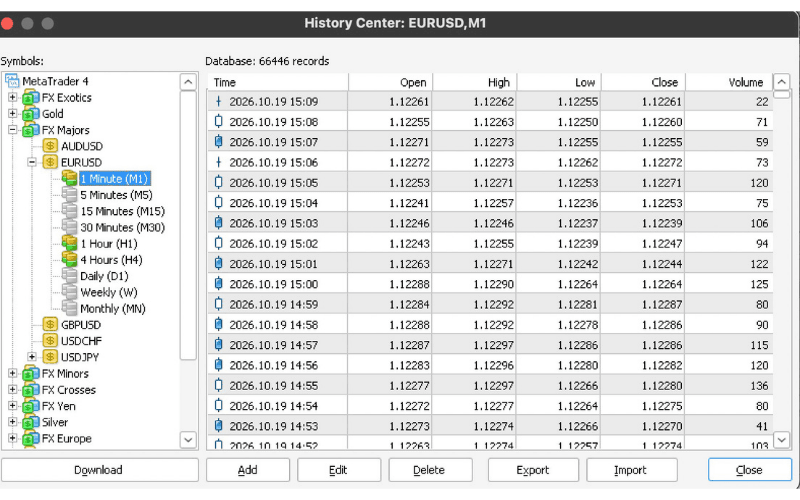
In the MT4 menu, click "Tools" and then "History Center".
In the "History Center" window, select the symbol and timeframe you want to test on the left (e.g. EURUSD "1 Minute (M1)"), then click "Download" at the bottom left to start receiving price data.