

Setting Up an EA in MT4 (Mac)
This article explains how to install an Expert Advisor (EA), an automated trading program, in MT4 (MetaTrader 4) for Mac, and how to start and stop automated trading.
You can get EAs online or create your own. Titan FX also offers a range of free EAs you can try.
Installing an EA
Open the data folder
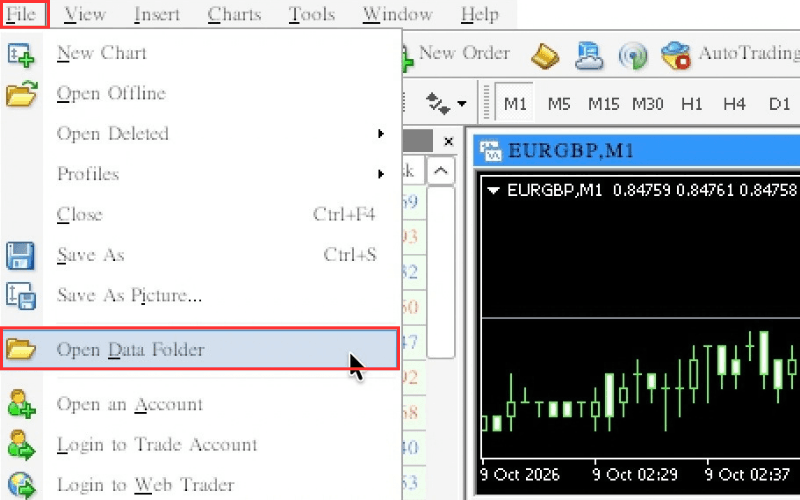
Select "Open Data Folder" from the "File" menu in MT4.
Copy the EA file into the "Experts" folder
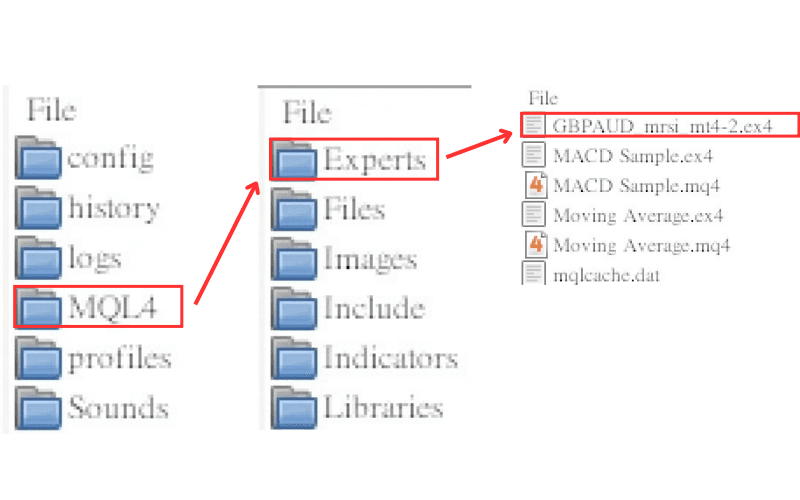
In the folder window that opens, open the "MQL4" folder and copy the EA file (.ex4 or .mq4) into the "Experts" folder inside it.
Restart MT4
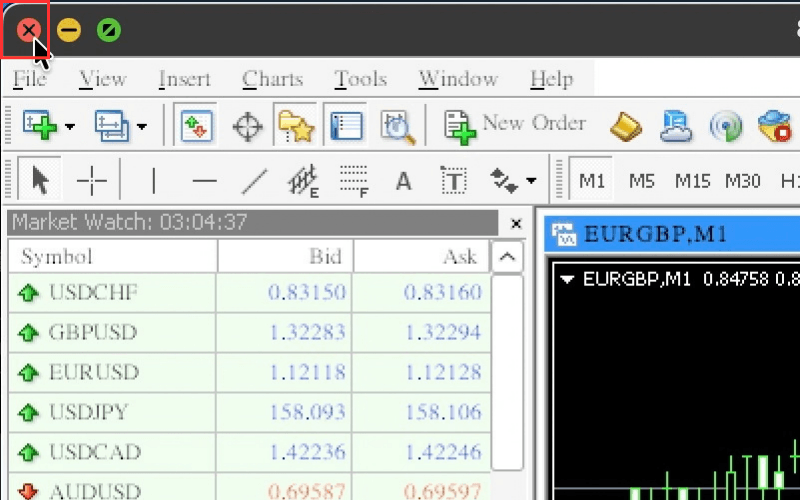
Click the red close button at the top left of the MT4 window to quit MT4, then open MT4 again. This completes the installation. For how to launch and log in to MT4, see Installation and Login Methods for MT4 (Mac).
Launching an EA
Check the EA in the Navigator
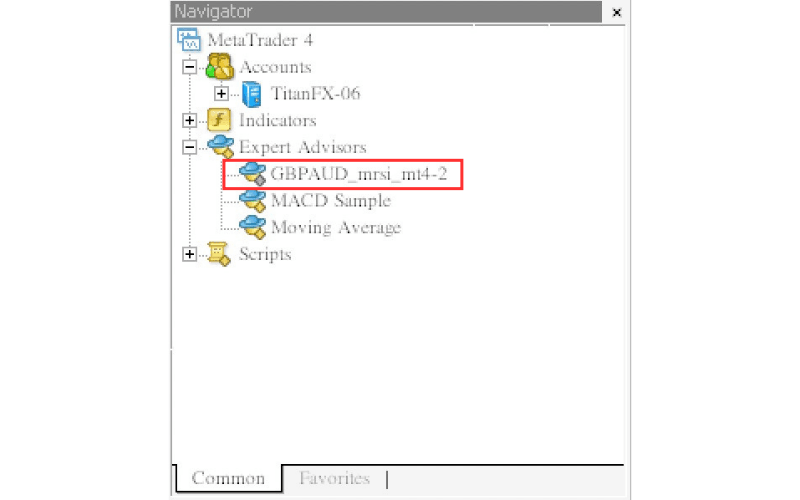
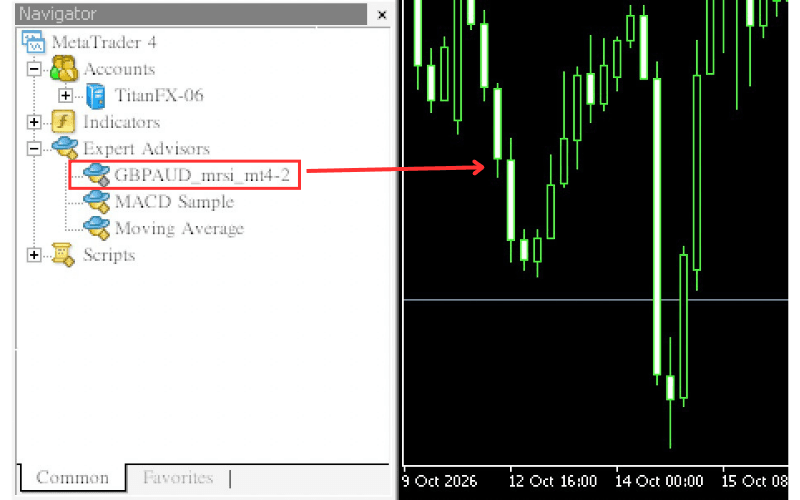
After restarting, the added EA appears under "Expert Advisors" in the "Navigator".
Attach the EA to a chart
An EA runs on one specified chart. Set the chart to the symbol and time frame you want to trade, then double-click the EA name in the Navigator or drag and drop it onto the chart. To change the symbol or time frame, see Methods for Changing the Symbol in MT4 Charts (Mac) and Methods for Changing the Chart Time Frame in MT4 (Mac).
Set the EA parameters
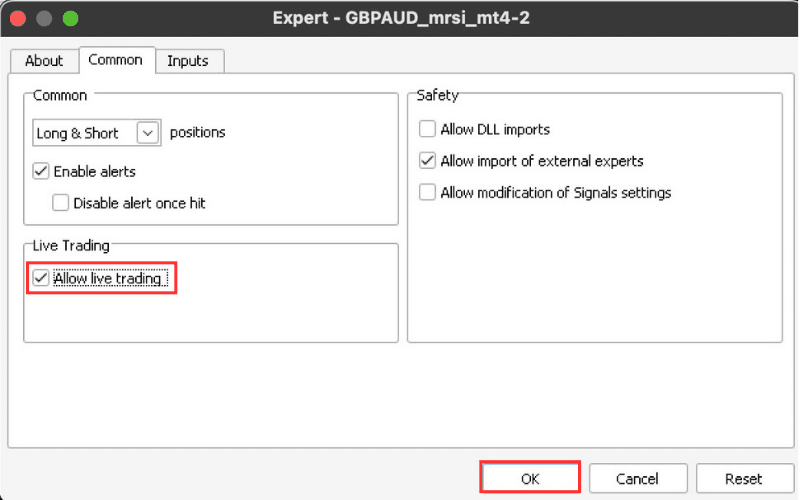
In the settings window that appears, open the "Common" tab and tick "Allow live trading" under "Live Trading".
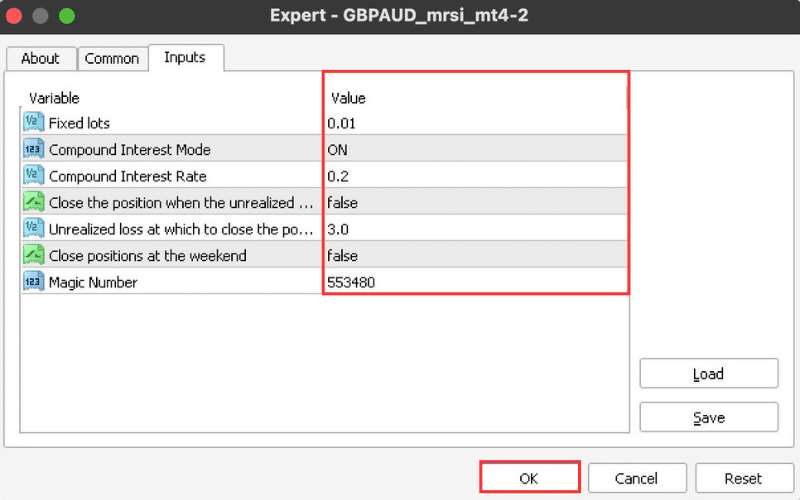
On the "Inputs" tab, change the "Value" of parameters such as the lot size as needed, then click "OK".
Turn on AutoTrading
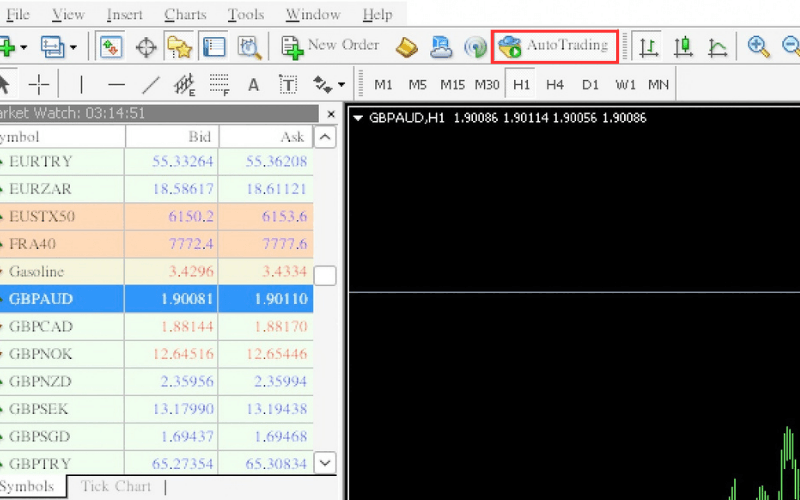
Finally, click "AutoTrading" on the toolbar to turn automated trading ON (green play icon). The EA starts trading.
Check that the EA is running
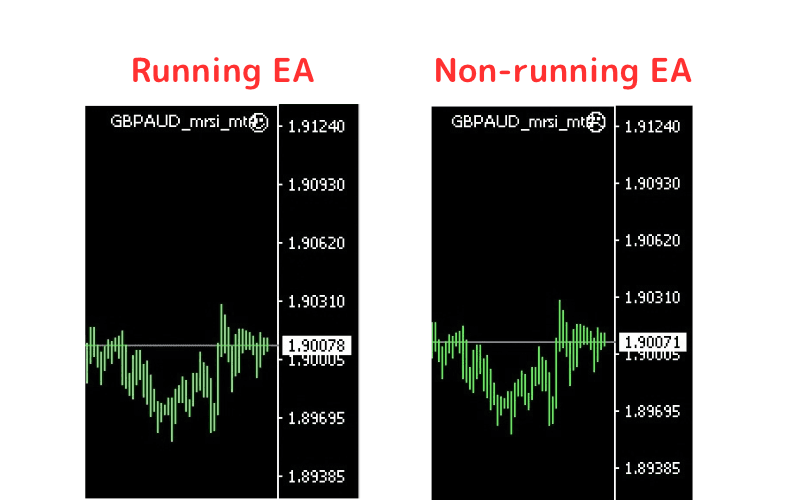
Check the face icon next to the EA name at the top right of the chart. A smiling face means the EA is running; a face that is not smiling means it is not running.
Stopping an EA
Stopping a specific EA
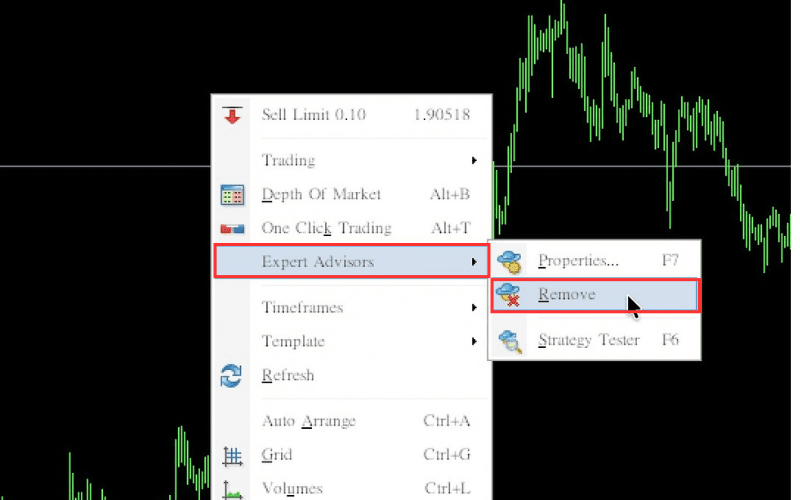
Right-click the chart where the EA is running and select "Expert Advisors" → "Remove".
You can also stop the EA by closing its chart. For how to close a chart, see Displaying New and Reopening Closed Charts in MT4 (Mac).
Note: open positions and pending orders remain. Close or cancel them manually if you no longer need them.
Stopping all EAs in MT4
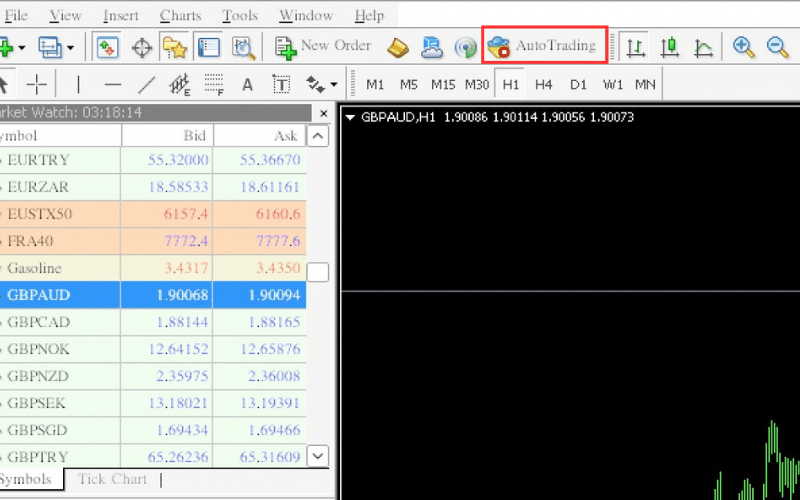
Click "AutoTrading" on the toolbar again to turn automated trading OFF (red stop icon). This pauses all EAs running in MT4.
To resume, click it again to turn it back ON (green play icon).
Note: open positions and pending orders remain. Close or cancel them manually if you no longer need them.
Important Notes When Running an EA
- While an EA is running, keep both MT4 and the chart the EA runs on open. Closing the chart stops the EA immediately.
- Keep a stable internet connection while an EA is running. If your Mac goes to sleep, the connection drops too, and the EA may not work properly, which can lead to unintended trades.
- Stopping an EA does not close open positions or cancel pending orders. Handle them manually if needed; see How to Settle Existing Positions in MT4 (Mac).