

How to Import Historical Data into MT4 (Mac)
This article explains how to import one-minute historical data into MT4 (MetaTrader 4) for Mac and use it to build data for other timeframes.
To avoid the data being overwritten by the server, we recommend using a separate MT4 set up for backtesting. Titan FX historical data is available from the link below.
For how to get the data and what the files contain, see How to Download Historical Data: One-Minute Bar CSV, Account Type and Importing into MT4 and MT5.
1. Before Importing: Set a Proxy Server
First, stop MT4 from connecting to the server so that it does not receive new server data.
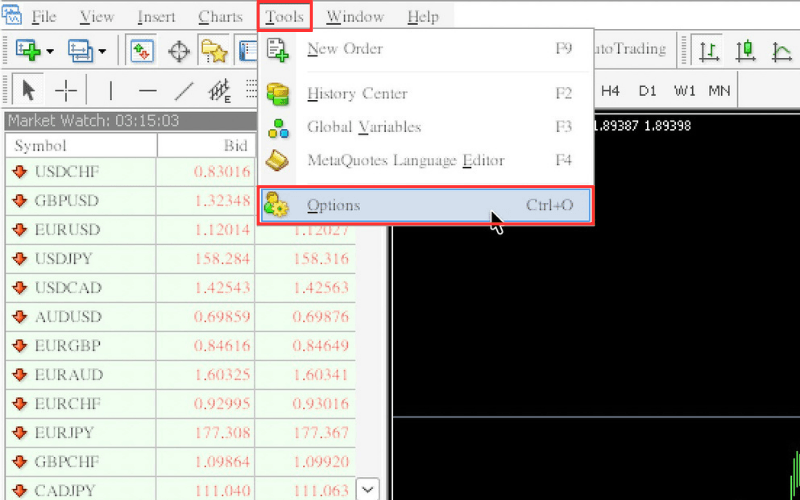
In the MT4 you prepared for backtesting, log in to any Titan FX account (a demo account is fine; see How to Create a Demo Account on MT4 (Mac)), then click "Tools" and "Options" in the menu.
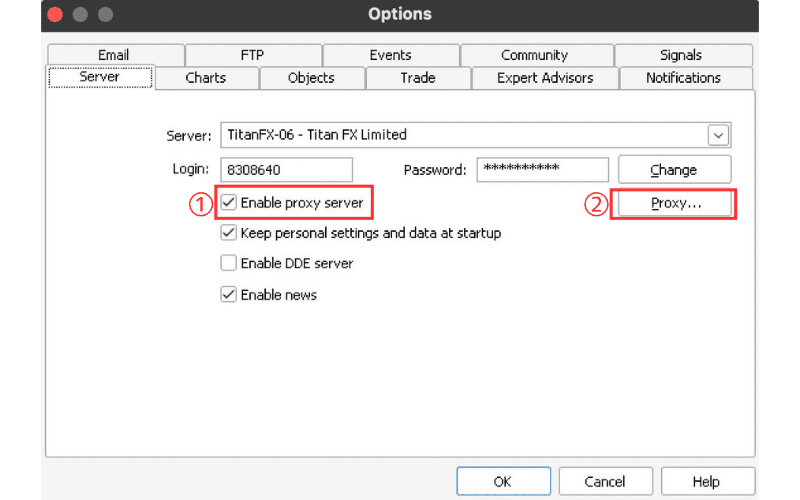
On the "Server" tab of the "Options" window, (1) check "Enable proxy server" and (2) click "Proxy..." on the right.
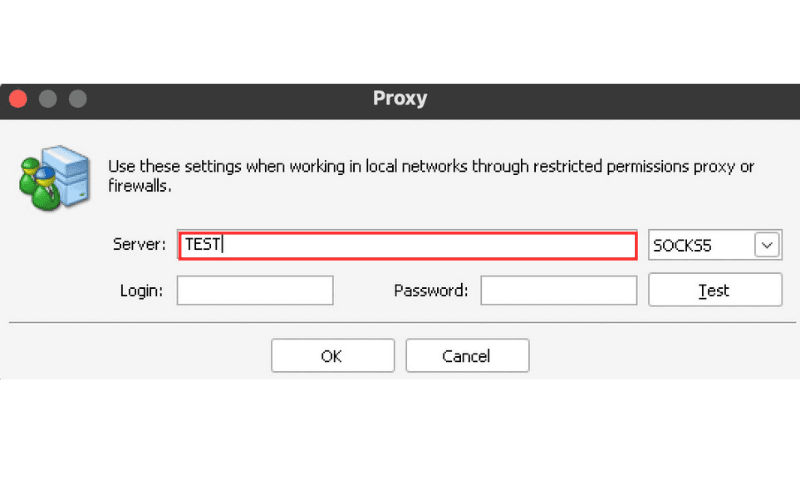
In the "Proxy" window, enter any letters or numbers (e.g. TEST) in the "Server" field and click "OK".
2. Set the Maximum Number of Bars
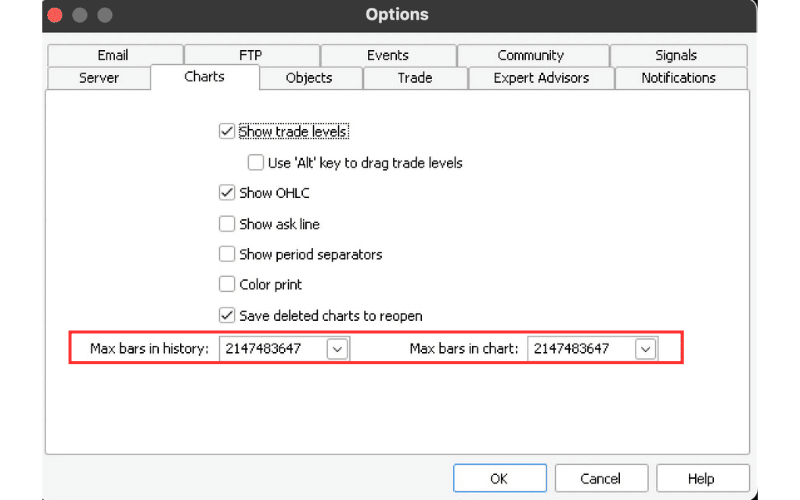
Open the "Charts" tab of the "Options" window, enter as many 9s as possible in "Max bars in history" and "Max bars in chart", and click "OK".
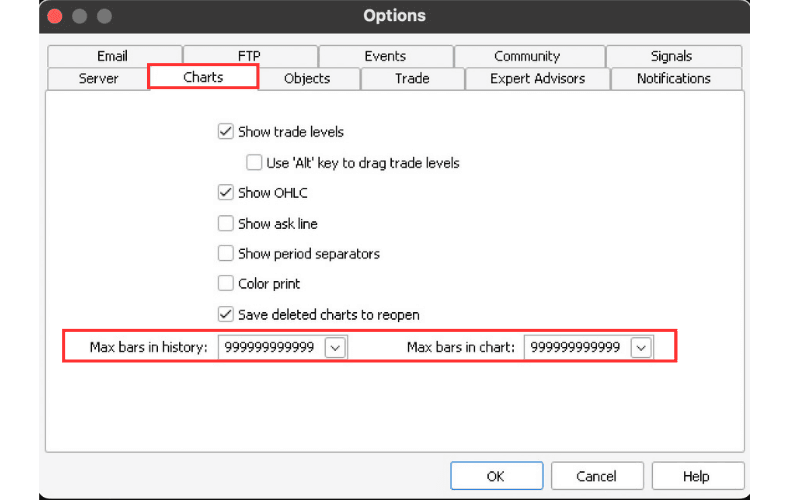
When you open the "Options" window again, both fields show the maximum value (2147483647).
Restart MT4. After the restart, MT4 does not connect to the server and receives no new prices.
3. Delete the Existing Historical Data
To keep the imported data from mixing with existing data, delete the historical data stored in MT4.
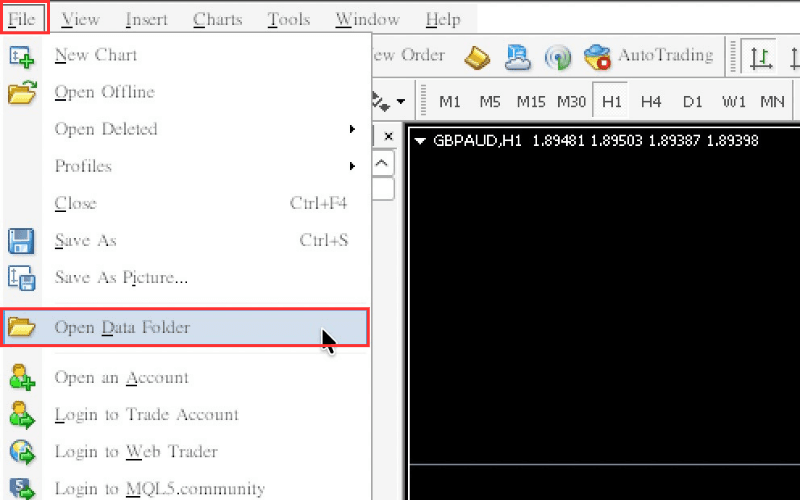
Click "File" and then "Open Data Folder" in the MT4 menu.
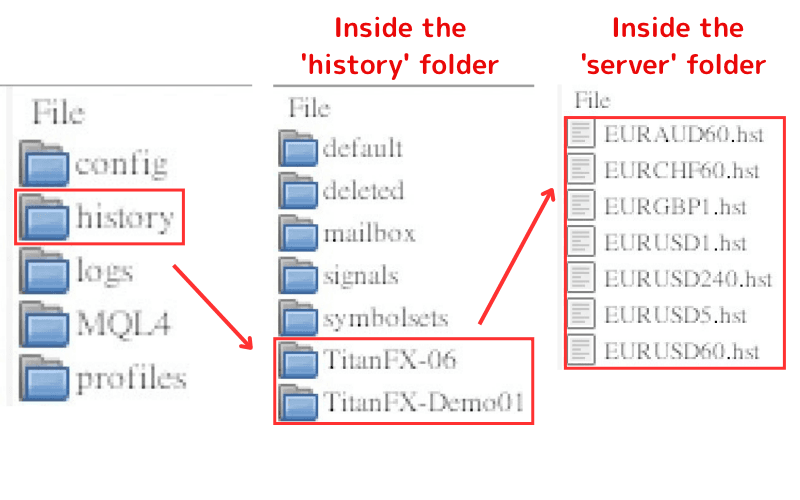
In the folder that opens, go to "history" and then the folder of the server you are logged in to (e.g. "TitanFX-06" or "TitanFX-Demo01"). Delete all files for the symbols you will import, named symbol + number + .hst (e.g. USDJPY240.hst).
When you are done, restart MT4 again.
4. Import the One-Minute Data
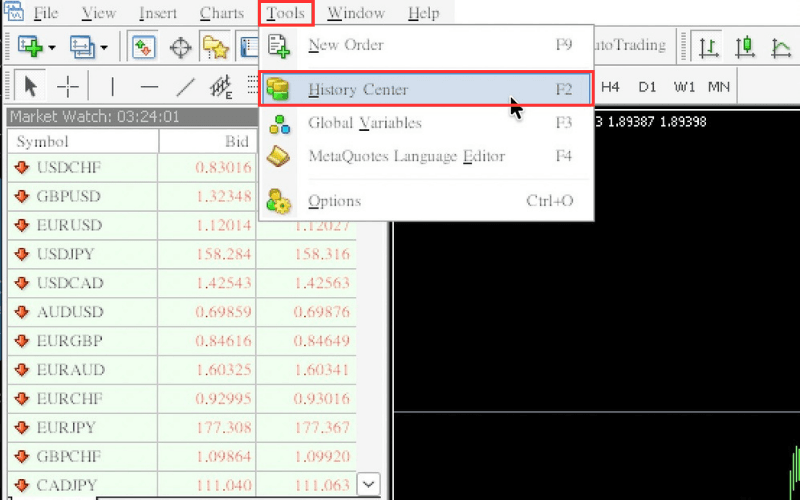
Click "Tools" and then "History Center" in the MT4 menu.
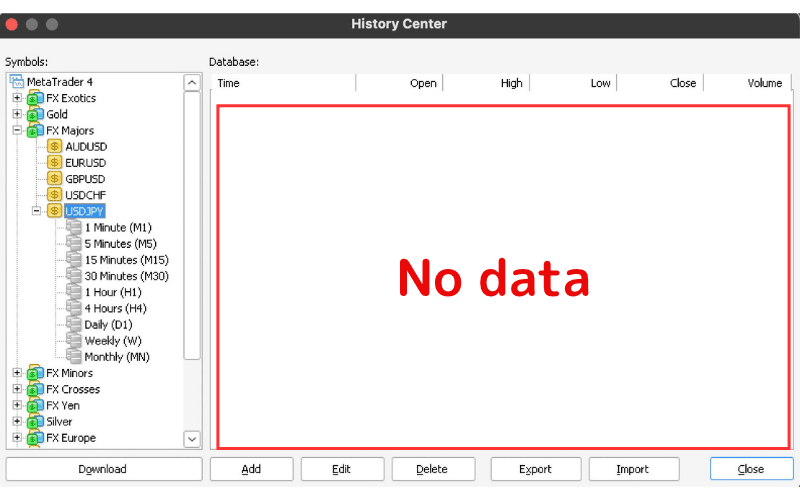
In the "Symbols" list on the left of the "History Center" window, select "1 Minute (M1)" under the symbol you want to import. Check that the "Database" on the right shows no data, then click "Import" at the bottom.
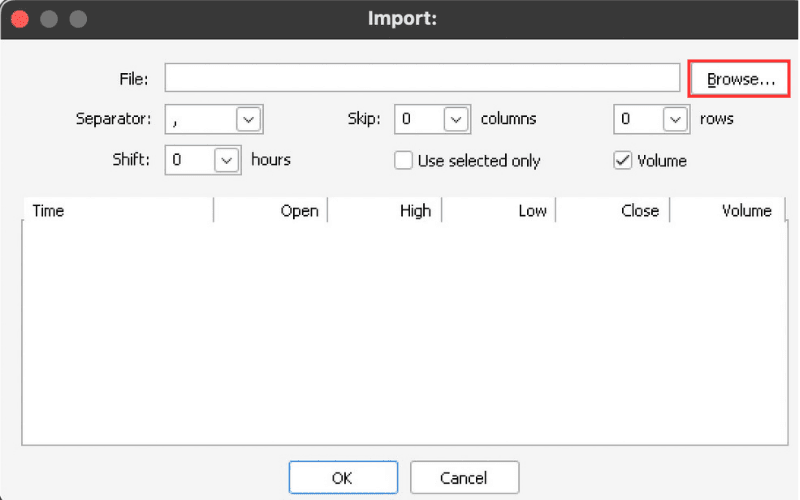
In the "Import" window, click "Browse..." to the right of "File" and choose the one-minute data file to import.
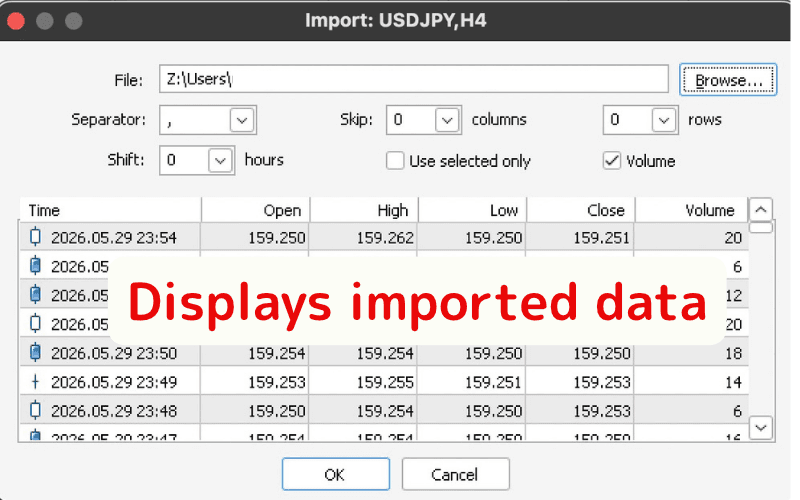
The data to be imported appears below. Check it and click "OK" to import.
Note: If you have several files, click "Import" in the "History Center" again and repeat the same steps.
When the import is finished, restart MT4.
Choosing Files on a Mac
The MT4 for Mac file picker shows Windows-style drives, and the files on your Mac are under the "Z:" drive, so the path in the "File" field starts with Z:\ (e.g. Z:\Users\...). If the historical data you downloaded is a compressed file, unzip it on your Mac first.
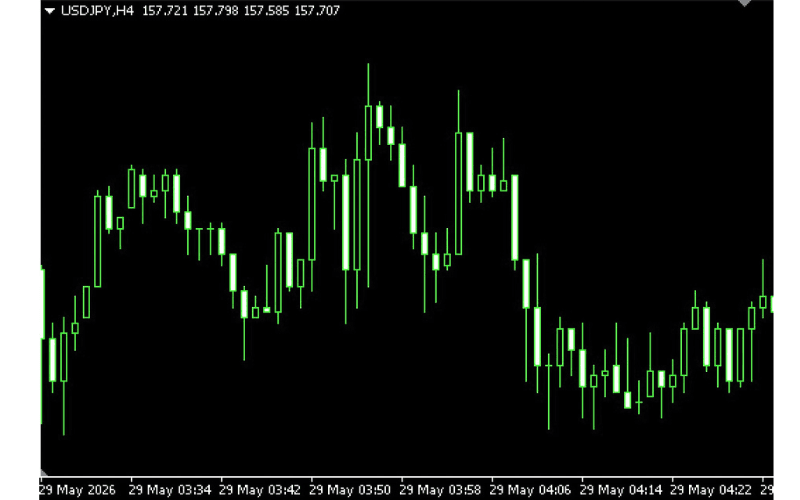
Open a chart for the imported symbol (see Displaying New and Reopening Closed Charts in MT4 (Mac)) and check that the data appears.
5. Create Data for Other Timeframes
Next, use the imported data to create data for other timeframes.
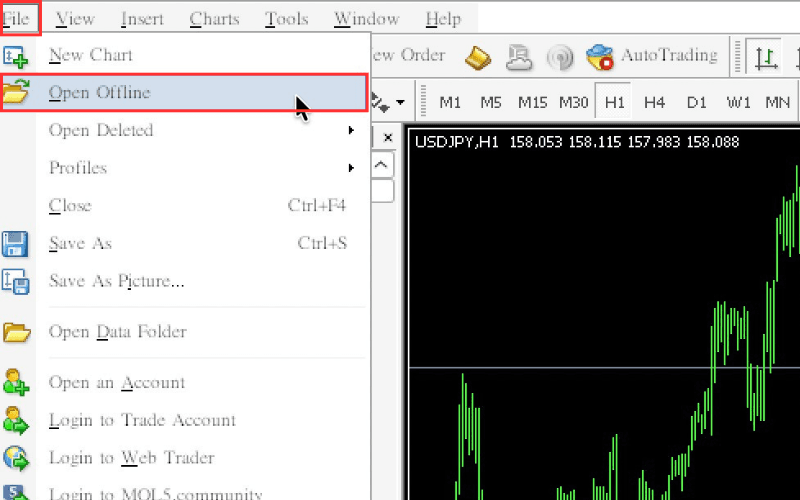
Click "File" and then "Open Offline" in the MT4 menu.
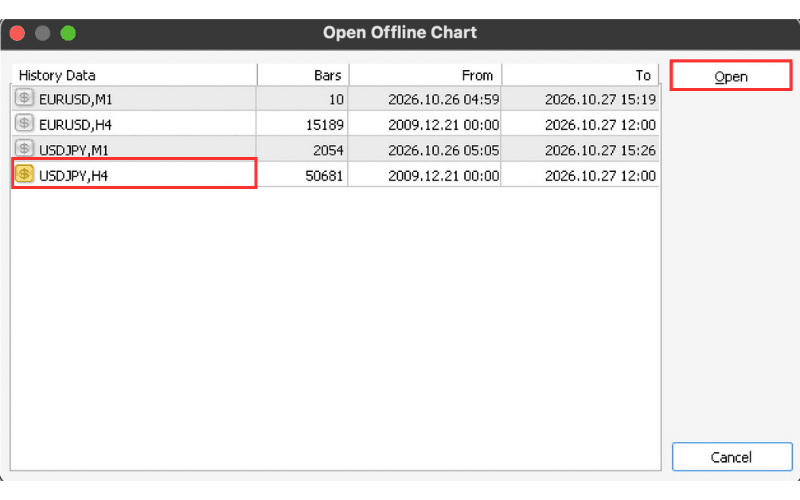
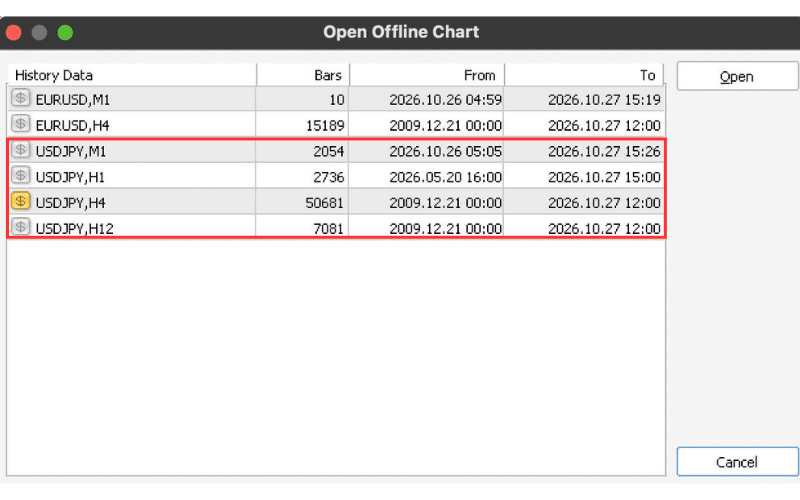
In the "Open Offline Chart" window, select the source data (e.g. the imported one-minute data "symbol,M1") and click "Open" on the right.
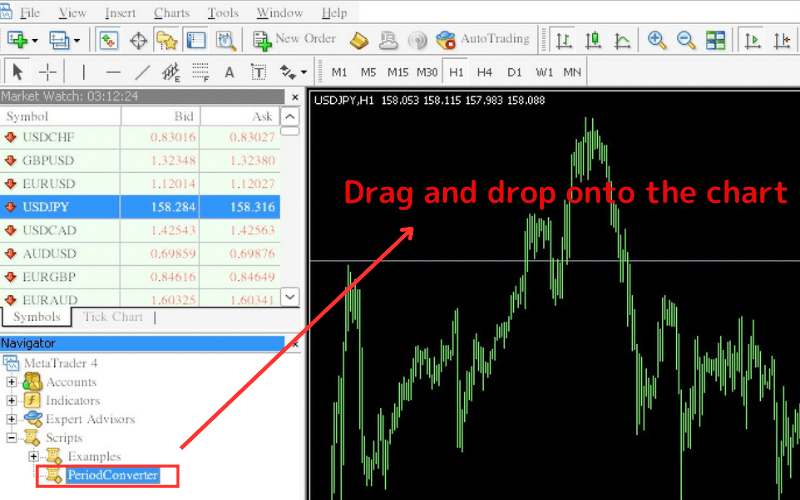
When the offline chart opens, drag "PeriodConverter" from "Scripts" in the "Navigator" and drop it onto the chart.
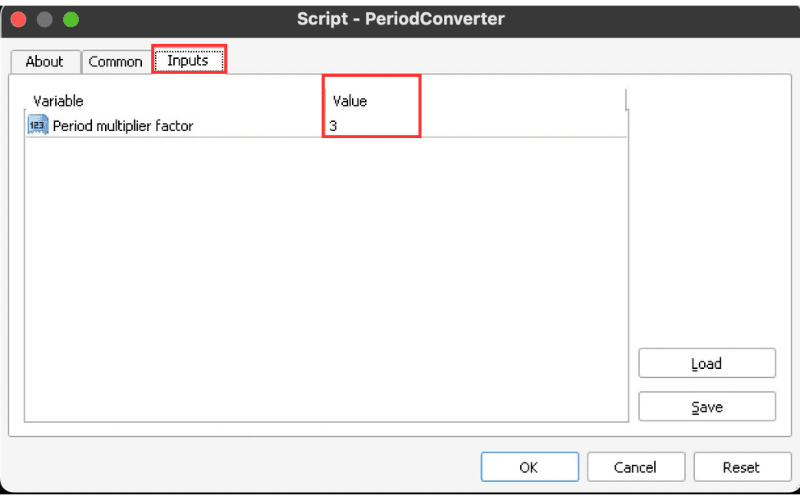
On the "Inputs" tab of the settings window, enter a multiplier in the "Value" of "Period multiplier factor" and click "OK" to create the data.
The multiplier is based on the timeframe of the open chart. On one-minute data, "5" creates five-minute data. For other timeframes, drop "PeriodConverter" again and enter 15 (15 minutes), 30 (30 minutes), 60 (1 hour), 240 (4 hours), 1440 (daily) and so on.
Note: From the second drop onward, MT4 asks whether to stop the running PeriodConverter and apply it again. Choose to continue.
Click "File" and "Open Offline" again to see the created data in the list of offline charts.
Once confirmed, close the offline chart. You can now show the new timeframes on a chart or use the data for backtesting.
- How to Download Chart Price Data as a CSV on MT4 (Mac)
- How to Display the Data Window in MT4 (Mac)
- How to Save Chart Images in MT4 (Mac)
- How to Import Historical Data into MT5 (Mac)
- How to Import Historical Data into MT4 (Windows)
- How to Download Historical Data: One-Minute Bar CSV, Account Type and Importing into MT4 and MT5