
 Home
Home- Investment Guide: Strategies for Stocks, Forex, and Metals
- Best Free MT4/MT5 Indicators: Top Picks by Trading Goal
Best Free MT4/MT5 Indicators: 15 Picks by Trading Goal and How to Install Them
MT4 comes with 30 built-in technical indicators and MT5 with 38, including moving averages, RSI, MACD and Bollinger Bands. If you want features they don't offer, such as checking the trend on several timeframes at once or drawing support and resistance automatically, you need custom indicators. Titan FX offers more than 90 MT4/MT5 custom indicators to its clients for free.
This guide picks 15 of these free Titan FX indicators that beginners can try first, grouped by what they help you do, and explains how to download and install them.
- MT4 has 30 built-in technical indicators and MT5 has 38. Custom indicators have to be downloaded and installed separately
- Before choosing an indicator, check what you need it for, where it appears on the chart, and how many indicators you already have on the chart
- This guide recommends three free Titan FX indicators for each of five goals: trend, entry and exit timing, support and resistance, volatility and ranges, and risk management, plus a table of more advanced options
- Titan FX custom indicators work only on the Windows versions of Titan FX's MT4/MT5
- Indicators are analysis tools and do not guarantee profits
- 1. Built-In vs. Custom Indicators on MT4/MT5
- 2. Three Things to Check Before Choosing an Indicator
- 3. Best Indicators for Identifying the Trend
- 4. Best Indicators for Entry and Exit Timing
- 5. Best Indicators for Support and Resistance
- 6. Best Indicators for Volatility and Ranges
- 7. Risk Management and Trading Utility Tools
- 8. How to Download and Install Titan FX Custom Indicators
- 9. MT4/MT5 Indicators FAQ
- 10. Conclusion
1. Built-In vs. Custom Indicators on MT4/MT5
MetaTrader indicators come in two kinds:
-
Built-in indicators: Available as soon as you install MT4/MT5, such as moving averages, RSI, MACD and Bollinger Bands. According to MetaQuotes, MT4 has 30 built-in technical indicators and MT5 has 38
-
Custom indicators: Indicators written in the MQL4 or MQL5 programming language. You download them separately and place them in an MT4/MT5 folder before you can add them to a chart
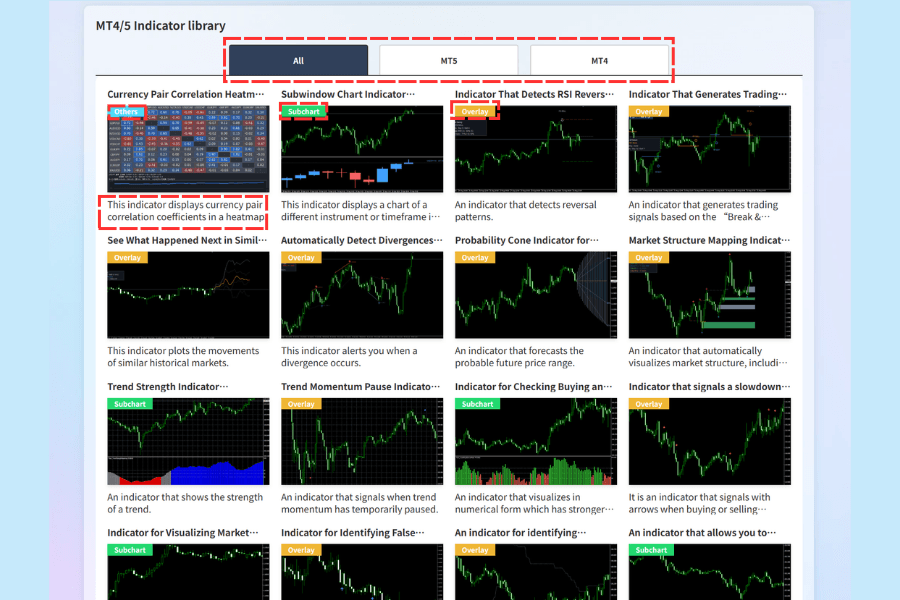
The Titan FX "MT4/5 Indicator library" lists more than 90 custom indicators. Each one has a description of its features and settings, and every indicator comes in both an MT4 version and an MT5 version, so all the indicators in this guide work on both platforms.
Browse the MT4/5 Indicator library2. Three Things to Check Before Choosing an Indicator
A single chart can only show so much clearly. Before you pick an indicator, check these three things.
What it's for: read the name and description
In the indicator library, each indicator has a name and a one-line description, such as "Indicator to Determine Volatility Condition." Decide what you want to do first, such as identifying the trend or calculating risk, then look for a matching name and description.
Where it appears: check the "Overlay" and "Subchart" labels
Each indicator has a label showing where it appears:
-
Overlay: Drawn directly on the candlesticks, like a moving average
-
Subchart: Shown in a separate window below the main chart, like RSI
-
Others: Utilities such as switching instruments or showing the time
The "MT5" and "MT4" buttons at the top of the page filter the list by platform.
How many you use: check the Indicator List
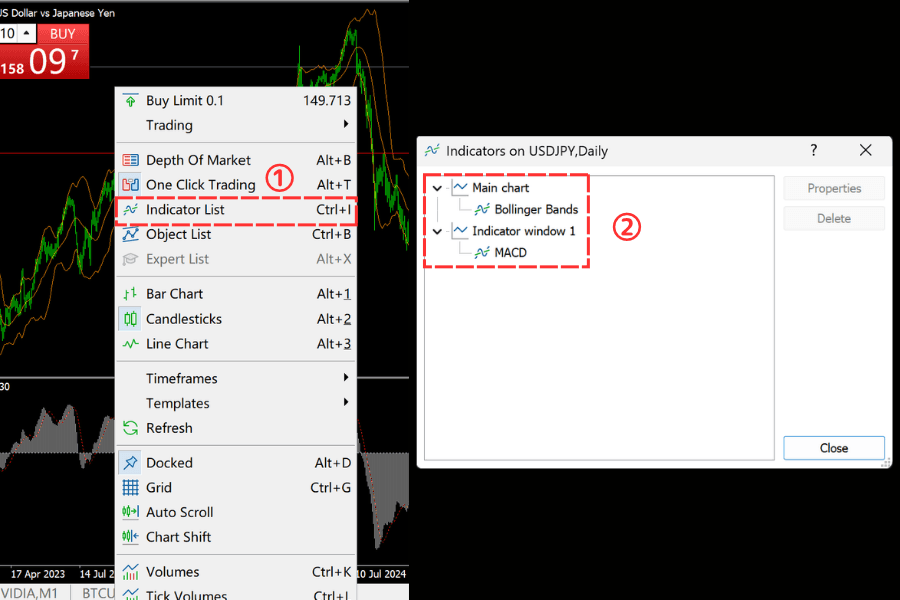
On MT5, right-click the chart and select "Indicator List" to see every indicator on that chart. To remove one, select it and click "Delete." MT4 has the same feature: right-click the chart and select "Indicators List," or press Ctrl+I. Indicators with the same purpose usually work from the same price data, so stacking several of them just repeats the same signal. Start with one indicator for each purpose.
3. Best Indicators for Identifying the Trend
The trend direction is the starting point for most trading strategies. These three indicators help you check the current trend:
-
Titan_Multi_MA: Shows moving averages from a higher timeframe on your current chart, for example the daily moving average on a 1-hour chart
-
Titan_Multi-Time_Trend_Panel: Shows the trend on several timeframes in one panel, so you don't have to switch charts
-
Titan_DMI_Monitor: Uses DMI values to show trend strength on each timeframe as a heatmap
Once you are comfortable with these three, you can try these more advanced indicators:
| Indicator | What it does |
|---|---|
| Titan_GMMA | Shows 12 moving averages with different periods, so you can read the trend from how the short- and long-term lines line up |
| Titan_mtf_candle | Overlays candlesticks from a higher timeframe on your current chart |
| Titan_RegimeDetector_Hybrid | Uses ADX values to show whether the market is trending |
4. Best Indicators for Entry and Exit Timing
Once you know the trend direction, these three indicators help you look for entry and exit points:
-
Titan_Multi_RSI: Shows RSI for your current timeframe and a higher one, so you can check overbought and oversold conditions on both
-
Titan_MACD_Divergence: Automatically finds places where price and MACD move in different directions, known as divergence
-
Titan_Pinbar: Marks pin bars, candlesticks with an unusually long wick, on the chart
Once you are comfortable with these three, you can try these more advanced indicators:
| Indicator | What it does |
|---|---|
| Titan_RSI_Bands | Uses changes in RSI to help you see when a trend may be turning |
| Titan_InsideAndEngulfingPattern | Automatically finds inside bars and engulfing patterns |
| Titan_MomentumFadeSignal | Shows an arrow when buying or selling momentum weakens |
5. Best Indicators for Support and Resistance
Support and resistance levels are often used to set entry prices, stop-losses and profit targets. These three indicators draw reference levels automatically:
-
Titan_Support_Resistance: Calculates support and resistance from fractals and marks them on the chart as dots
-
Titan_auto_fibonacci: Draws Fibonacci retracement levels automatically, so you don't have to find the high and low yourself
-
Titan_pivot: Shows pivot point levels on the chart, which are popular with day traders
Once you are comfortable with these three, you can try these more advanced indicators:
| Indicator | What it does |
|---|---|
| Titan_SR_line | Draws horizontal lines at levels that may act as support or resistance |
| Titan_StructureMapper | Automatically marks market structure, including BOS (break of structure), CHoCH (change of character) and order blocks |
| Titan_LiquiditySweepDetector | Marks moves where price briefly breaks a key level and then reverses, which may be false breakouts |
6. Best Indicators for Volatility and Ranges
Sometimes the market trends clearly, and sometimes it moves back and forth in a range. These three indicators help you judge the current level of volatility:
-
Titan_Volatility_Meter_ATR_Light: Uses ATR to show current volatility at one of three levels
-
Titan_BB_width: Shows the width of the Bollinger Bands in a subchart. A narrowing width means volatility is shrinking, and a widening one means it is growing
-
Titan_Range_Rebound: Helps you see where price may bounce within a range
Once you are comfortable with these three, you can try these more advanced indicators:
| Indicator | What it does |
|---|---|
| Titan_Trend_Compression_Index | Shows whether the market is compressing or expanding |
| Titan_Probability_Cone | Uses probability to estimate the range where future prices may fall |
7. Risk Management and Trading Utility Tools
These three tools are not for analyzing the market. They help you manage risk and place orders:
-
Titan_RR_Assist: Shows the risk-reward ratio between your entry price, stop-loss and profit target on the chart
-
Lot size calculator and order tool: Enter the loss you can accept and your stop-loss level, and it calculates the order size and places a market order
-
Titan_Candle_Countdown: Shows how much time is left before the current candlestick closes
Once you are comfortable with these three, you can try these tools:
| Indicator | What it does |
|---|---|
| Titan_Chart_time | Shows local time below the chart, so you don't have to convert server time yourself |
| Titan_pl_level | Shows the price levels that match your expected loss and expected profit |
| Titan_ChangeSymbolTimeframe | Lets you switch the chart's timeframe and instrument quickly from the keyboard |
8. How to Download and Install Titan FX Custom Indicators
Titan FX custom indicators are free, but they work only on the Windows versions of Titan FX's MT4/MT5. On MT5, the steps are:
-
① Download the indicator: On the indicator's page, agree to the terms of use and download the MT5 version
-
② Open the folder: In MT5, select "Open Data Folder" from the "File" menu, then open the "Indicators" folder inside the "MQL5" folder
-
③ Copy the file and restart: Copy the indicator file into the "Indicators" folder and restart MT5
-
④ Add it to a chart: Find the new indicator under "Indicators" in the Navigator window, double-click it or drag it onto the chart, set the parameters and click "OK"
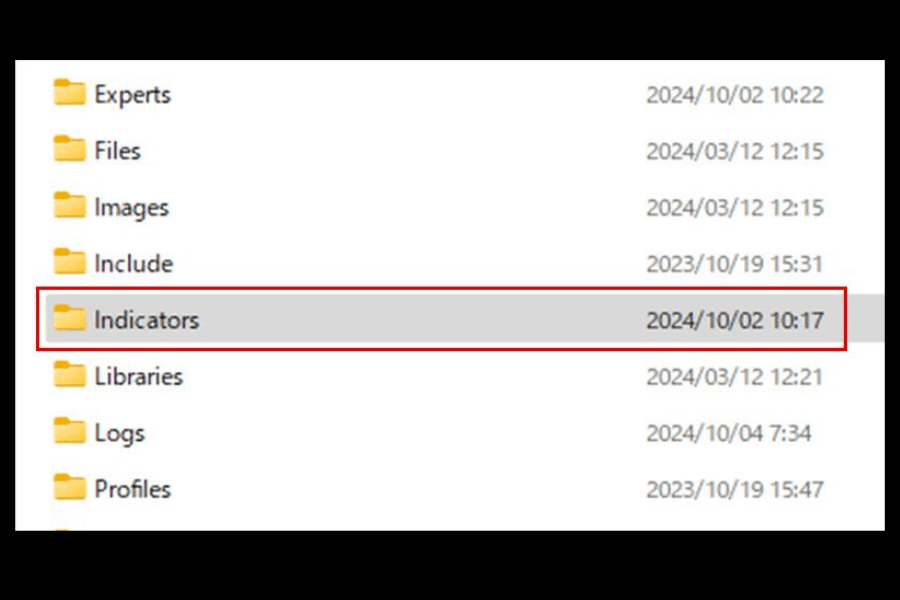
The steps for MT4 are the same, except that the folder is "Indicators" inside "MQL4." For screenshots of each step, see Installing Custom Indicators in MT5 and Installing Custom Indicators in MT4.
9. MT4/MT5 Indicators FAQ
Q1. Are Titan FX custom indicators free?
Yes. Agree to the terms of use on an indicator's page, and you can download the MT4 or MT5 version for free. The indicators work only on the Windows versions of Titan FX's MT4/MT5.
Q2. Can I use them on Mac or on mobile MT5?
No. The indicator pages state that these custom indicators work only on the Windows versions of Titan FX's MT4/MT5.
Q3. Can I use an MT4 indicator on MT5?
No. MT4 and MT5 indicator files are not interchangeable. Titan FX provides separate MT4 and MT5 versions of each custom indicator, so download the one that matches your platform.
Q4. Will indicators improve my win rate?
Not necessarily. Indicators are tools that help you read the market, and they cannot guarantee profits. The terms of use also state that the data indicators display does not guarantee investment results. Before using an indicator for real, test it on a demo account in different market conditions.
10. Conclusion
MT4 and MT5 come with dozens of built-in technical indicators, and custom indicators add features the built-in ones lack. When choosing, decide what you need first, check where the indicator appears, and start with one indicator for each purpose.
The 15 indicators in this guide are free to download from Titan FX, but they work only on the Windows versions of Titan FX's MT4/MT5.
Further Reading
- Technical Analysis: A Complete Guide
- How to Choose Moving Average Periods
- How to Read the EA Ranking
The financial markets research team at Titan FX. We produce educational content for investors across a broad range of instruments, including foreign exchange, commodities such as crude oil, precious metals and agricultural products, equity indices, US stocks and digital assets.
Primary Sources (by Category)
- Platform documentation: MetaQuotes MetaTrader 4/5 help (number of built-in technical indicators, custom indicators)
- Titan FX materials: MT4/5 Indicator library and individual indicator pages, indicator terms of use, guides to installing custom indicators and setting up indicators on MT4/MT5